Winbooks Classic - Installation Guide
Last updated: February 10, 2026
Important: This connector must be installed on the server where Winbooks is running. Installing it on your local computer will not work. If you're not sure whether you have the right access, contact your IT administrator before starting.
Before You Start - Critical Requirements for the service to work
Check these requirements BEFORE beginning the installation. Missing any of these will cause the installation to fail.
✅ Installation Checklist
Winbooks version 7 or higher is installed
You have administrator access to the server where Winbooks is installed
The server is always online with internet access (24/7)
.NET Framework 4.8 is installed on the server (Download here if needed)
You know your Winbooks username and password
If using a network drive: You know the network path (more explanations below)
Understanding Network Drives vs. Local Drives
This is the most common source of installation problems. Please read carefully.
What is the difference?
Local Drive:
Looks like:
C:\\WinbooksorD:\\Data\\WinbooksThe files are stored directly on the server where you're installing
Network Drive:
Looks like:
P:\\orZ:\\Shared\\WinbooksThe files are stored on a different server and accessed over the network
How to check if you're using a network drive
Open Windows Explorer
Look at your Winbooks folder location
If the drive letter is anything other than C: or D:, you're probably using a network drive
What you need for your network drives
If you're using a network drive, you need to find the UNC path. This is the "real" network address.
Example:
What you see:
P:\WinbooksUNC path:
\\ServerName\SharedFolder\Winbooks
How to find your UNC path:
Right-click on the network drive in Windows Explorer
Look at the properties or hover over the drive
You should see something like
\\server-name\folder-nameWrite this down - you'll need it later
💡 Not sure how to find it? Ask your IT administrator for the "UNC path to the Winbooks folder"
Part 1: Gather Required Information
Before starting the installation, collect this information from your Winbooks account:
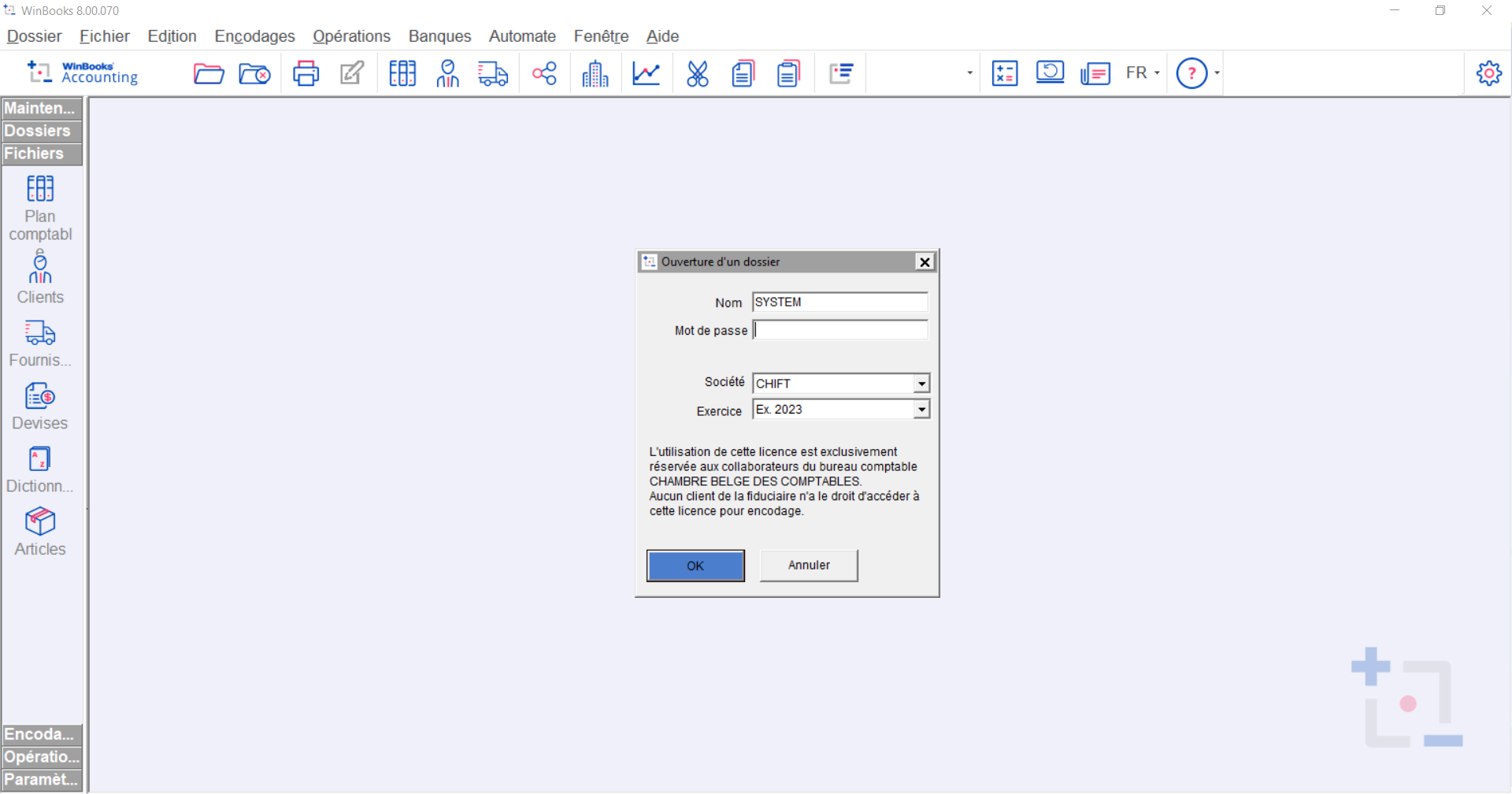
Step 1: Find Your Accounting Folder Code
Log into your Winbooks account
Look for your folder code (usually visible in the interface)
Write it down - Example:
DEMO01orCOMP2024
Step 2: Select Your Analytics Plan
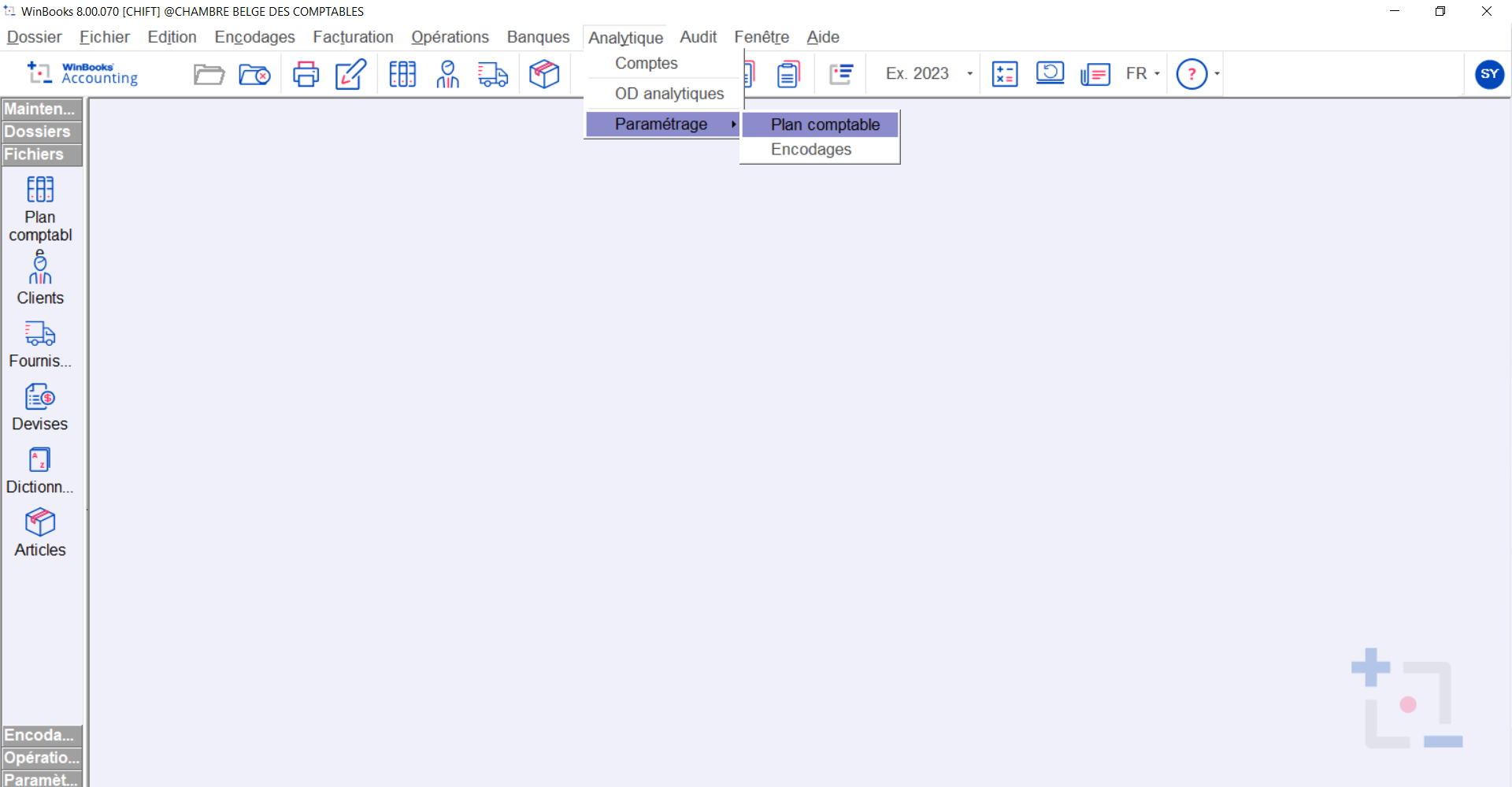
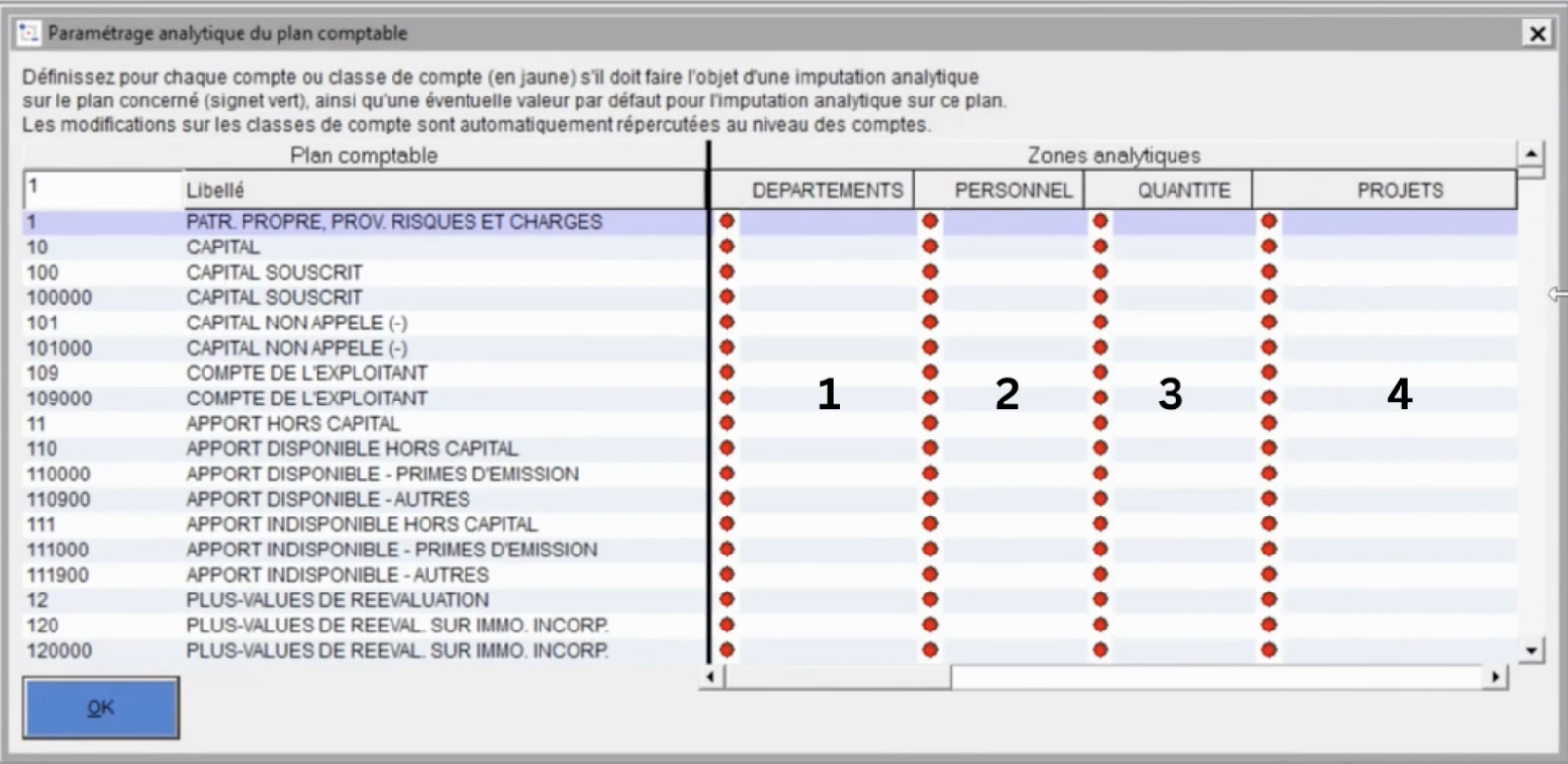
In Winbooks, go to: Analytics tab → Parameters → Accounting Plan
Note which analytics plan you want to use by default
Write down the number that matches with the accounting plan that you want to use in the connexion
Step 3: Find Your Winbooks Installation Path
This is where your Winbooks software files are stored.
Open Windows Explorer on the server
Search for the file:
Winbooks.iniOnce found, copy the full path to the folder containing this file
Examples:
Local drive:
C:\WinbooksNetwork drive UNC path:
\\ServerName\Winbooks
⚠ IMPORTANT:
If your path starts with a letter like
P:\orZ:\, you MUST convert it to a UNC pathIf you're not sure, use the UNC path format to be safe
✅ Checkpoint: You should now have:
Your folder code
Your analytic plan
The full path to Winbooks (UNC format if on network)
Part 2: Create the Connection
Step 1: Name Your Connection
Go to the connector setup page
Enter a descriptive name for this connection
Example: "Main Office Winbooks" or "Company Accounting"
Step 2: Enter Configuration Details
Analytics Plan: Select the plan you noted earlier
Winbooks Path: Enter the full path you found in Part 1, Step 3
✅ Correct:
C:\Winbooksor\\ServerName\Winbooks❌ Wrong:
P:\Winbooks(if P: is a network drive)
Step 3: Download the Connector
Click the Download button
A ZIP file will download
Important: Transfer this ZIP file to the server where Winbooks is installed
If you're already on that server, proceed to Step 4
If not, copy the file using Remote Desktop, network share, or USB drive before going to Step 4
Step 4: Enter Your Folder Code
Enter the accounting folder code you noted in Part 1, Step 1
Double-check it matches exactly (case-sensitive)
Step 5: Submit
Click Submit to complete the connection setup.
✅ Checkpoint: Connection created. ZIP file downloaded and on the Winbooks server.
Part 3: Install the Windows Service
⚠ This must be done ON THE SERVER where Winbooks is installed, not on your local computer
⚠ Do not start Part 3 if you have not performed all steps described in Part 2
Here is a short video showing showing every actions from step 1 to step 3:
Step 1: Extract the ZIP File
Locate the ZIP file you downloaded
Right-click → Extract All
Choose a location on the server (Desktop is fine for now)
Step 2: Run the Installer
Open the extracted folder
Find the file:
WinbooksServiceSetup.exeRight-click on it → Run as Administrator
Follow the installation wizard
During installation, you'll see a prompt to install VFPOLEDB. This is required for the service to work properly.
Step 3: Install VFPOLEDB (Critical!)
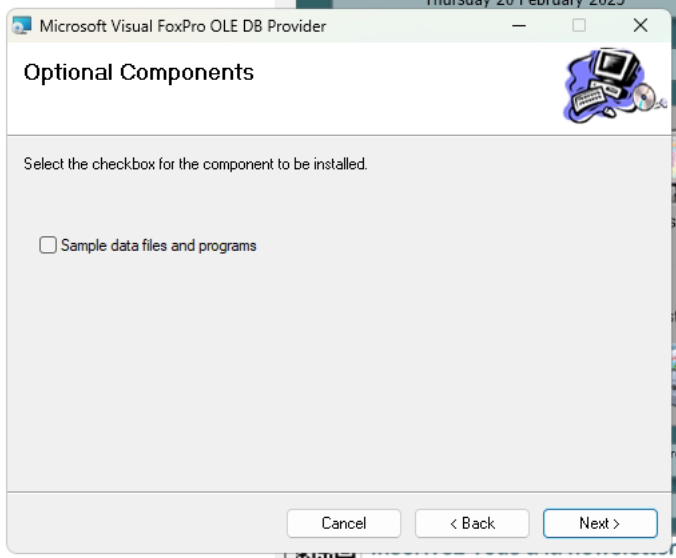
The installer will automatically launch VFPOLEDB setup. This is required for the service to work.
⚠ IMPORTANT - Follow these settings exactly:
Do not check "Sample data files and programs" (DO NOT install sample data)
Select "Everyone" (NOT "Just me" selected by default)
This is critical - the service runs as a system user and needs access for everyone
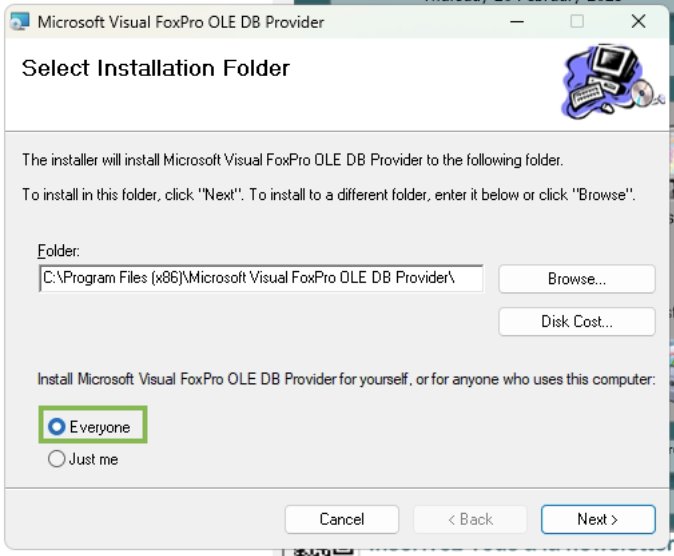
Click Install
Wait for completion
✅ Checkpoint:
VFPOLEDB installed
"Sample data" was NOT checked
"Everyone" option WAS selected
Step 4: Verify Service Installation
Press
Windows Key + RType:
services.mscand press EnterLook for WinbooksService in the list
It should show "Status: Running"
If the service is not running:
Right-click → Start
If it fails to start, proceed to Part 4 (Troubleshooting)
Part 4: Configure for Network Drives (If Applicable)
Skip this section if Winbooks is installed on a local drive (C:\ or D:\)
If your Winbooks files are on a network drive, you need to complete these additional steps:
Step 1: Update Settings File
Navigate to:
C:\Program Files (x86)\WinbooksService\Find and open:
settings.json(use Notepad)Look for these lines:
json
"toReplace": null, "replaceWith": null
Update them with your network drive information:
Example: If your network drive is P:\ and the UNC path is \\ServerName\WinbooksData, change to:
json
"toReplace": "P:\\", "replaceWith": "\\\\ServerName\\WinbooksData"
⚠ Note the double backslashes: In JSON files, each \\ must be typed as \\\\
It is VERY important to make sure those backslashes are doubled
Then save the file to make sure those changes are applied by the service.
Step 2: Configure Service User Account
Why this matters: The service runs under a Windows user account. That account needs permission to access both Winbooks and the network drive.
Press
Windows Key + RType:
services.mscand press EnterFind WinbooksService
Right-click → Properties
Go to the "Log On" tab
Select "This account"
Click Browse and select a user account that has:
Access to the Winbooks folder
Access to the network drive
Ideally, this should be a service account or administrator account
Enter the password for this account
Click OK
Step 3: Restart the Service
Still in services.msc, find WinbooksService
Right-click → Restart
Verify it starts successfully (Status: Running)
✅ Checkpoint:
settings.json updated with correct paths (if applicable)
Service account configured with network access
Service restarted successfully
Part 5: Test the Connection
Go back to the connector web interface
Look for your connection status
You should see a green indicator showing the connection is active
If you see an error, proceed to the Troubleshooting section below.
Troubleshooting Common Issues
The service creates detailed logs that can help identify problems:
Navigate to:
C:\Program Files (x86)\WinbooksService\Log\The name of this folder in your C drive can slightly differ based on your server, on the version of windows you are using, on the language configured on your computer, ...
Open
log.htmlin your web browserScroll to the bottom (most recent entries)
Look for error messages in red
If the log file doesn't exist:
The service hasn't processed any requests yet
Try triggering a sync from the web interface
Make sure that the user running the service has the permissions to write in the folder you just navigated to
Wait a few minutes and check again
Issue: "The given company does not exist"
What this means: The service cannot find your accounting folder.
Solutions to try (in order):
Solution 1: Verify the Path
Check the path you entered in the connection form
Navigate to that path in Windows Explorer
Confirm the
Winbooks.inifile exists there
If the path doesn't exist or you can't access it or it does not contain the Winbooks.ini file:
You may have entered a local path (like
P:\) instead of a UNC pathGo back to the connection form and update to the UNC path
Example: Change
P:\Winbooksto\\ServerName\SharedFolder\Winbooks
Solution 2: Check Winbooks.ini File
Open
Winbooks.iniin NotepadLook for a line starting with
UsersPath=Check that this path exists and is accessible
If UsersPath is missing or empty:
This often happens when the connector is installed on a proxy server instead of the main Winbooks server
The connector MUST be installed on the same server where Winbooks is running
Solution 3: Verify Users.dbf File
Navigate to the folder specified in
UsersPathCheck for a file called
Users.dbfThis file contains your list of accounting folders
To check if your folder code exists:
The service creates a temporary decrypted version at:
C:\Program Files (x86)\WinbooksService\tmp\This file only appears when the service is running and processing a request
Contact support if you need help verifying your folder code is in this file
Solution 4: Check User Permissions
The Windows user account running the service must have:
Read access to all Winbooks folders
Read access to any network drives
Write access to the service log folder
To verify:
Check which user is running the service (services.msc → Properties → Log On tab)
Log in as that user (or have IT verify)
Try to access the Winbooks folders manually
If access is denied, update the service account (see Part 4, Step 2)
Issue: VFPOLEDB Errors
If you see errors related to VFPOLEDB, the database driver may not be installed correctly.
Solution: Reinstall VFPOLEDB
Navigate to:
C:\\Program Files (x86)\\WinbooksService\\Find:
VFPOLEDBSetup.exeFirst, uninstall the existing version:
Right-click → Run as Administrator
Select Uninstall
Complete the uninstallation
Then reinstall:
Run
VFPOLEDBSetup.exeagain as AdministratorUncheck "Sample data files and programs"
Select "Everyone" (critical!)
Complete installation
Restart the WinbooksService:
services.msc → Right-click WinbooksService → Restart
Issue: Service Won't Start
Open Event Viewer (search "Event Viewer" in Windows)
Go to: Windows Logs → Application
Look for errors from "WinbooksService"
The error message will indicate what's wrong
Common causes:
Missing .NET Framework 4.8
VFPOLEDB not installed correctly
User account doesn't have necessary permissions
Network path not accessible
Quick Reference: Installation Summary
✅ Verify all prerequisites (Part 1)
✅ Gather folder code, analytics plan, and Winbooks path
✅ Create connection in web interface
✅ Download ZIP file to Winbooks server
✅ Install service (Run as Administrator)
✅ Install VFPOLEDB (Uncheck samples, select Everyone)
✅ If using network drives: Update settings.json and service account
✅ Restart service
✅ Test connection
Appendix: Understanding UNC Paths
What is a UNC path? UNC stands for "Universal Naming Convention" - it's the standard way to specify network locations in Windows.
Format: \\ServerName\ShareName\FolderPath
Example conversions:
What you seeUNC Path | |
|
|
|
|
|
|
Why UNC paths matter:
Windows services (like WinbooksService) run in a different context than your user account
They don't automatically see mapped drives (P:, Z:, etc.)
They need the full network address (UNC path) to find network files
How to find a UNC path:
Open Windows Explorer
Right-click on the network drive
Select "Properties"
Look for "Location" or "Target" - this shows the UNC path