ACD
Last updated: July 14, 2026
Prerequisites
User account of type Collaborateur (staff member) — unless your firm has enabled secured API access (Administration → i-Suite Expert Tools → API Access Management → "Secure API access" = Yes), in which case a dedicated API user account (linked to the #ACD_API# functional security role) is required instead — a regular staff account will not be able to connect via the API in that case. Check with your ACD administrator which one applies to your folder. Link to ACD's documentation.
ACD version 23 or higher
i-Suite Expert client status
4 preparation steps to complete beforehand (see below)
Preparation Steps
Step 1: Retrieve Connection Details
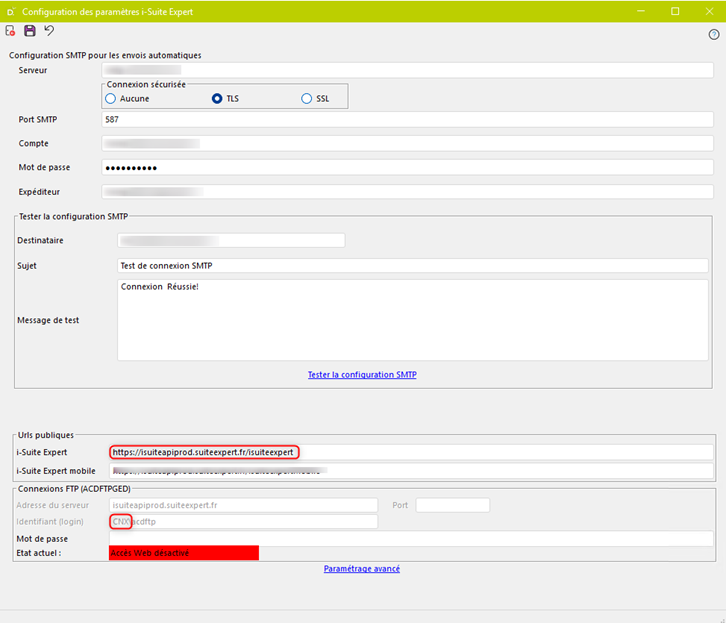
In the DIA software, go to Administration → i-Suite Expert Tools → "i-Suite Expert Settings Configuration" to obtain the i-Suite Expert URL and connection reference (CNX).
Step 2: Verify Analytical Accounting
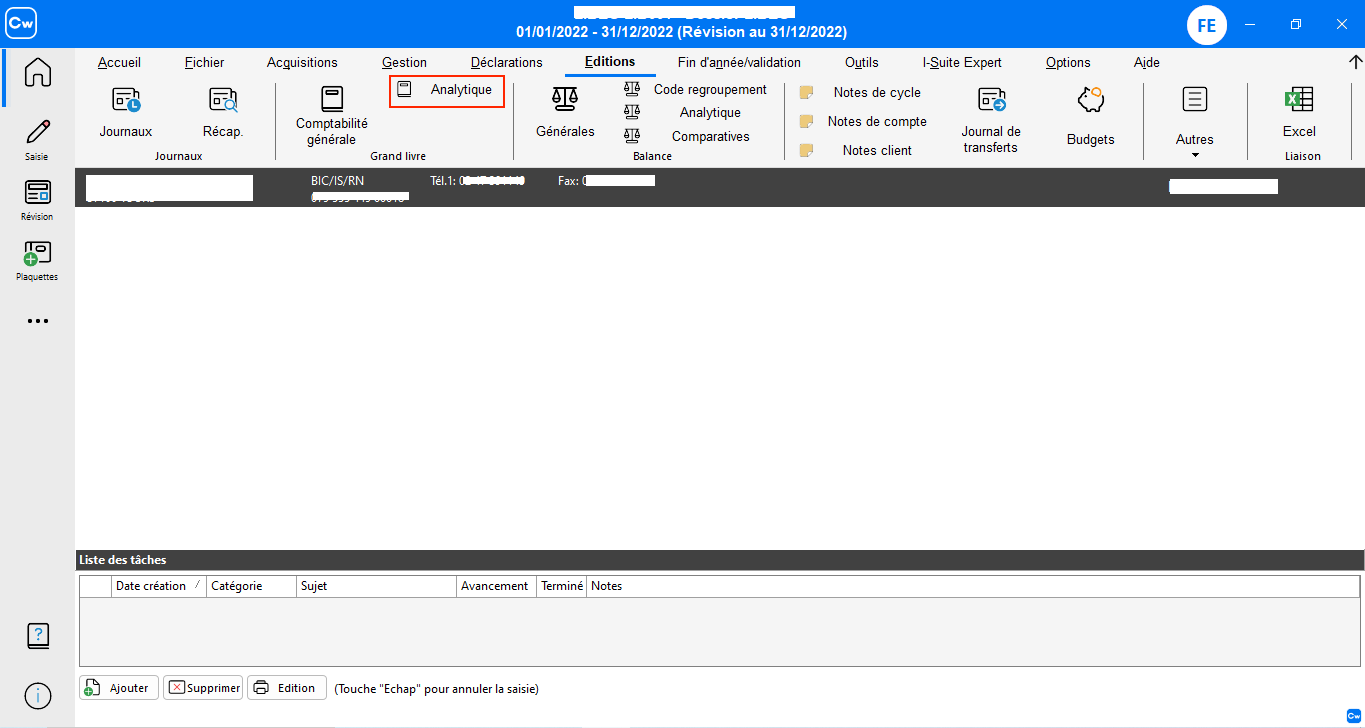
In Comptabilité Expert, "Editions" tab, check whether analytical accounting is activated for the relevant folder (dossier). You'll need this information at step 5 of the connection process.
Step 3: Check Schedule Management
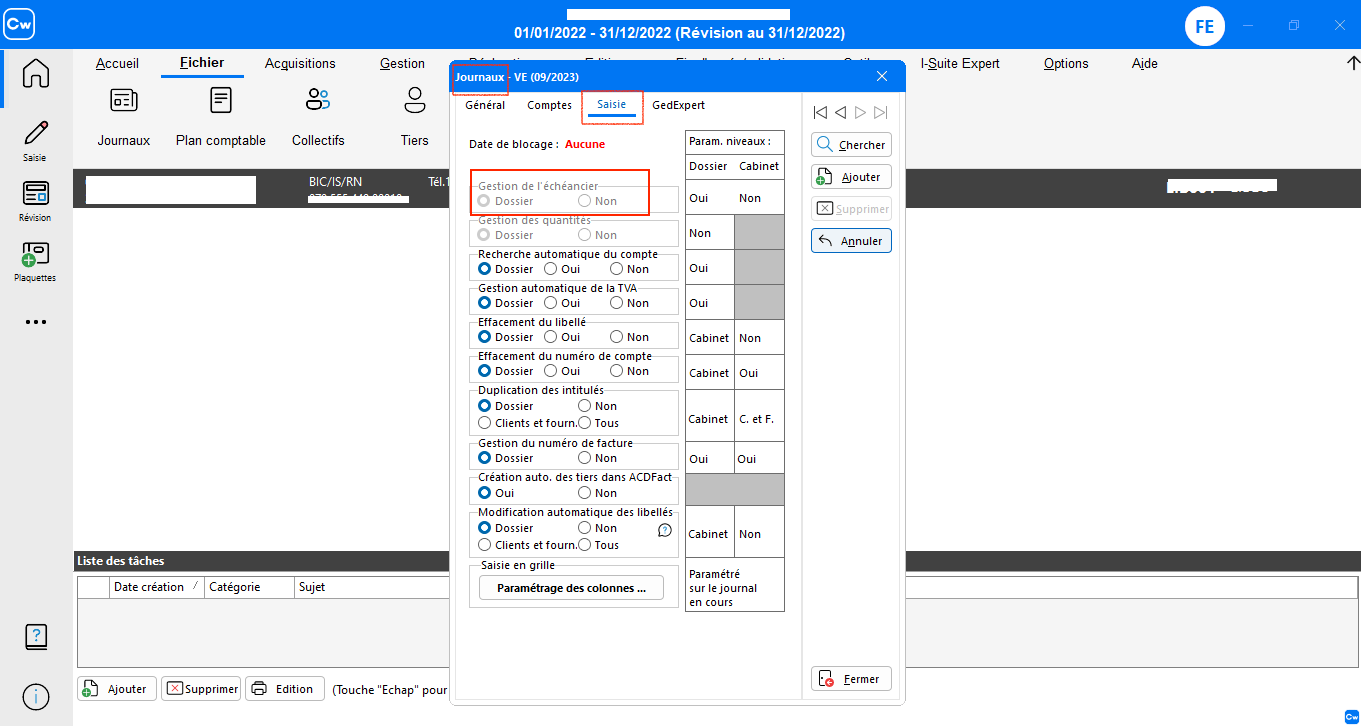
In Comptabilité Expert, "Fichiers" tab, check whether schedule management (échéancier) is configured.
Step 4: Configure Folder Sharing
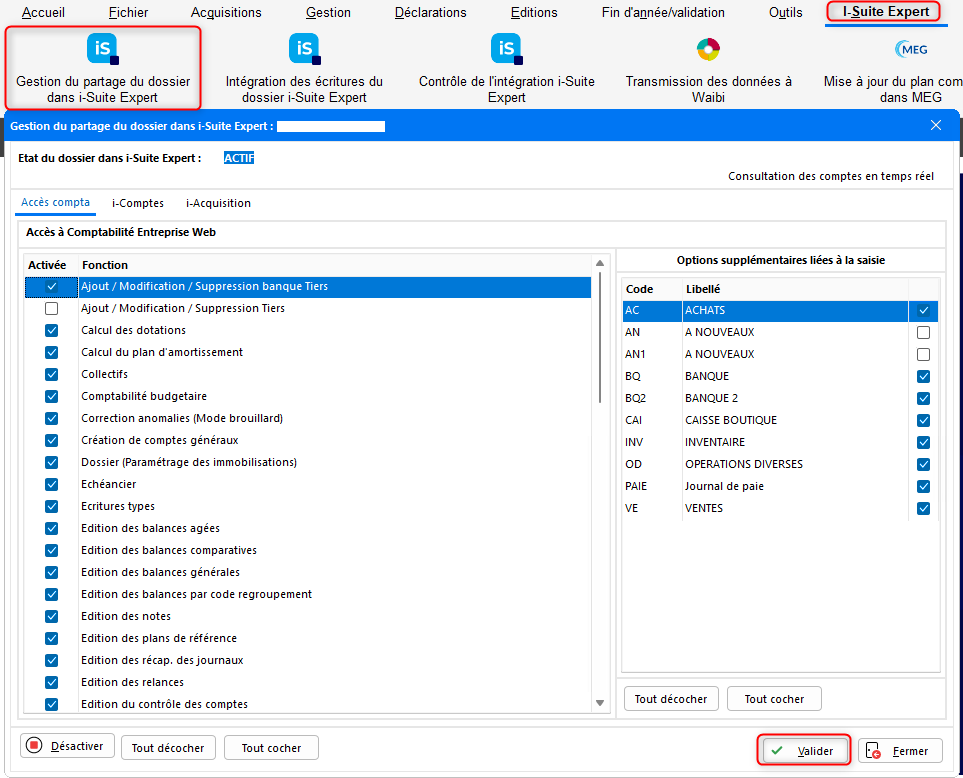
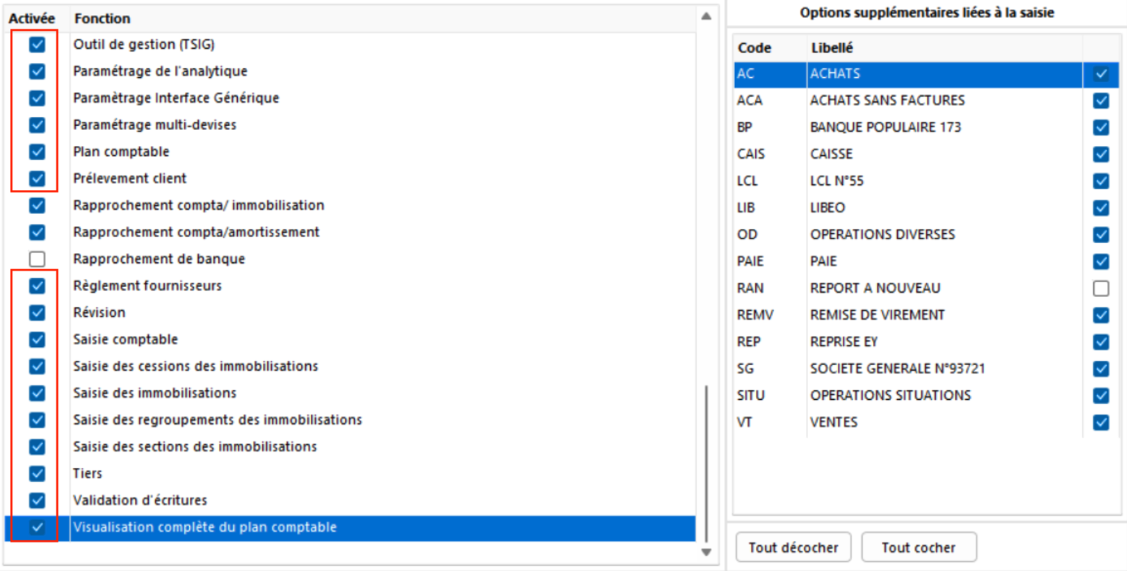
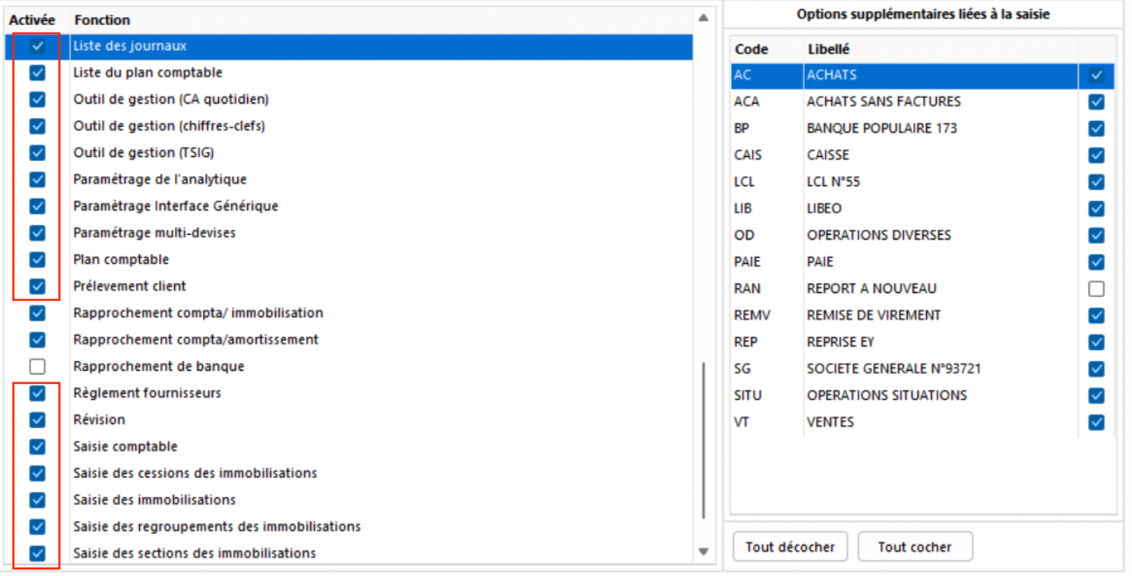
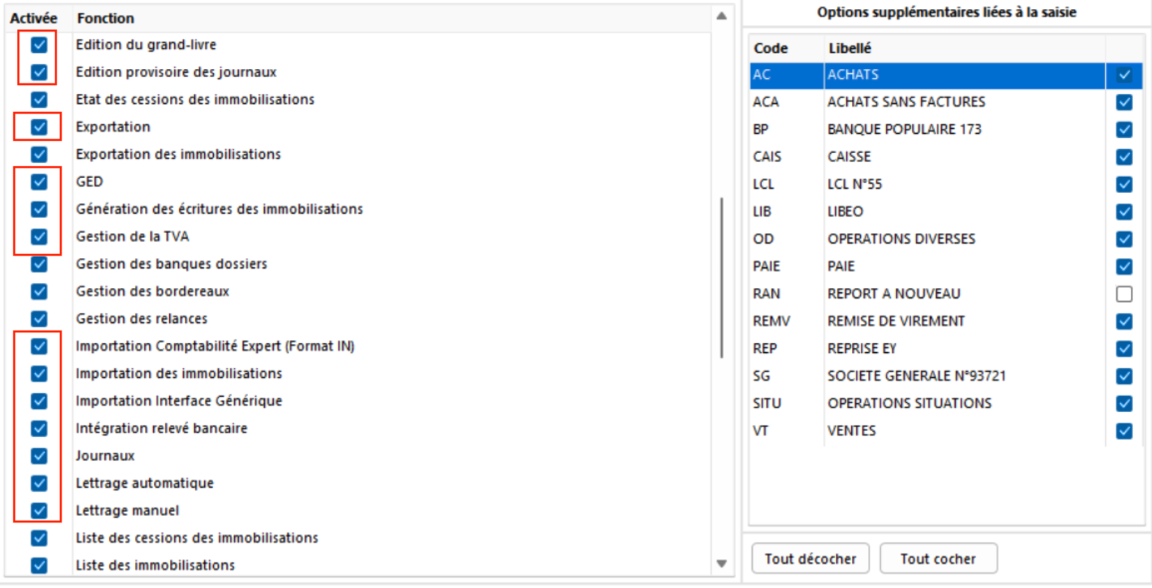
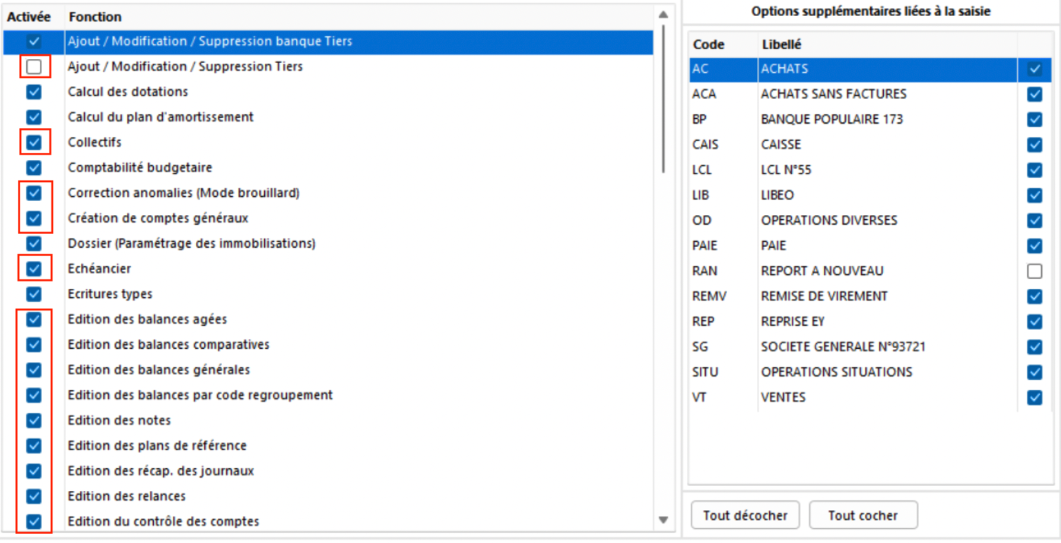
In Comptabilité Expert, enable folder sharing via the i-Suite Expert menu: check the required fields and select the journals that will receive accounting entries created via the API.
Connection Process
Step 1: Choose a name for the connection.

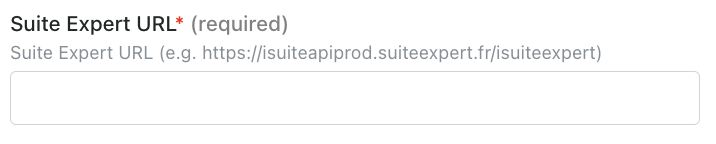
Step 2: Enter the i-Suite Expert URL. (Preparation Step 1)
Step 3: Enter the connection reference (CNX).

Step 4: Enter your ACD credentials — if a dedicated API user is required, use the Code and Password set up when that user was created (not the personal login of a staff member).


Step 5: Indicate whether analytical accounting is active (see Step 2 above).

Step 6: Indicate whether schedule management is needed (see Step 3 above).

Step 7: Click on "Connect" to finalise the connection.

Configuration
Step 1: Select the accounting folder to sync

Step 2: Designate the GED directories for sales and purchase attachments. If attachment uploads fail silently, check that the API user has the necessary GED permissions.
Step 3: Click "Submit" to finalise the configuration.

Troubleshooting
Connection worked before but stopped, with no apparent change?
Check with your firm whether password expiration is configured for API connections (Administration → Settings → Security → Password Security Rules → "Rules for all API connections" tab → "Enable password expiration" option). If so, you'll need to update the connection with the new password each time it's renewed.
Error related to analytical accounting?
If you get an error stating that analytical accounting is not active even though it's enabled in ACD, republish the folder from within ACD.
Resolve the error "Unable to connect to the accounting commons"