Sage Intacct
Last updated: June 10, 2026
PREREQUESITES
You must have an active Sage Intacct Web Services developer license (this can be purchased by contacting your Intacct account manager)
You must have a valid Web Services sender ID (this will be sent by email after purchasing the Sage Intacct Web Services developer license)
You must have a valid Web Services sender password (you will receive an email after purchasing the Sage Intacct Web Services developer license that will allow you to generate this password)
PREPARATION
Create your API application
Go to Sage Developer Portal
Click on "View Console" and create your organisation
Go to "Applications" and click on "New application"
Select "Sage Intacct"

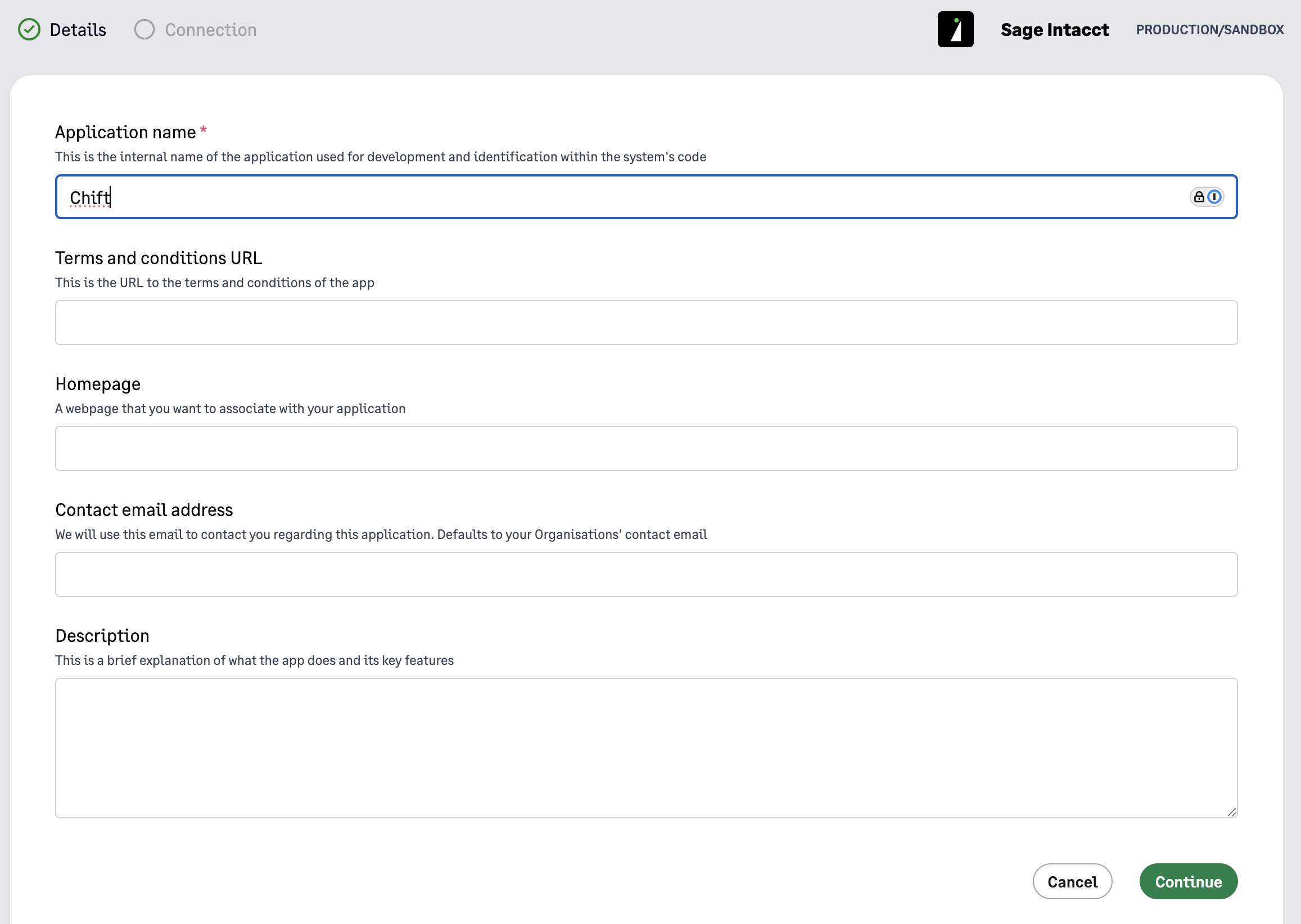
Fill in an "Application name" and click on continue (the application name is informative and can be whatever you want)
Fill in Chift's Redirect URI with the following value: https://chift.app/oauth2/redirect
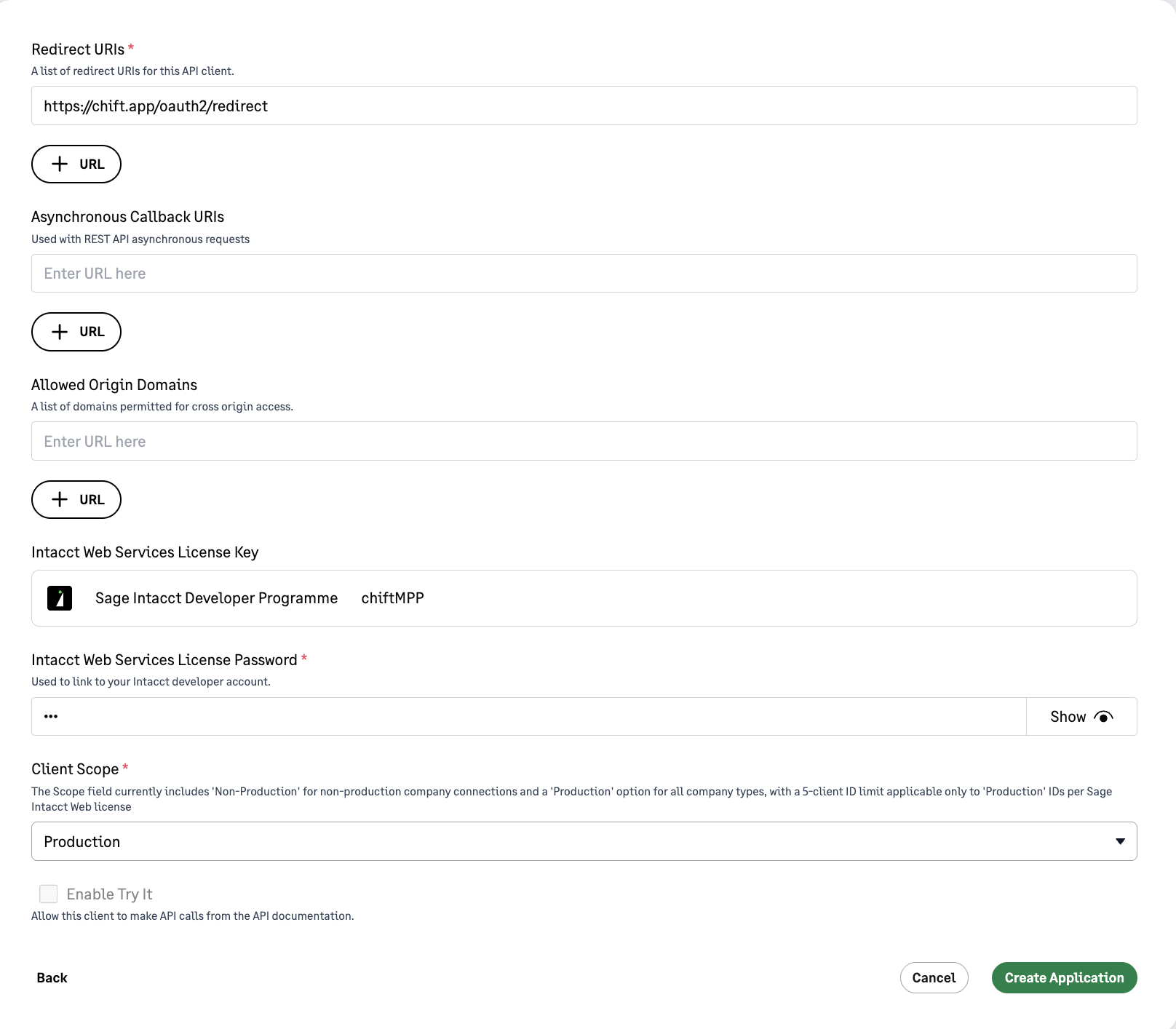
Specify the Web Services sender ID from the prerequisites as Intacct Web Services License Key
Specify the Web Services sender password from the prerequisites as Intacct Web Services License Password
Select "Production" as client scope
Click on "Create Application"
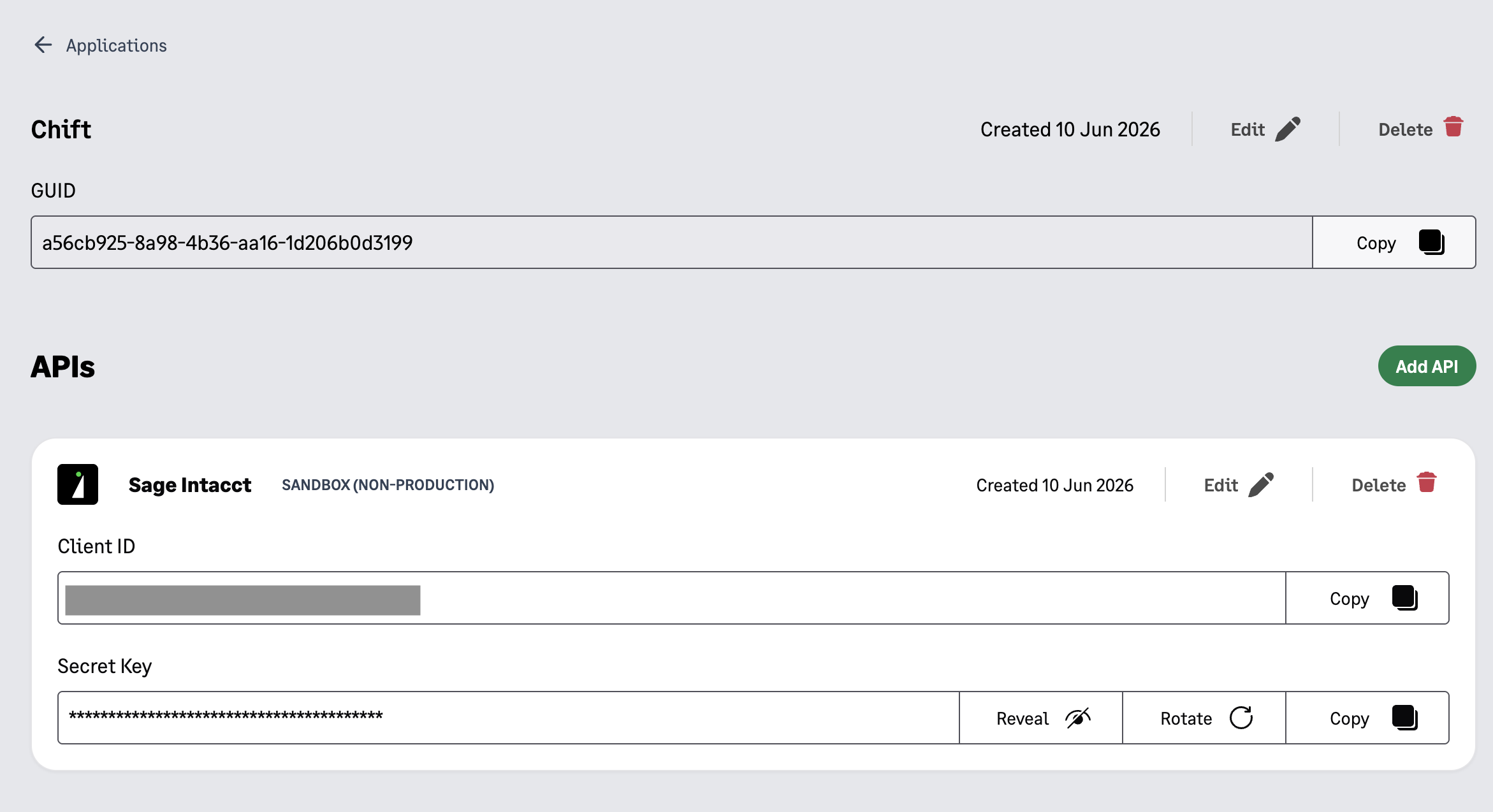
This will generate a client ID and a client Secret that you will need during the "Connection" step below
Authorize the Webservice on each company you want to connect
After
Connect to your Sage Intacct account
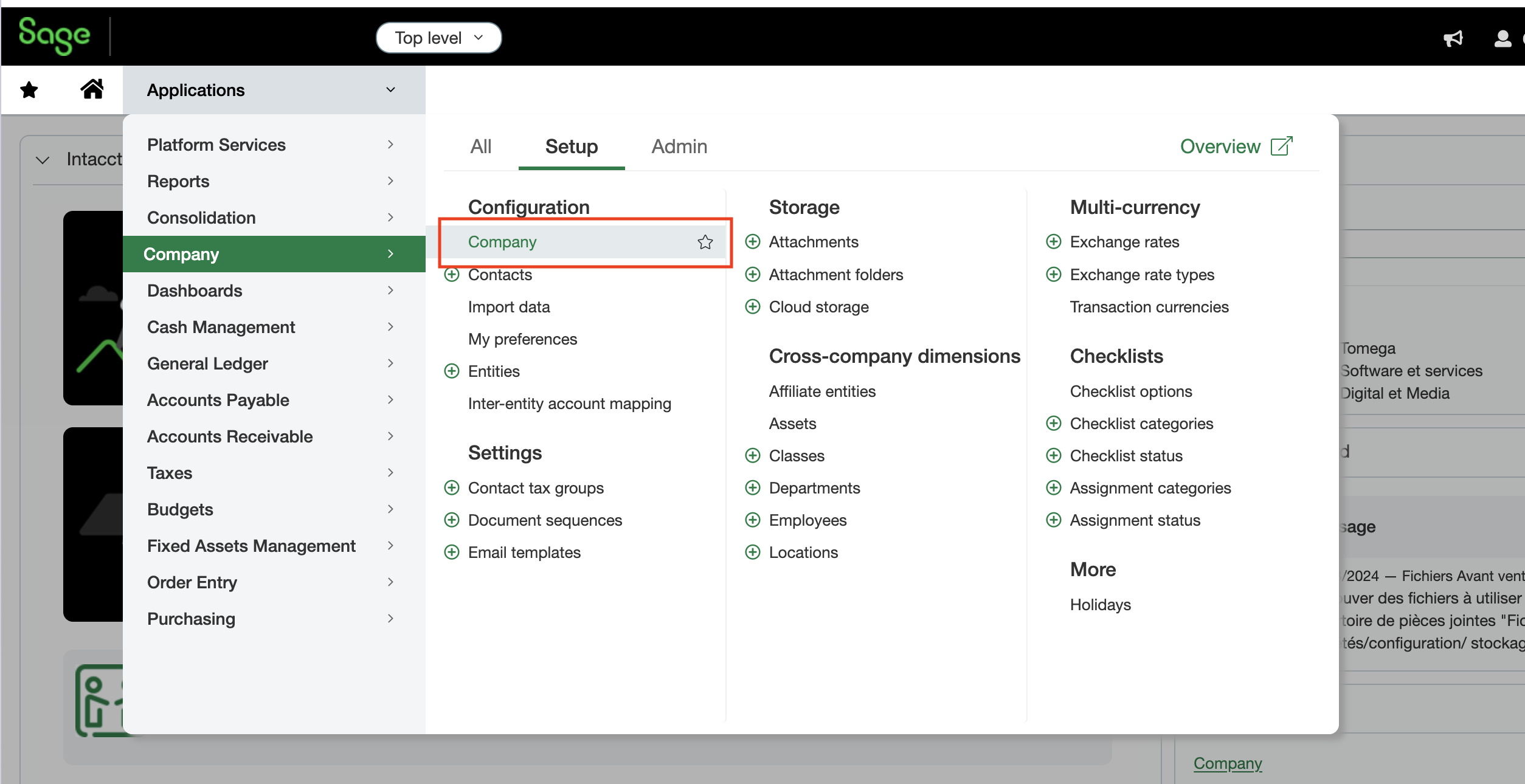
Navigate to Company > Configuration > Company
Go to Security tab and click on "Edit"
Scroll down to the Web Services Authorizations section click on "Add"
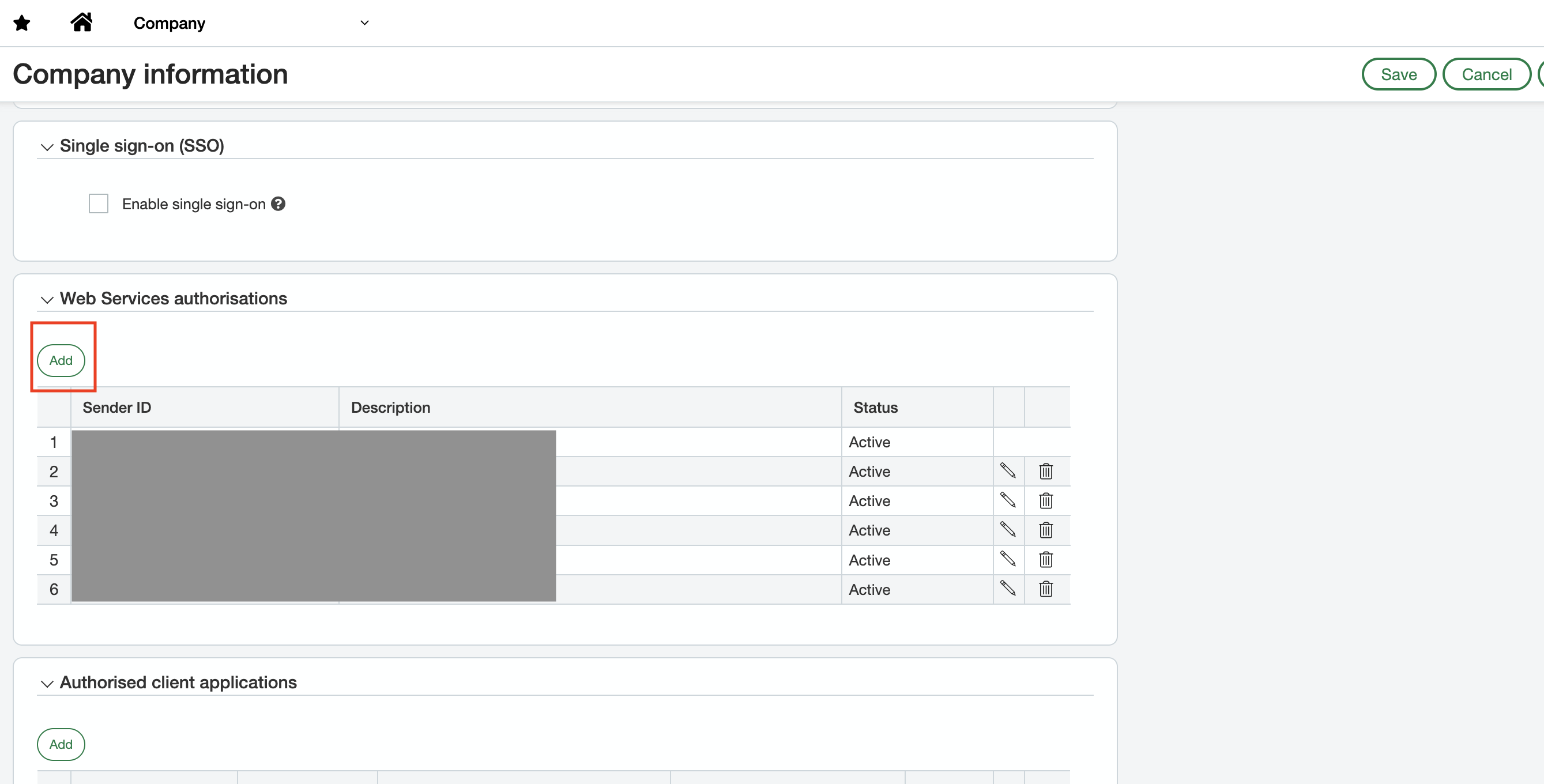
Fill in your Web Services sender ID from the prerequisites
Set status to "Active" and click on "Save"
CONNECTION
Step 1: Choose a name for your connexion. (If the connexion name field isn’t visible, simply skip this step and continue.

Step 2: Specify if you want analytic data to be pushed and retrieved from Sage Intacct (e.g. locations, departments, projects...)

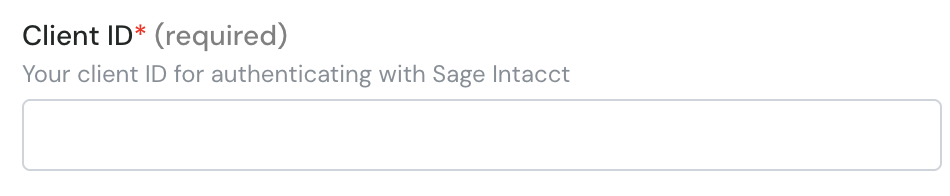
Step 3: Specify the Client ID that was generated after creating the application
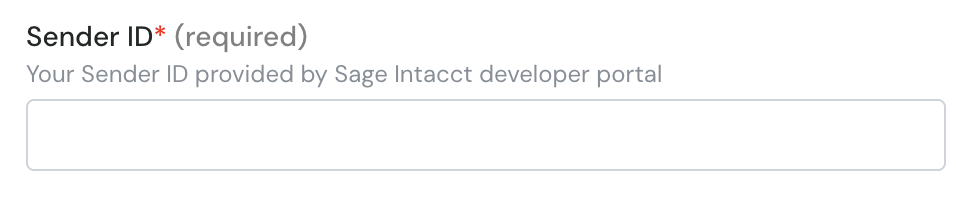
Step 4: Specify your Web Services sender ID from the prerequisites
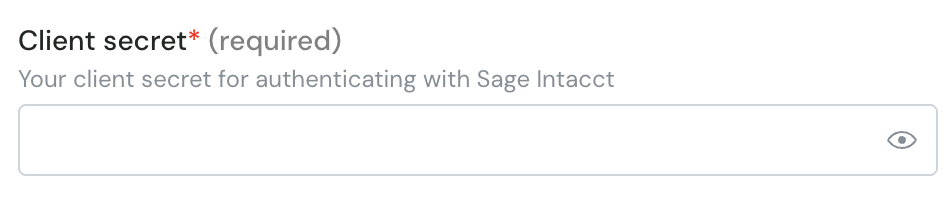
Step 5: Specify the Client Secret that was generated after creating the application
Step 6: Specify your Web Services sender password from the prerequisites

Step 7: Click "Authorise" to finalise the connexion.

AUTHENTIFICATION
You will be redirect to the login page to authenticate yourself and authorize the connexion.