Sage 200 ES
Last updated: June 8, 2026
This on premise tool uses the Chift Cockpit to ensure a smooth and fast connection.
Prerequisites
Have access to the server in admin where Sage 200 ES is installed
Your admin user used to run the service should have Spanish localisation settings. Our cockpit will verify this and notify if not correct.
Have credentials for Sage200 ES database. If you do not have them, please reach out to your integrator before installing the connector
Add a connection/consumer in Chift platform
Add a consumer
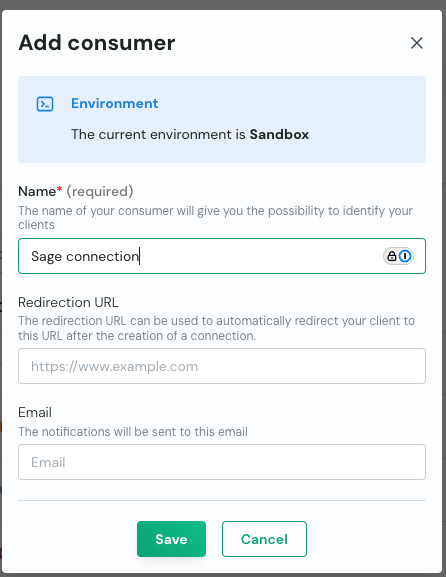
Within the consumer config, add a connection
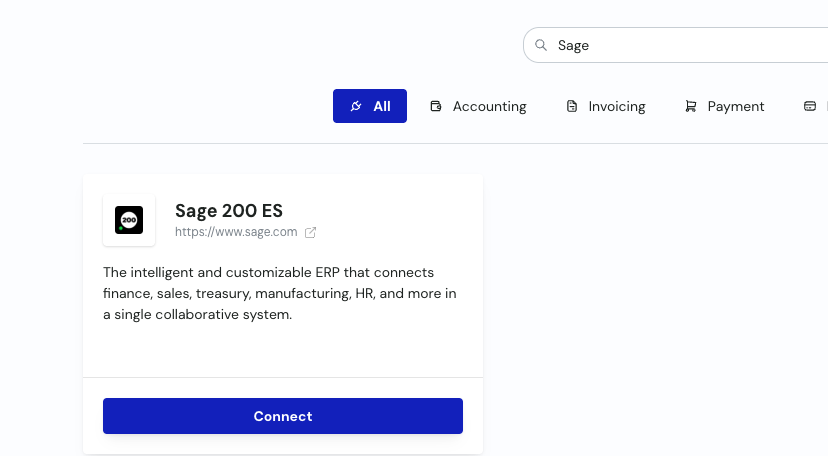
Find the Sage 200 ES connector and click “Connect”.
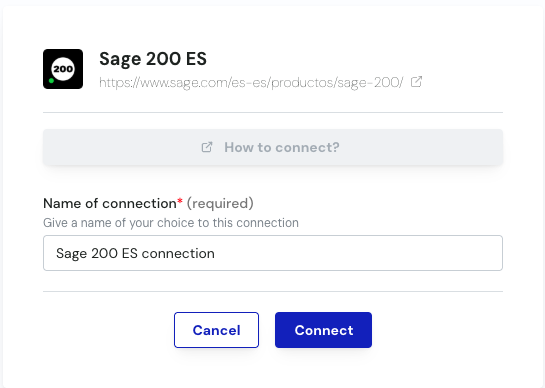
Give the connection a name, and click “Connect”.
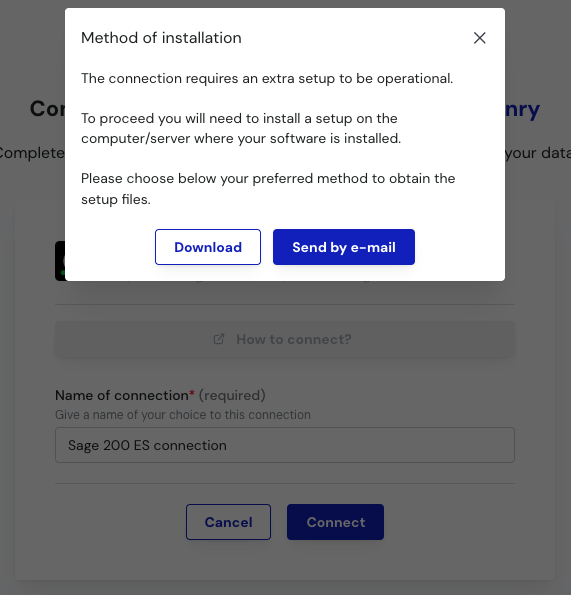
Choose whether you want to download or receive the installer via mail. This will be a “setup.zip” folder.
Install the Cockpit
Paste the zip file on the server. Extract the zip file, open it and run the “SetupSage200ESService”.
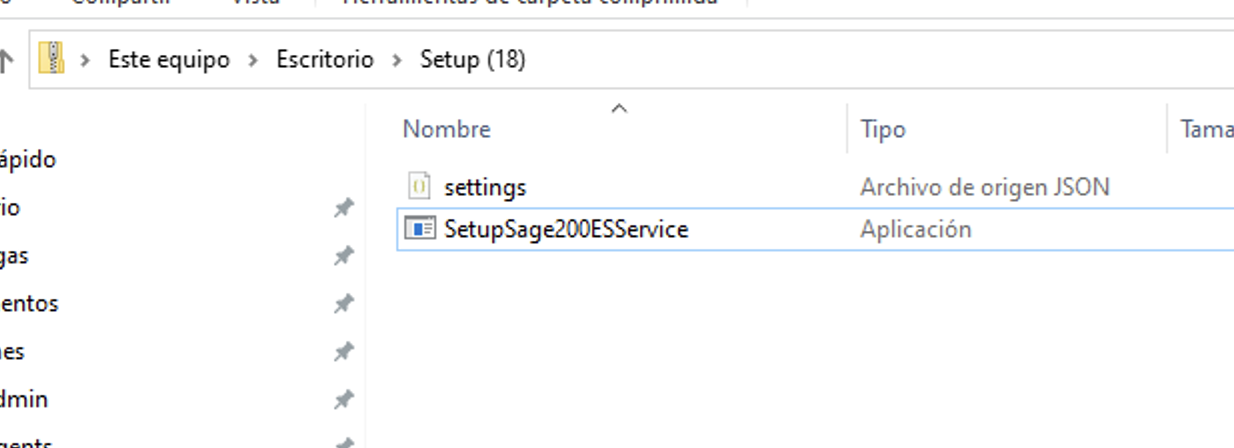
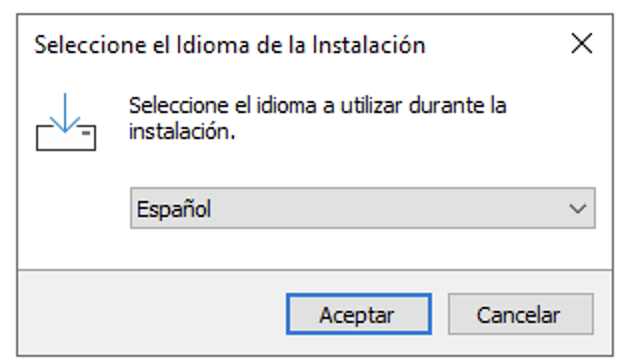
This will start the installation wizard, which will guide you through the installation process.
Choose your language
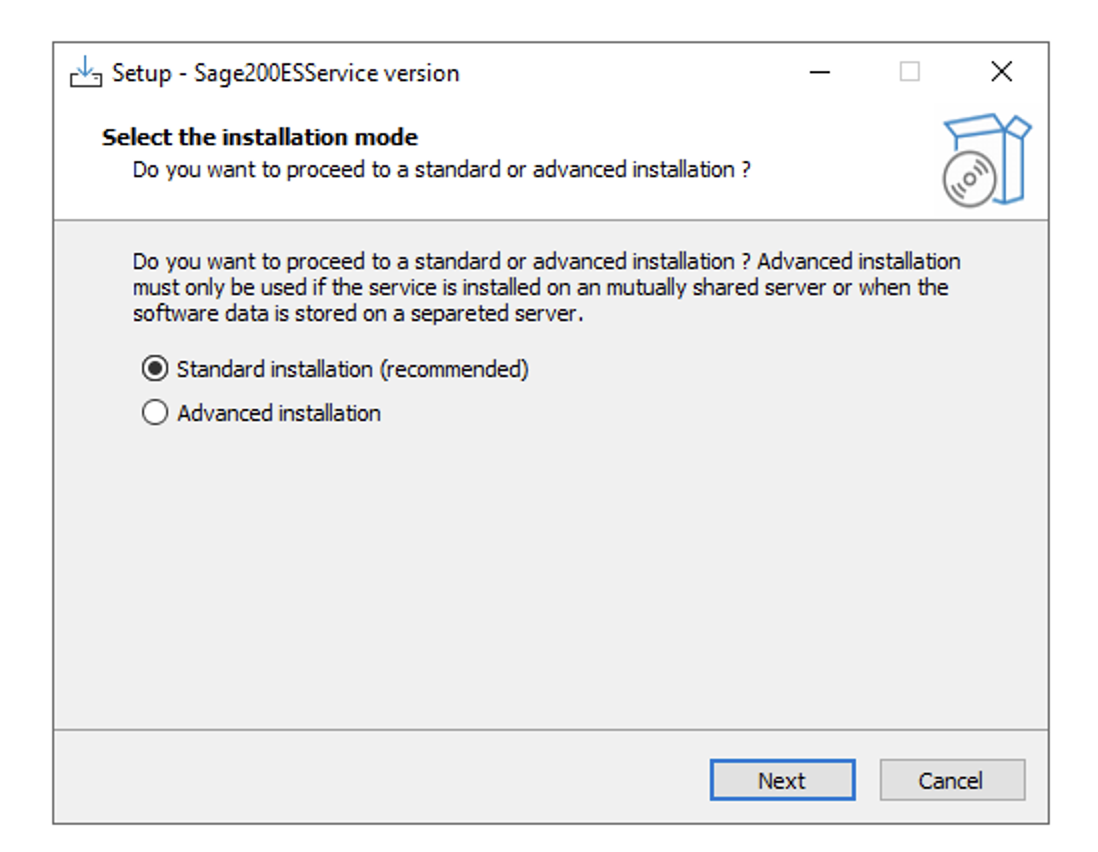
Choose installation type.
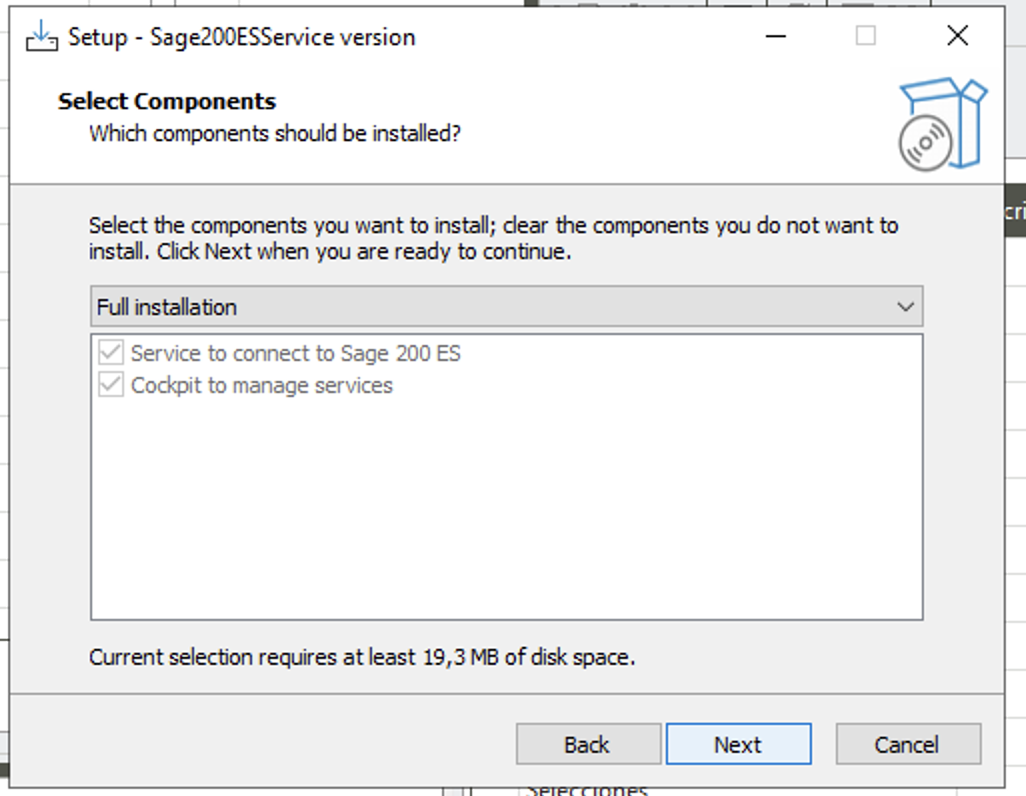
Select the full installation
Install
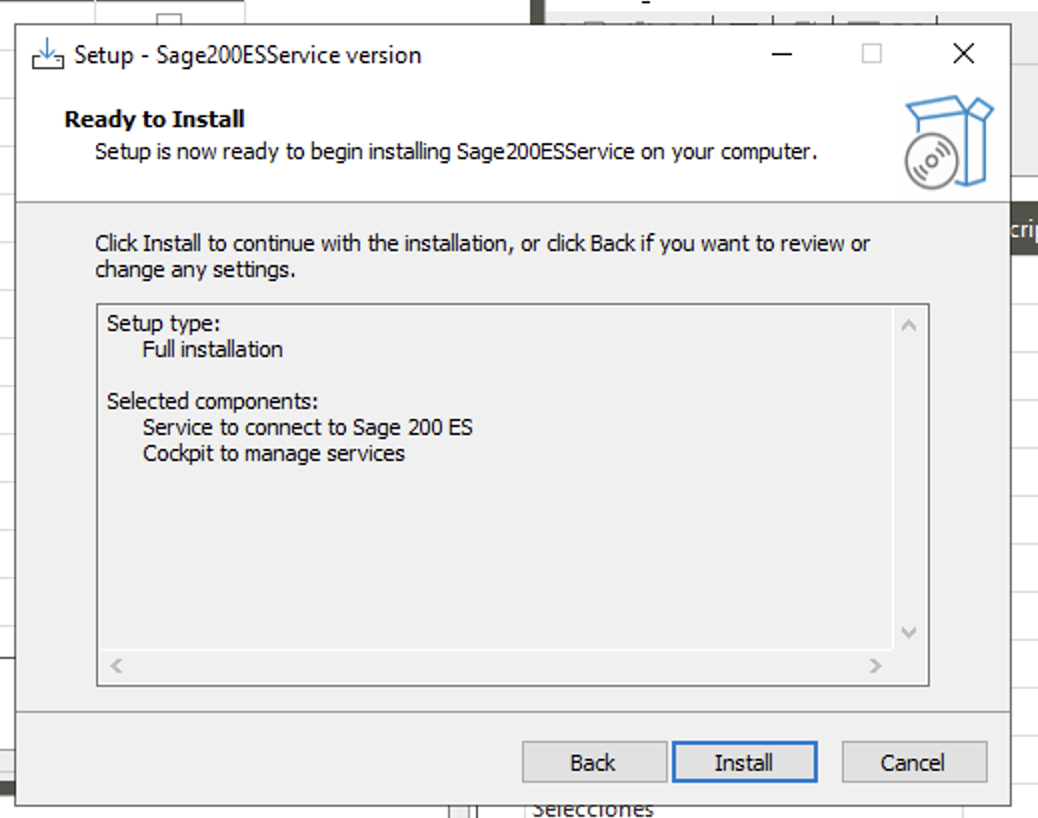
The Chift cockpit will open. If not, open chift cockpit yourself.
For more informations on how to use the cockpit, you can go to the dedicated documentation page:
Add a connection to the cockpit
If the cockpit is not opened yet, start opening the cockpit.
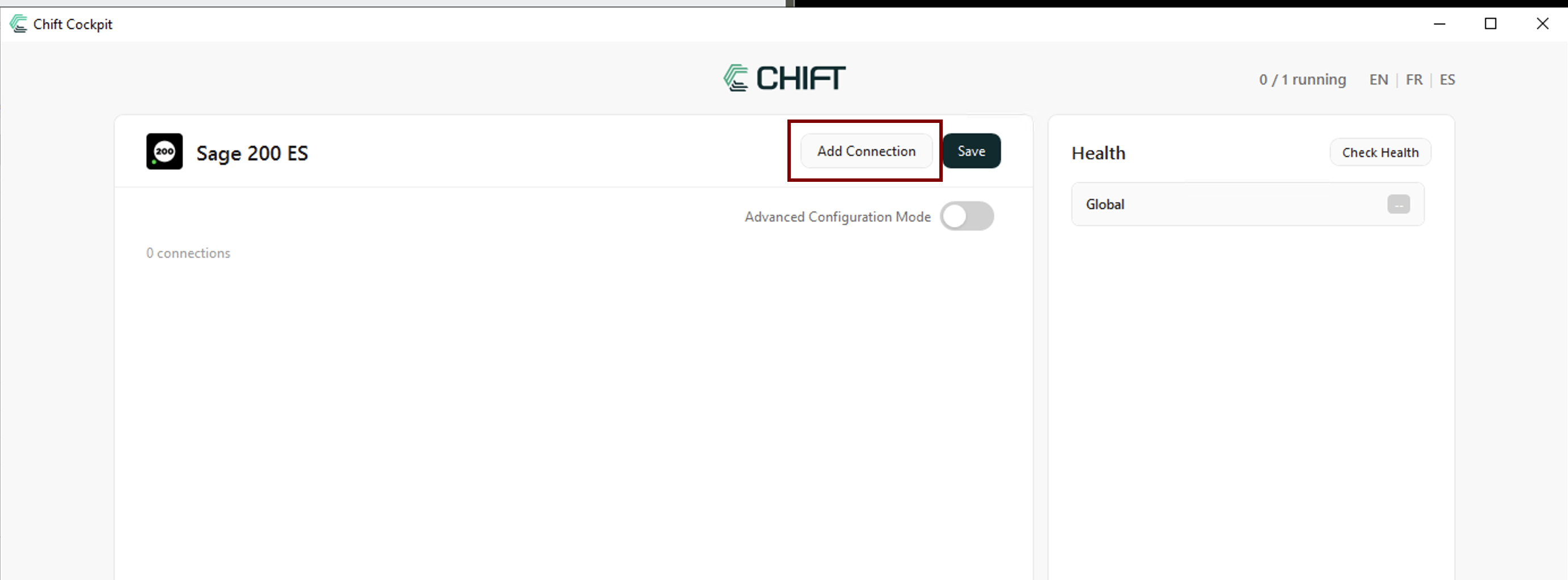
Add a connection using the button on the top right of the cockpit
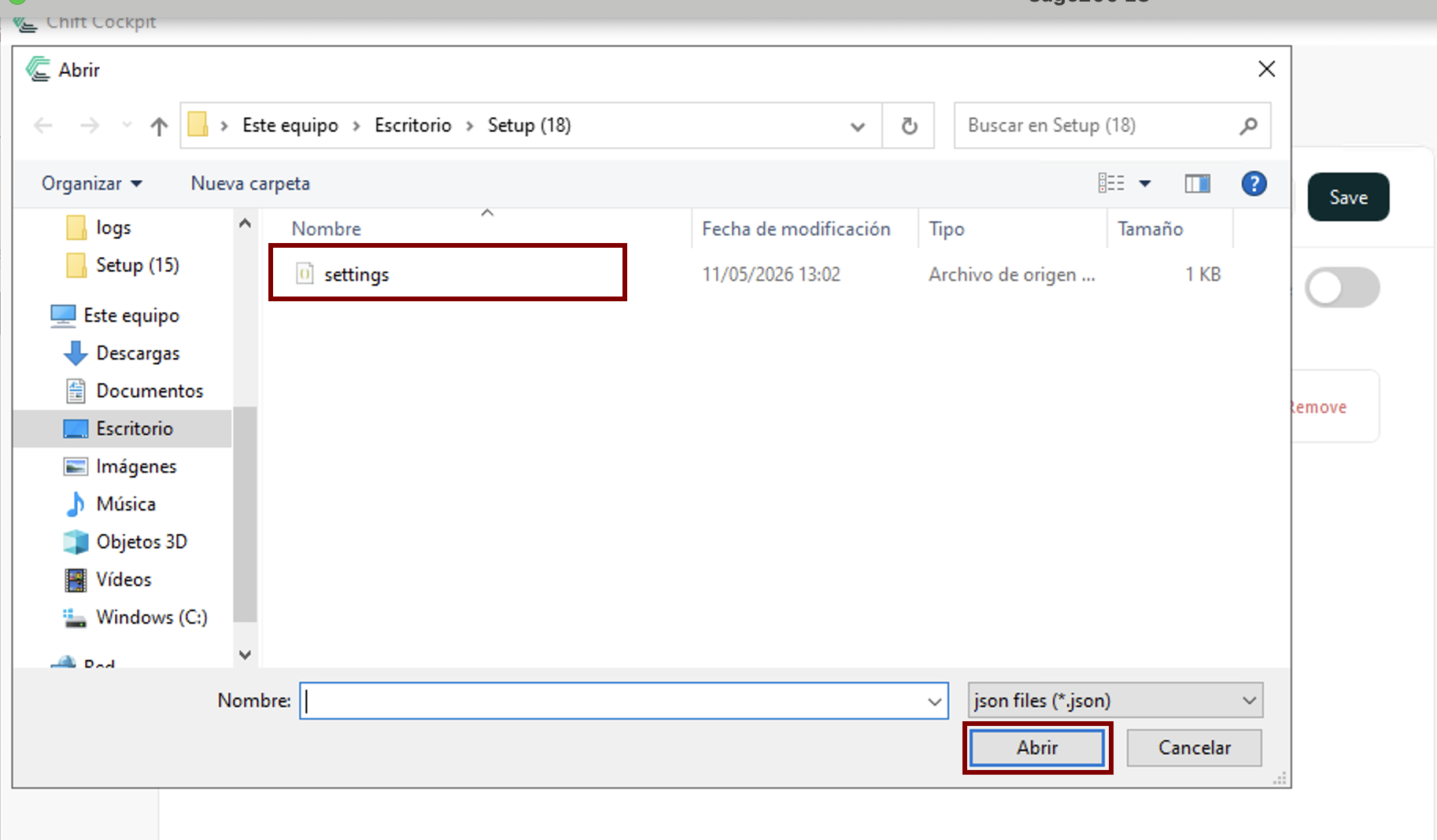
Select the settings file inside the setup file you unzipped.
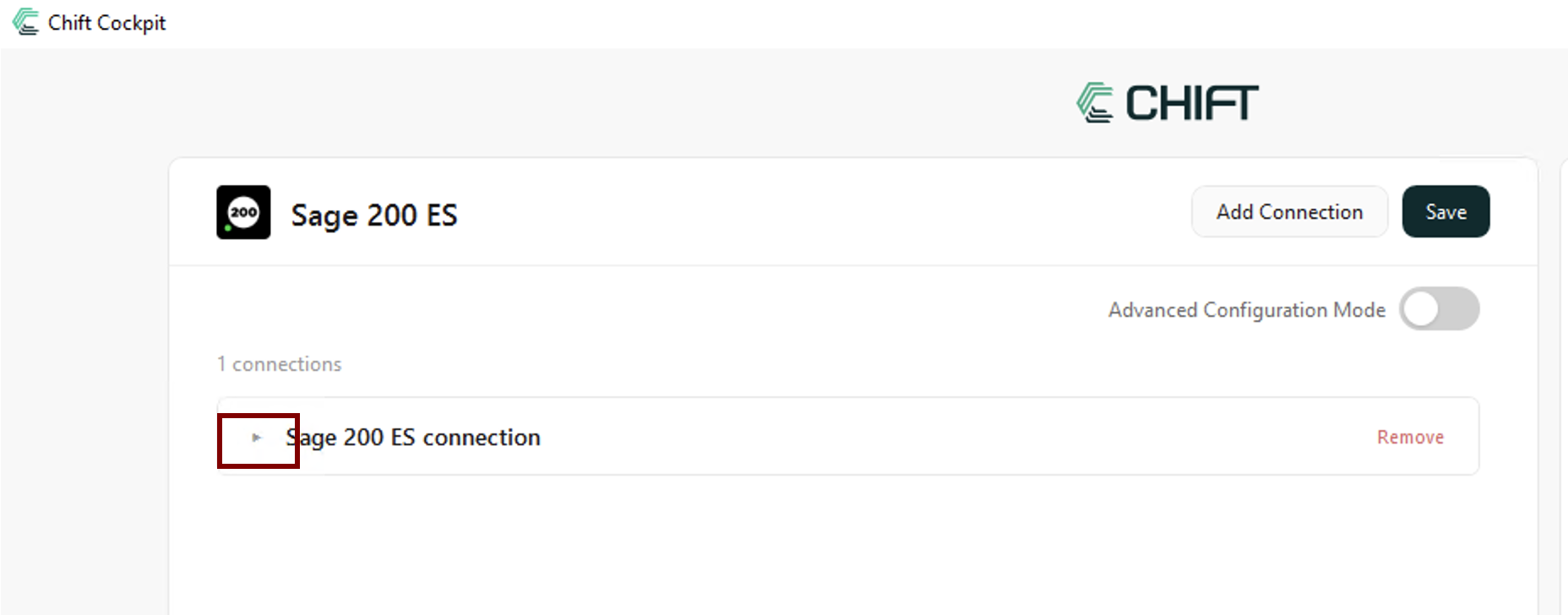
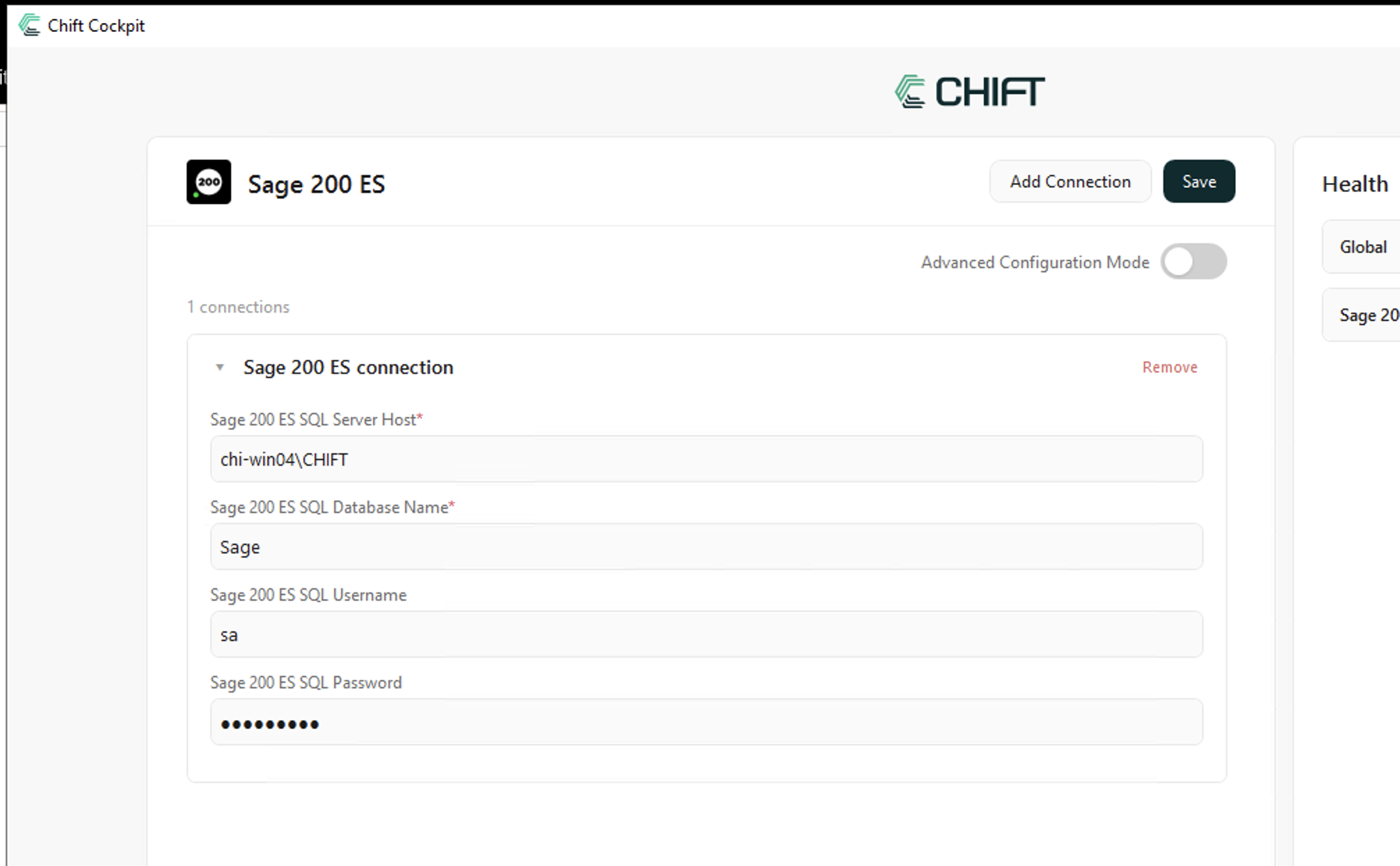
Press the arrow to toggle the settings
Fill in the required fields :
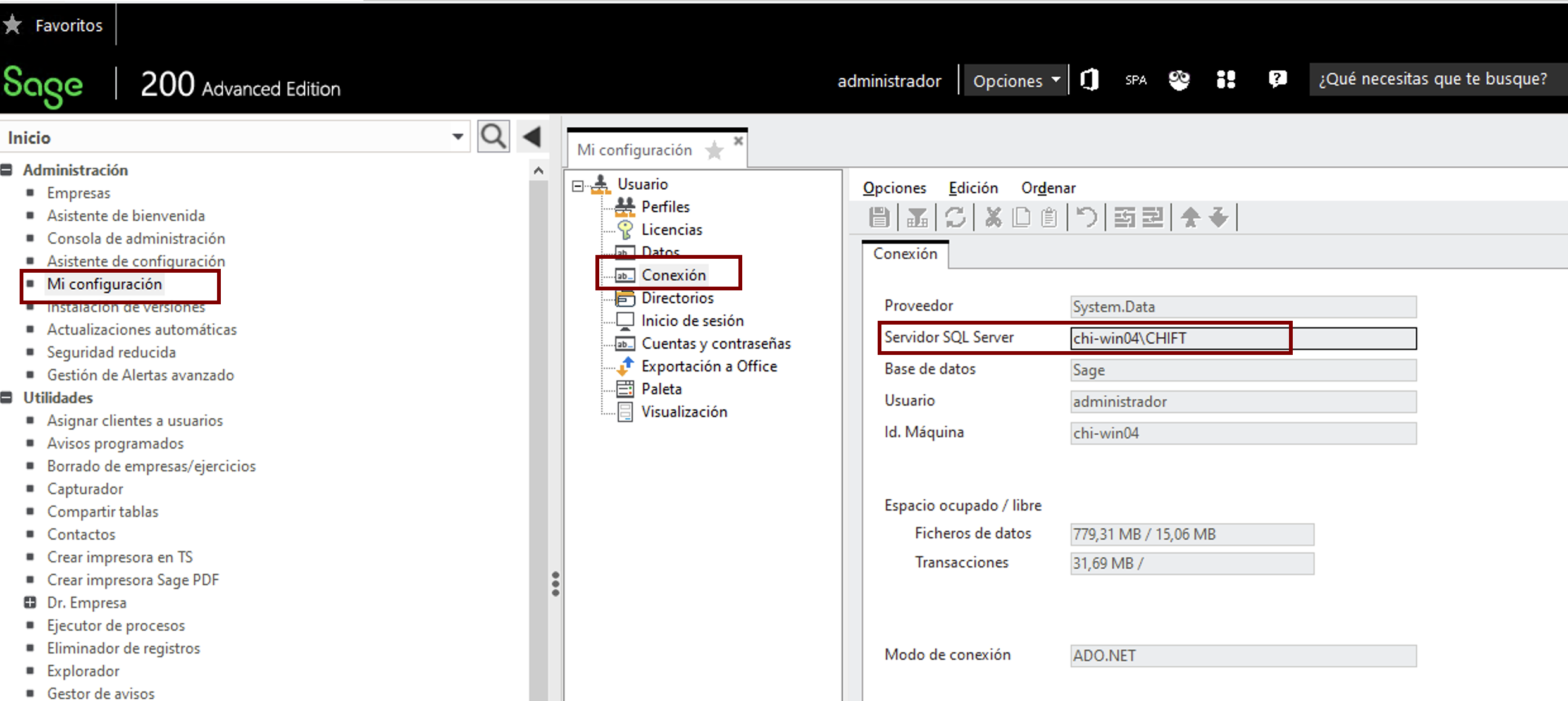
the Server Host can be found within Sage
You can use the “Check Health” at the top right to have the Cockpit validate the credentials.
If OK, press “Save”.
If the cockpit detects the localisation is not correct, it will propose to do this. If you want to do this manually, you can do this in by following