Sage 100 - Azure Sage Partner Cloud (SPC)
Last updated: July 28, 2026
🚨 This activation requires the support of your IT partner or Sage integrator.
All necessary information and assistance are detailed in the section below.
This version of Sage 100 is available on a Microsoft Azure environment with possible administration, full SaaS-PaaS-IaaS.
It is exclusively marketed by Sage 100 resellers called integrators with :
Native access to the Microsoft SQL Server Azure engine
Access to Sage 100 SPC-specific business objects.
⚠ BE CAREFUL: This version of Sage 100 DOESN'T REQUIRE the installation of the Objets Métiers library of Sage 100 On Premise. A dedicated version is installed by default by Sage.
If you encounter issues after the installation of the connector, please verify the Objets Métiers library of Sage 100 On Premise wasn't installed during the installation process. If the Objets Métiers library of Sage 100 On Premise was installed by mistake, please follow these steps to restaure the correct version of the the Objets Métiers library of Sage 100 SPC:
Uninstall the Objets Métiers library of Sage 100 On Premise
Update the virtual machine to the current installed version. This will force the installation of the correct version of the the Objets Métiers library of Sage 100 SPC
🚨 PREREQUISITES (conditions to be met prior to connection)
In order for the connector to work on the server, you must ensure before installation that:
✅ You have admin access to the server where Sage 100 is installed
⚠ Please note that the server/computer must be accessible at all times with internet access (24 hours a day).
Otherwise, the data will not be synchronized
✅ The .NET framework 4.8 are installed on the server
✅ We have a Windows user who has read and write access to the SQL database of the accounting file and to the Sage 100 file.
There are two possible options:
Retrieve the name and password of a user who would have these two accesses.
Create a user specific to the Sage 100 connector - this is the recommended solution
✅ The Sage version is at least version 7, the version from which the business objects are compatible with the connector
🛠 PREPARATION (information needed prior to connection)
In order to establish the connection with Sage 100 "On Premise", you will need to retrieve a certain amount of information on your Sage 100 instance and from the integrator partner who installed your Sage 100 instance.
Find the code of your file / company
Retrieve the number of the zone / analytical plan
Retrieve your Azure SQL instance and database name
Retrieve your SQL credentials
1. Find your file / company code
This information is visible from your Sage 100 instance at the very top of your page in a menu bar. In the center of this "menu" banner you will see the code of your file (company) indicated.

2. Retrieve the number of the analytical zone/plan
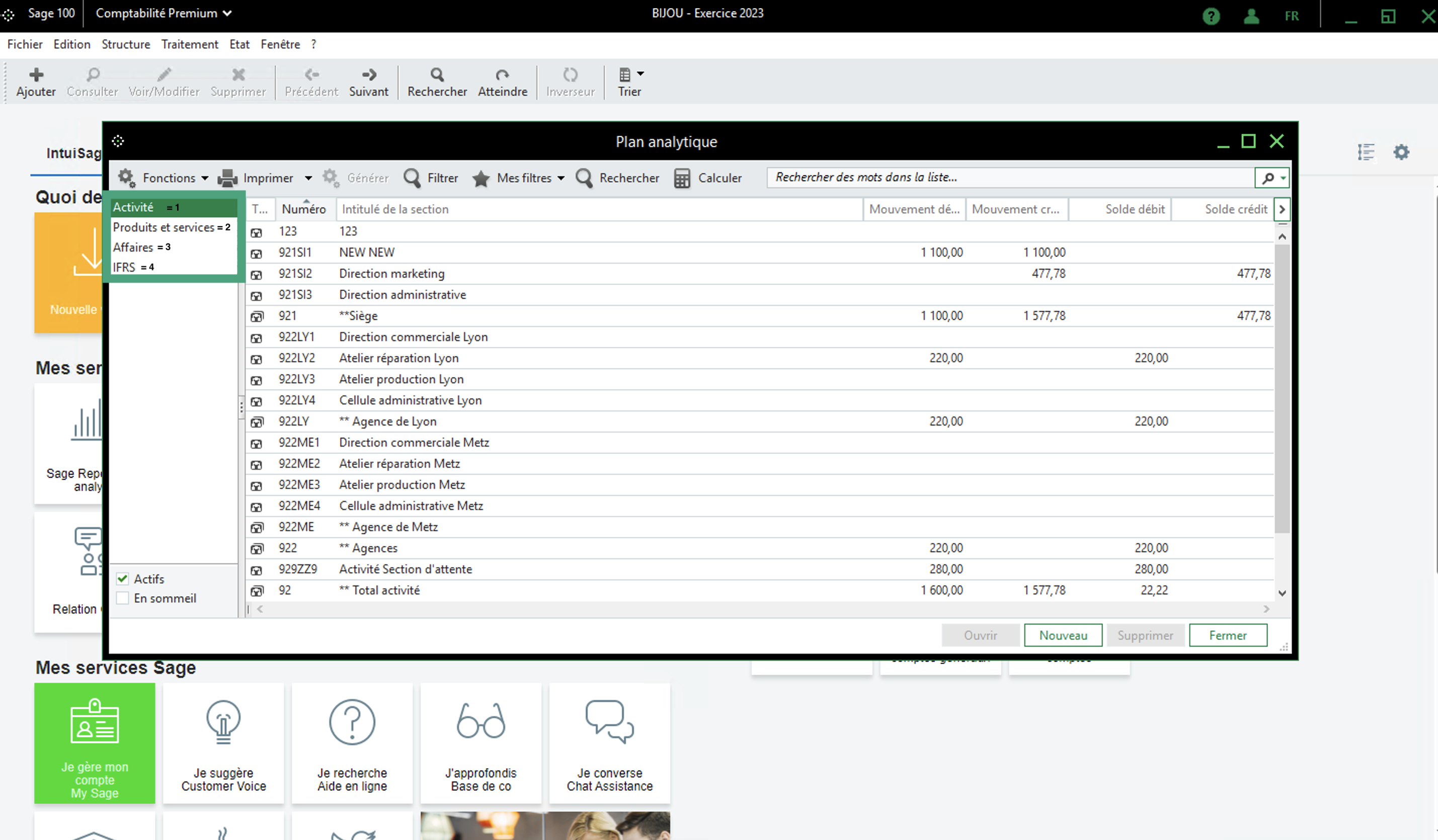
To identify the analytical zone/plan number, you need to follow these steps from your Sage100 instance.
Menu → Structure → Analytical plan

You need to choose the analytical plan to connect. In the example account below we have 4 possible analytical plans
Activity = 1 (fill in the number 1 to select the first analytical plan option)
Products and services = 2 (fill in the number 2 to select the second analytical plan option)
Business = 3 (fill in the number 3 to select the third analytical plan option)
and so on...
3. Retrieve your Azure SQL instance and database name
Afin d'installer l'extension sur le cloud, il vous faudra:
Contact your Sage100 integrator.
Ask them to provide you with the following information:
Your SQL Azure instance (server) name (looks like a code like "xiyxu8z271")
SQL Azure database name (looks like a code like "xim9mokrk4q_AS274AY1ZH")
4. Retrieve your Azure SQL username and password
You must contact your Sage100 integrator and ask them to provide you with the following information:
Sage100 SQL Server Username
Sage100 SQL Server Password
⚡️CONNECTION
Step 1: Choose a name for your connexion (may vary from tools your are connecting to)
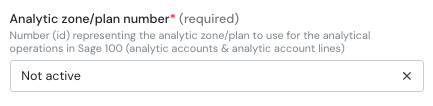
Step 2: Select the analytic zone/plan number to use based on the value you found from the second point of the preparation steps.
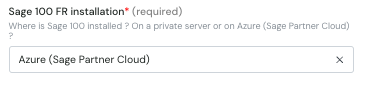
Step 3: Choose your Sage100 instance installation type (so in our case here select Azure SPC server)
Step 4: Click on "Connect" to finalize the connexion and download the local agent

Step 5: Download the archive containing the executable file that will install the connector.
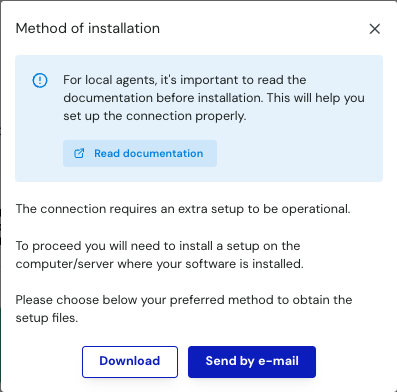
You can either use the download button to start downloading immediately or use the send by email button to receive an email with a link that will allow you to download the same file. With that second option you will have to provide the email to send it to, allowing you to let your integrator proceed with the installation.
💿 FINALISATION - local agent download and installation
Recommendation: Perform the installation directly on the server running your Sage 100 FR instance.
Once you have filled out the form and downloaded the zip archive, start by copying the archive to the server where Sage 100 is installed.
All following steps assume that you are connected to the server and that all prerequisites have been verified. If you have any doubts, stop here and make sure the requirements are met before proceeding.
If you are about to install the service for multiple folders, you may want to read the following documentation first (optional).
📄 Sage 100: Connect Multiple Accounting Folders at Once
Extract the contents of Setup.zip.
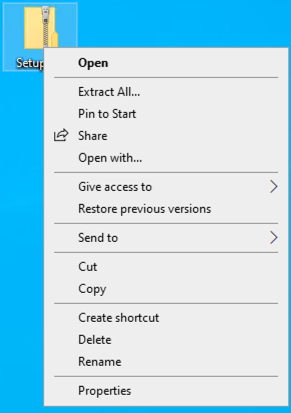
If you do not extract the file before proceeding, you will face this message asking you to extract the folder.

You can just click extract all to unzip the folder.
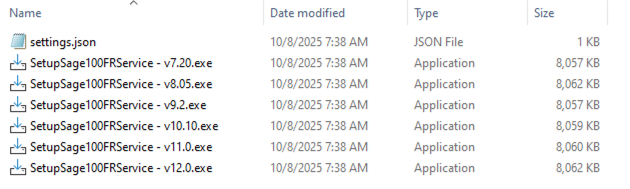
Inside, you will find:
settings.json– this is a configuration file (do not open or edit).A set of executable files to install the Windows service.
⚠ Important: Do not move any files out of this folder. Everything is designed to work directly from the downloaded location to simplify the installation process.
Start the executable that matches your Sage version. For example, on our server running Sage 11.02, we use the v11.0 installer
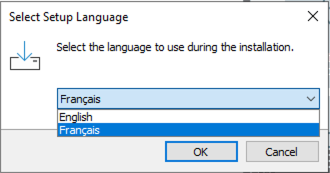
The first screen asks you to select the installation language. Choose the one you are most comfortable with.
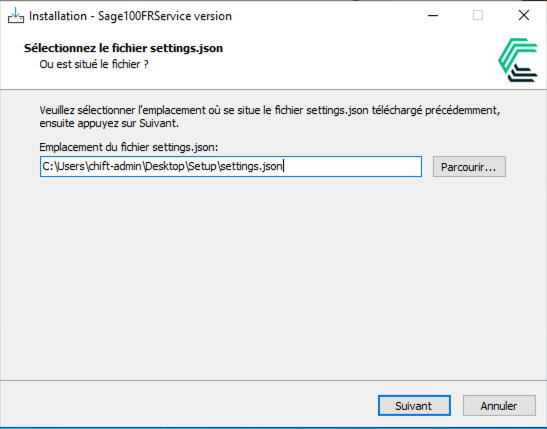
On the next screen, the installer will ask for the configuration file we mentioned earlier. The good news is that it’s automatically detected in the same folder as the installer, so you don’t need to select it manually
If you already have a version of the service running locally, you will see the following window open to ask you what actions needs to be performed on the connector. If this is not your case, go straight to step 4.
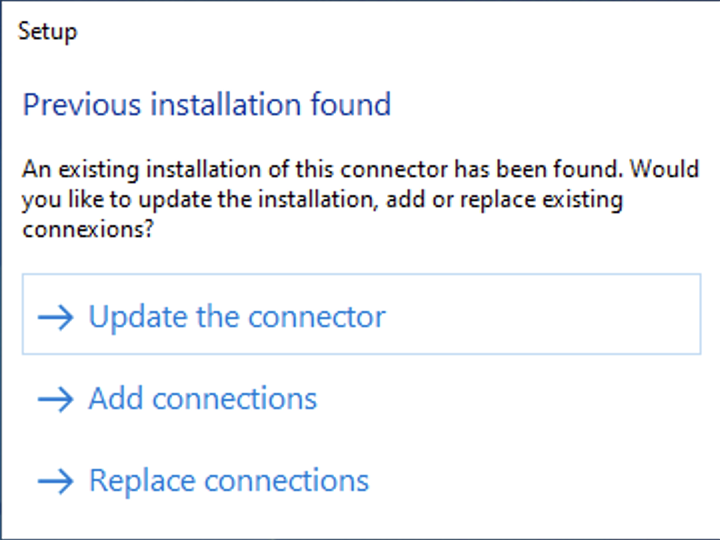
To know which option you want to select you need to know what you want to do with this installation actions you want to perform. To know more about each option and when to use them, check the elements below.
update the connector
This needs to be done only if you are trying to update the connector on your server (this should only happen if you have updated your version of Sage or if you are running an outdated version of the connector). This option will erase all the existing connexions to only keep the one that are included in your settings.json. If this is the option that you want to select, we highly recommend to consult the following documentation before proceeding.
add connections
This option will not update the connector on your server but allow you to add more connexions to the connector that is already installed on your server. This option will thus keep all previously installed connexion and add the ones from your settings on the top of the existing ones. This should be the most standard option selected during the installation of the service.
replace connections
This option will not update the connector on your server but replace the existing connections by the one includes in your settings.json. This is usually the option to consider if you are trying to remove some connections that have already been configured. This option must in that case only be used once, then the next connexion should be installed
If you get this error message when adding new connexion, this means that you are running an outdated version of the connector that is not compatible with the current version.
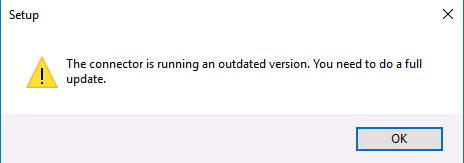
If this is your case, you will need to select the option to "update the connector". Make sure to consult the extra documentation to make sure that no existing connections are lost in the process.
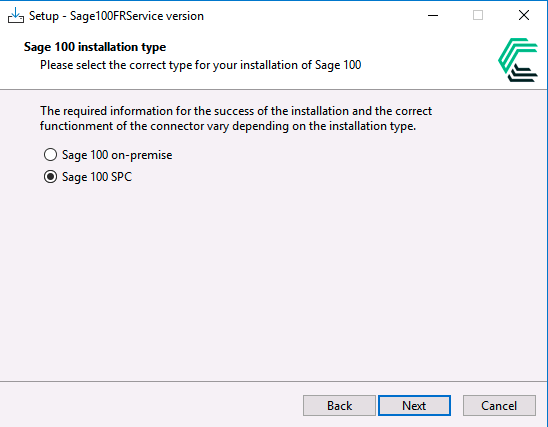
Confirm your Sage version. Make sure Sage SPC Version is selected.
If you are installing the connector from scratch or updating the service, you will have to provide the technical access to your Sage 100 database. You should have prepared those informations in the 4th point of the preparation steps.
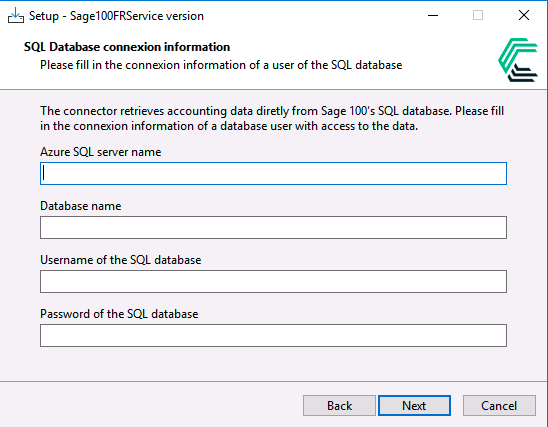
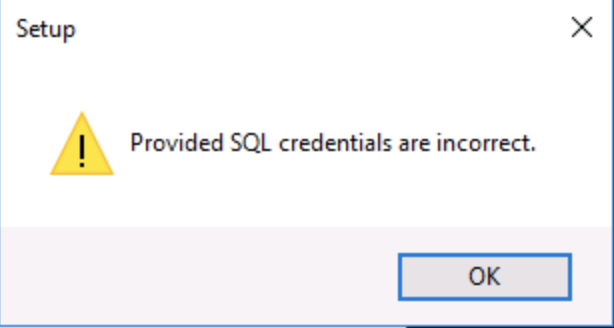
During this step, if the provided values are not correct or if the connexion cannot be established, you will get this error message. If that happen, we recommend you to get in touch with your Sage integrator to make sure that the values used are correct.
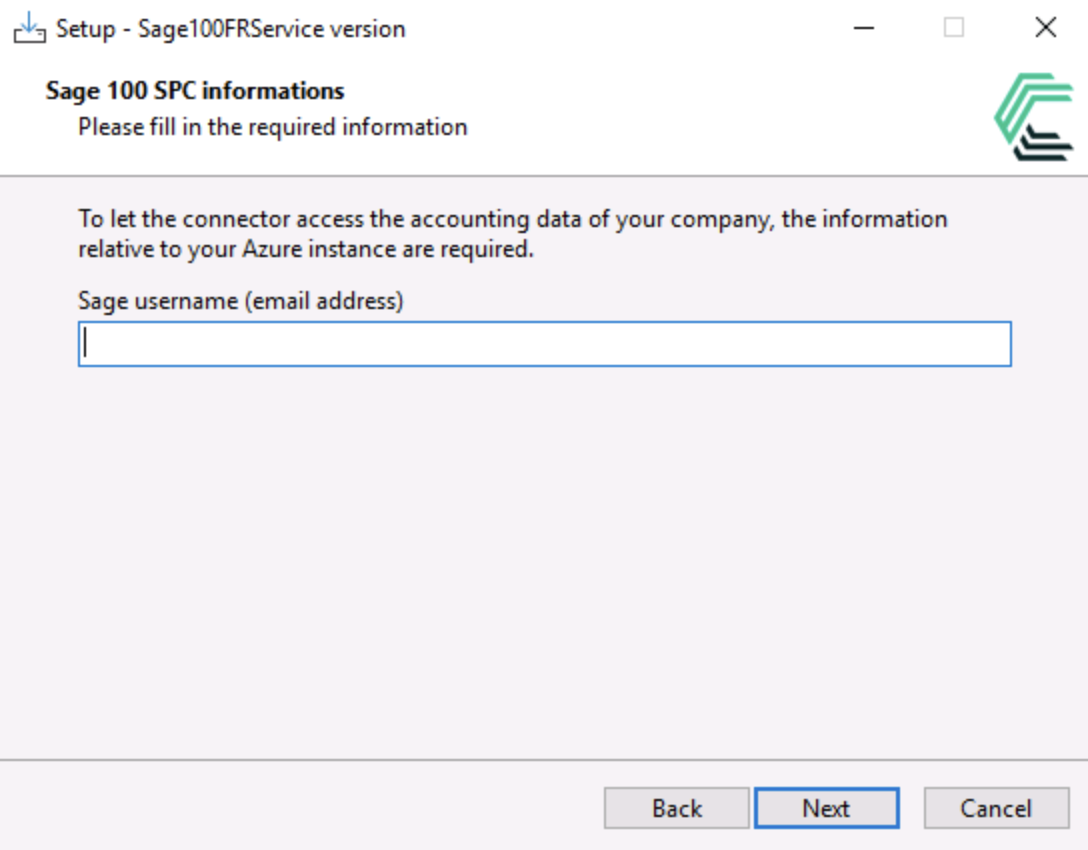
Once the connexion with the database has been tested by the installation script, you will have to provide the email of the Sage user that needs to be used by the connector. We usually recommend to use the email address of the accountant that connects to this Server.
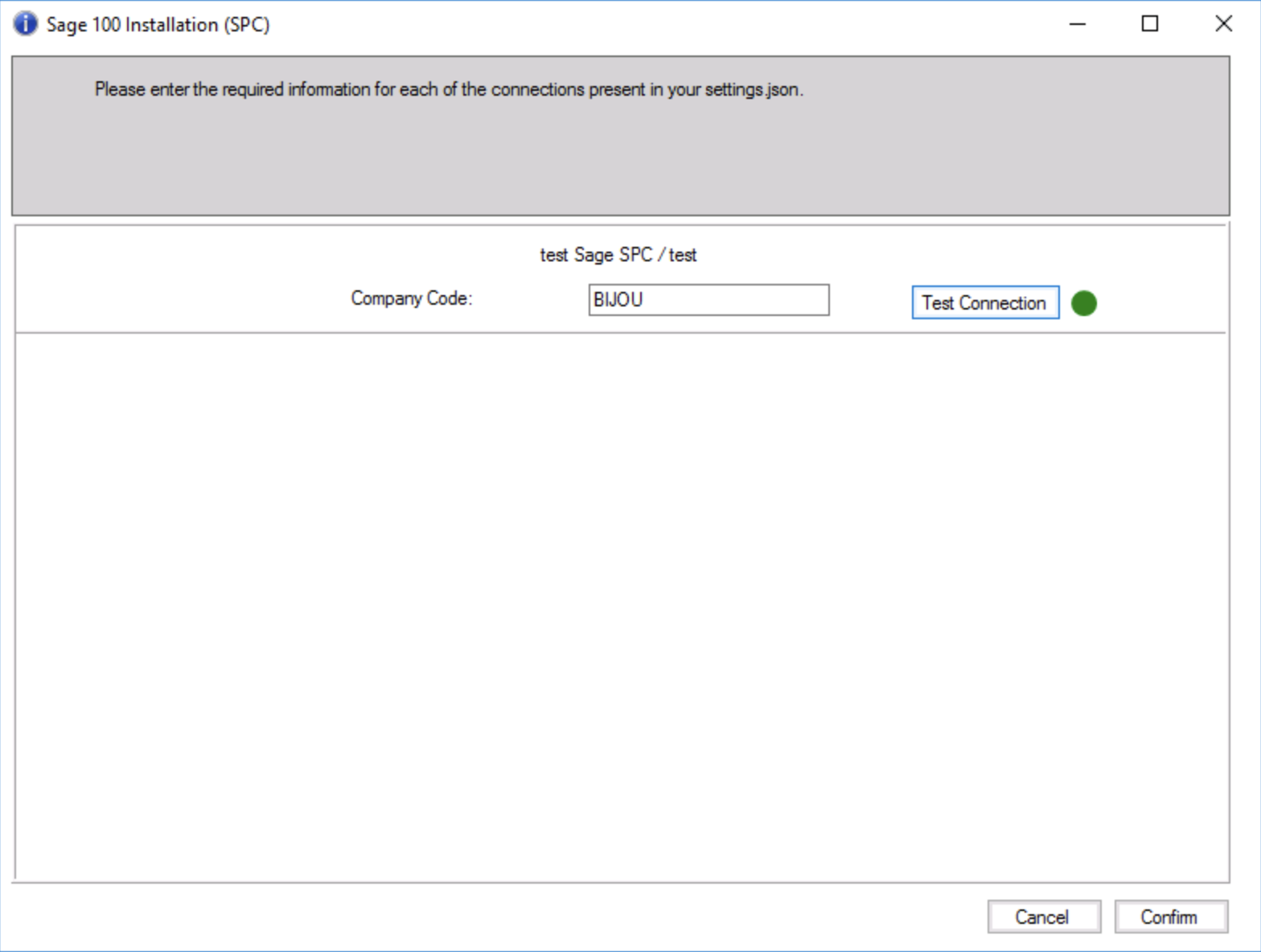
For each connexion, you will need to provide the Sage Company code in the following form
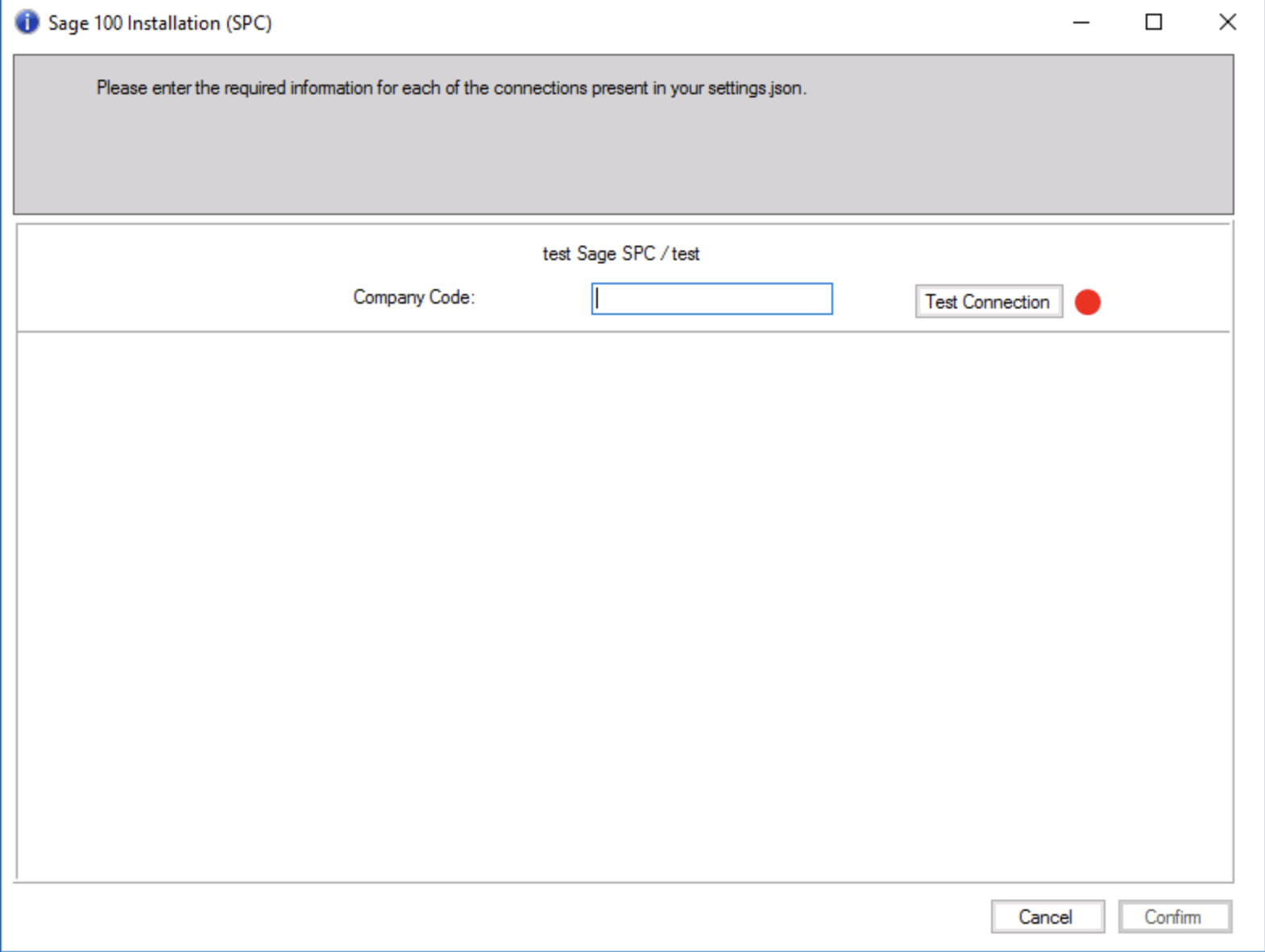
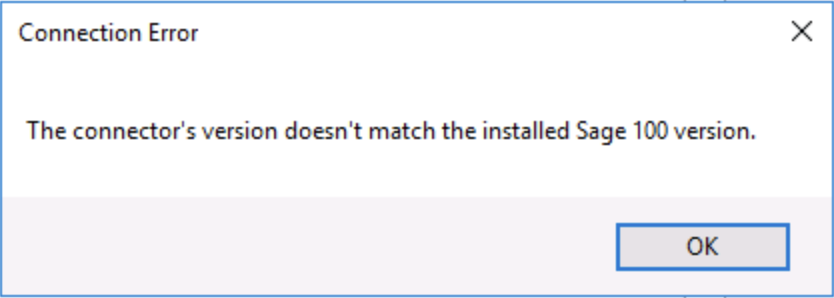
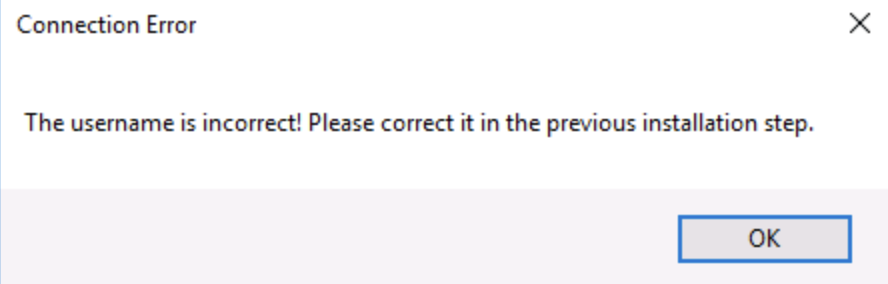
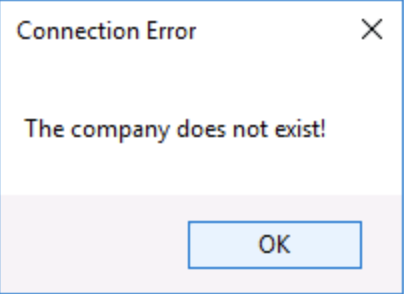
Once the company code and the email has been provided, we will be able to validate that the values provided can be used to establish the connexion. To perform the validation, you can click on the Test Connection button to test if the connexion can be established with this email and company code combination. If the connection cannot be established, you will see one of the following error:
If the version of the connector do not match with the version of Sage, you will see this error message:
If the email provided is incorrect you will see this error message:
If the Company code is not correct you will get this error message
If the test passes, you will see the Red dot become Green to indicate that this connexion can be established and that the connector can be setup for this company.
Once all Company codes have been filled and tested, you can click on the Confirm button to finalise the credentials setup for this folder.
Click on the Next button to validate all the information you’ve entered. The installer will now check access to each accounting folder configured in the previous step to ensure everything is set up correctly.
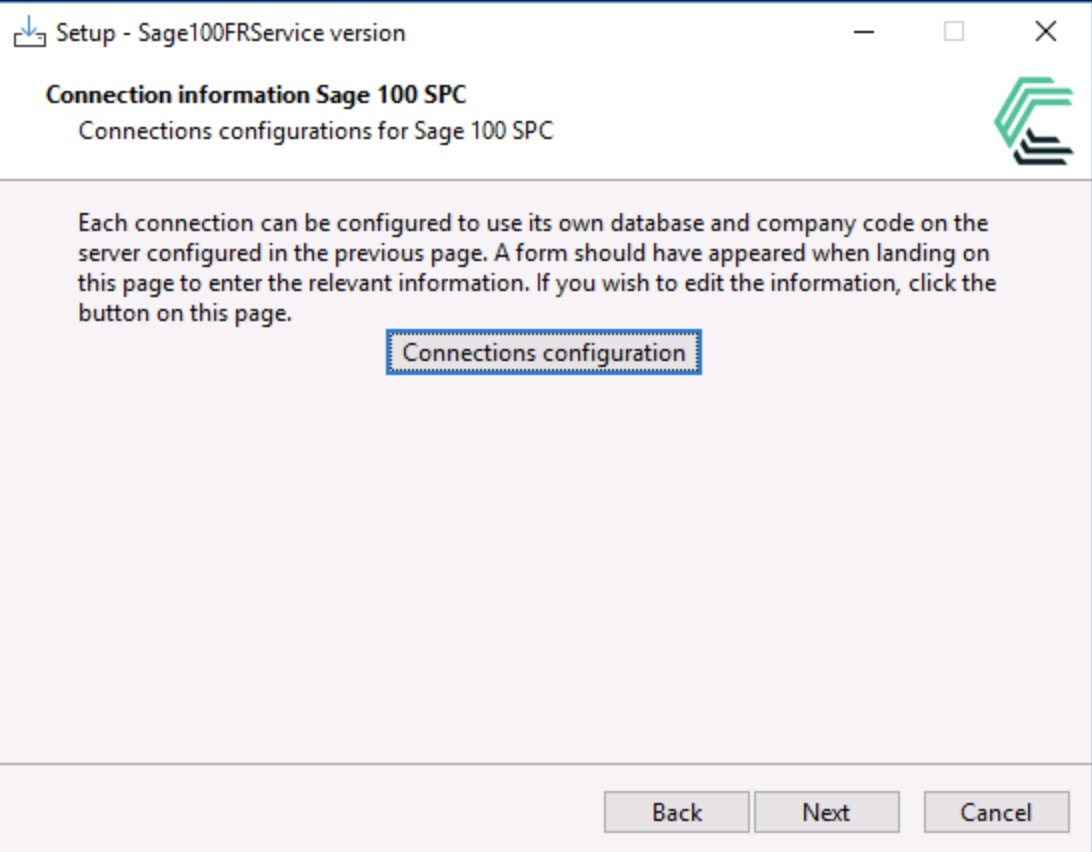
Click Next to finalize the installation of the agent.
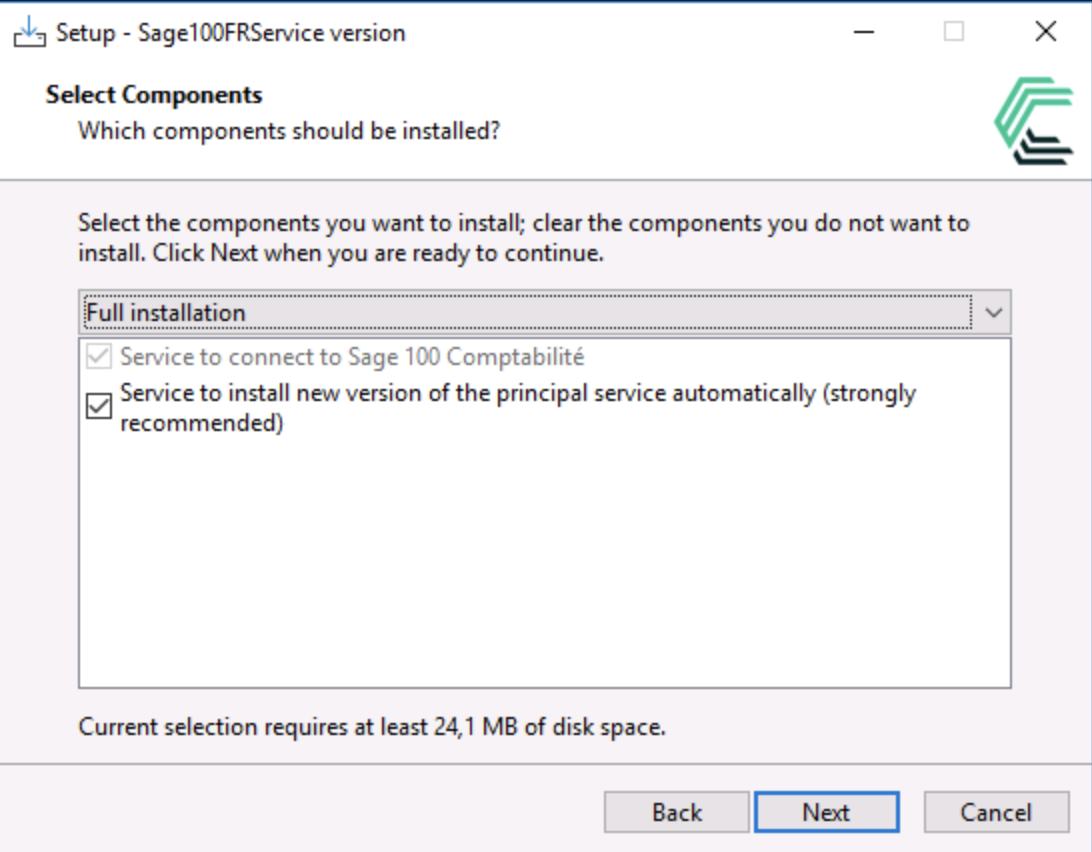
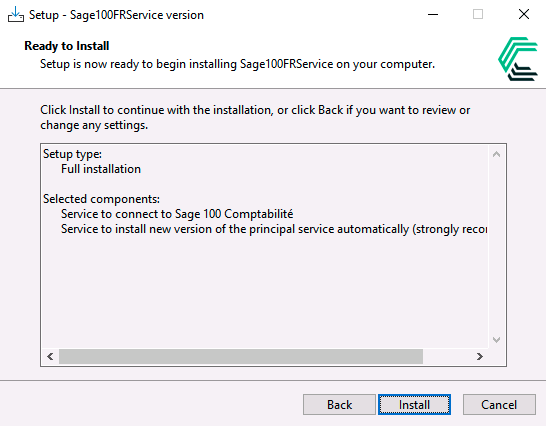
Click Install to start the installation.
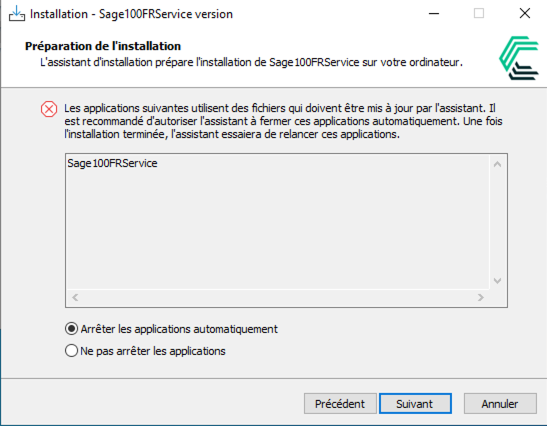
If a screen appears indicating that a previous version of the installer exists, it simply means the service will be stopped and updated. Click Next to continue.
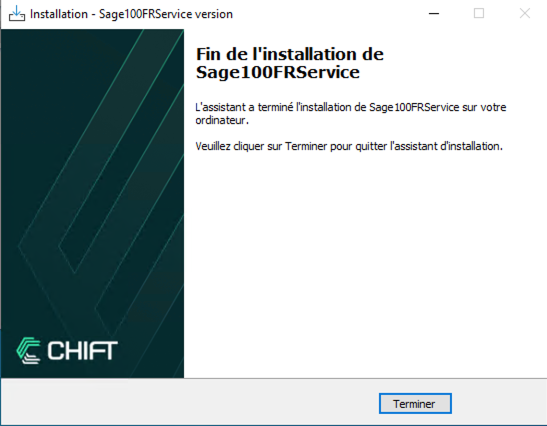
You can then click Finish.
🎉 Everything should be setup properly 🙌