Sage 100 FR On Premise - Local agent installation process
Last updated: July 28, 2026
Requirements
You have access to an admin user of the server to perform the installation process
The .NET 4.8 framework must be installed on the server
You have access to a windows user that has read and write access to both the SQL database of your accounting folder and access to the sage folder on your server. For this you have 2 possibilities:
Create a dedicated user having those permissions to be used to run the service. This is the solution that we do recommend
Get the user and the password of a user having both access
Make sure that your Sage version is at least 7 or Higher. This is the version from which the Objets Métiers library is compatible with the connector
Make sure that the Objets Métiers library is installed and that the version is matching with theSage version installed on the server. You can download it here.
Sage 100 Version | Objets Métiers version |
7.0 | 7.2 |
8.0 | 8.05 |
9.0 | 9.02 |
10.0 | 10.05 |
11.0 | 11.0 |
12.0 | 12.0 |
Recurring questions
How to check your Sage version ?
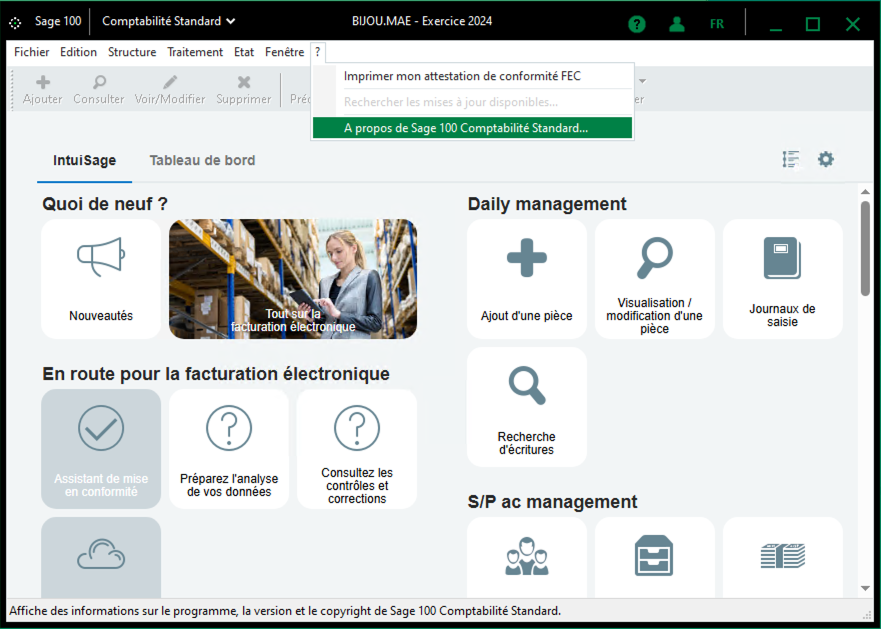
To check your Sage version, open Sage on the server.
From the menu bar, click on the question mark and then open the "about Sage 100" section
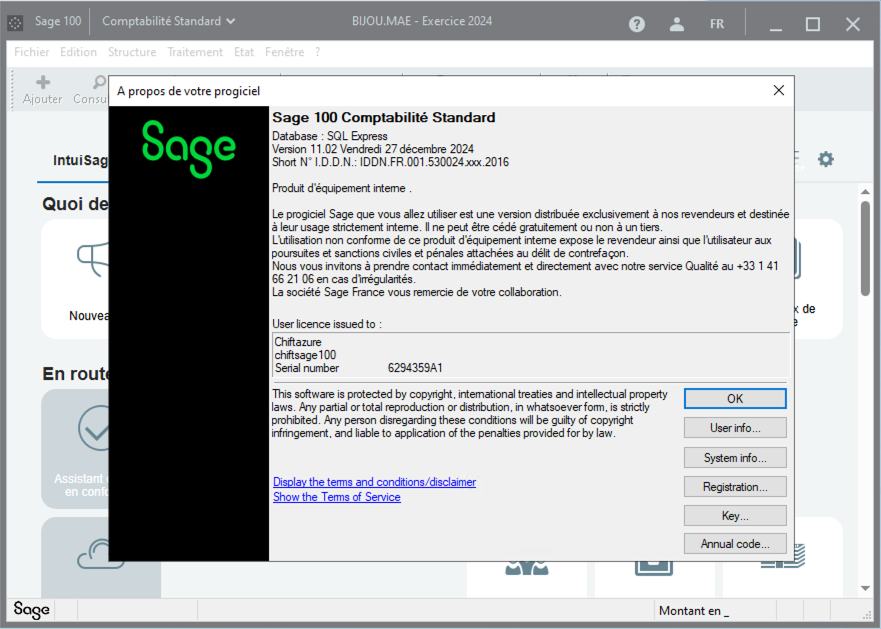
A new page will open. You will find the Sage version on the top of this page
How to check if the Objets Métiers Library is already installed on the server ?
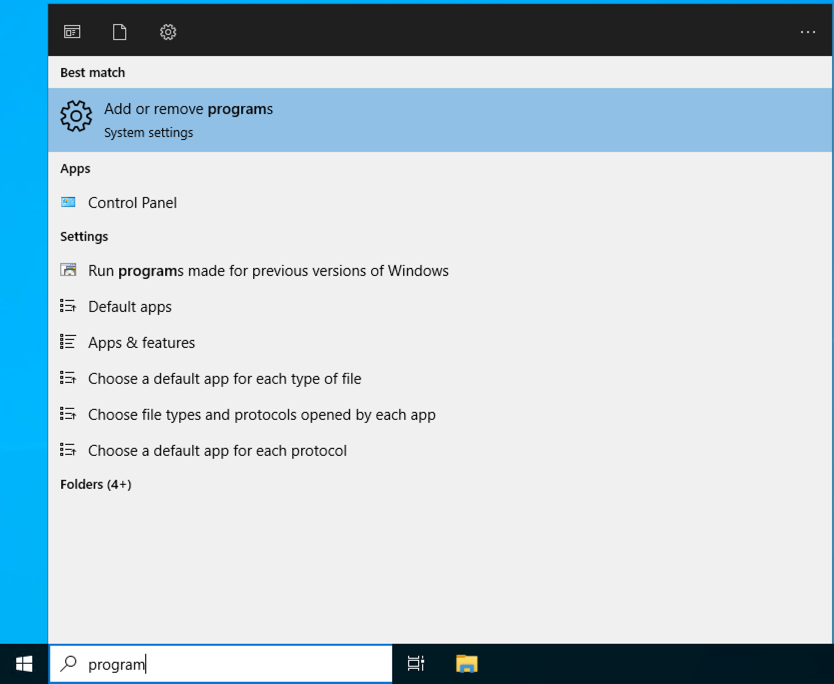
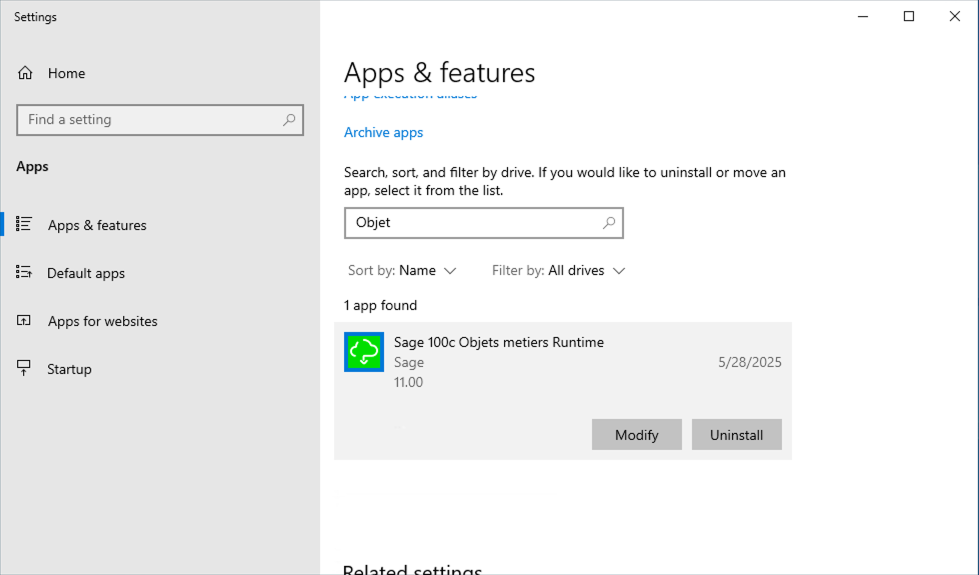
Click on the search button on the bottom left of the desktop of the server and search for the "add or remove program" section
Then search with the keywords "Objets métiers". You should find the following result. The displayed version is the version of the library and must match with the version of your Sage
Filling the form
The first step is to fill the following form.

Name of the connection: This name is used only on the Chift platform. We recommend using the name of the accounting folder you are connecting. This field will be shown and help you to later, during the installation process
Analytic Zone/Plan Number: The ID of the analytic plan to use. This field may not always be displayed—if not visible, you can ignore it. If you need some assistance on this step, check the recurring questions below
Server type : Select Private Server (since we are installing Sage On-Premise).
PDF Storage Option:
Select Yes to store PDFs as filestreams within Sage (accessible from the invoice).
Select No to store PDFs in a server folder.
Once all those questions have been answered, you can simply click on the connect button. Two options will be displayed :
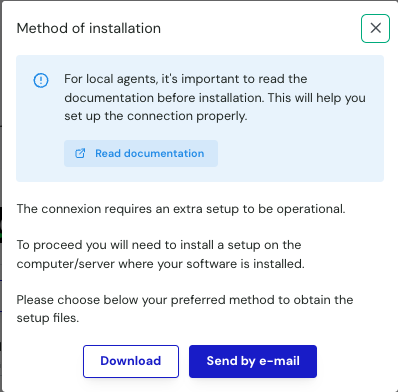
If you are filling the form on the server, click Download to get the installation file.
If someone else will perform the installation, click Send by Email and provide their email address.
Recurring questions
How to find the id of the analytic plan
From your Sage instance, open the Analytic plan section on the "structure" section.
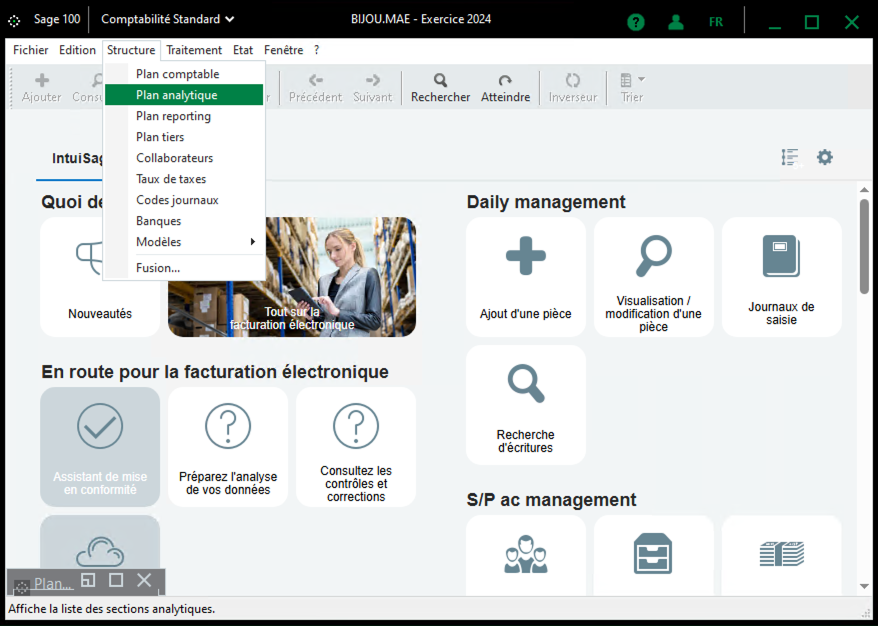
The id simply match with the number of the plan to use.
Here is an example:
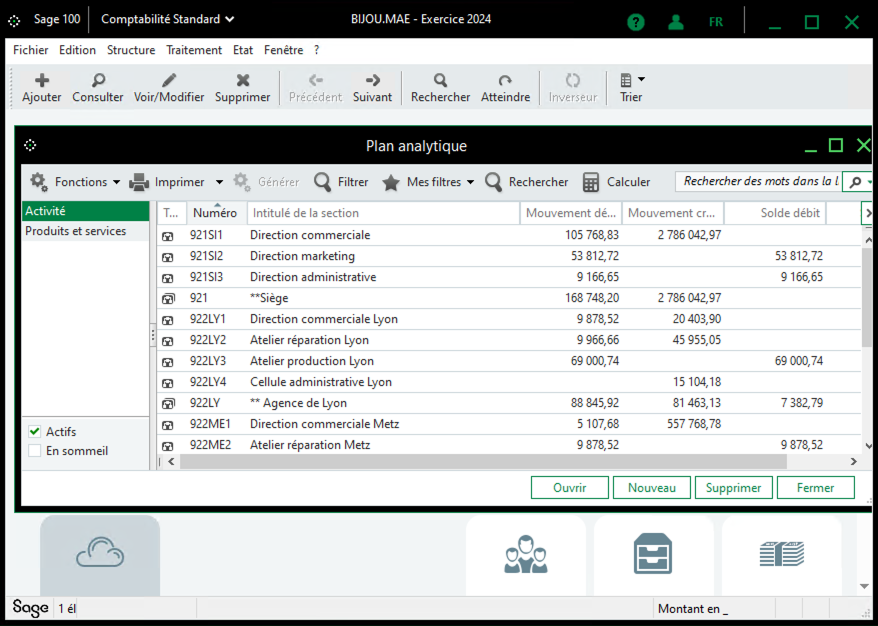
From this picture, you can see the different analytic plans on the left.
The number to use is simply the number matching the plan to use if you had to count them one by one.
Here, 1 would thus mean "Activité", 2 would mean "Produits et Services", and so on.
If you do not want to use any of those or if you have none, you can simply pick Not active
Installation process
Recommendation: Perform the installation directly on the server running your Sage 100 FR instance.
Once you have filled out the form and downloaded the zip archive, start by copying the archive to the server where Sage 100 is installed.
All following steps assume that you are connected to the server and that all prerequisites have been verified. If you have any doubts, stop here and make sure the requirements are met before proceeding.
If you are about to install the service for multiple folders, you may want to read the following documentation first (optional).
📄 Sage 100: Connect Multiple Accounting Folders at Once
Extract the contents of Setup.zip.
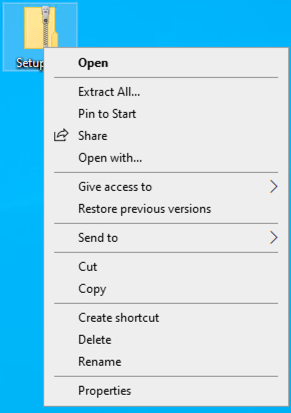
If you do not extract the file before proceeding, you will face this message asking you to extract the folder.
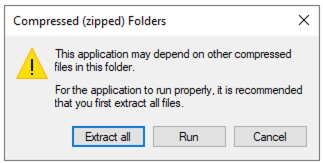
You can just click extract all to unzip the folder.
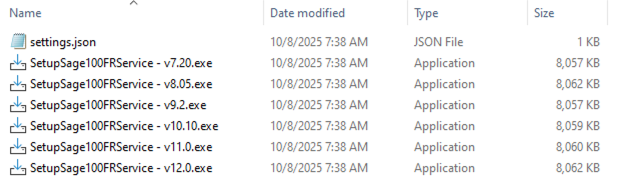
Inside, you will find:
settings.json– this is a configuration file (do not open or edit).A set of executable files to install the Windows service.
⚠ Important: Do not move any files out of this folder. Everything is designed to work directly from the downloaded location to simplify the installation process.
Start the executable that matches your Sage version. For example, on our server running Sage 11.02, we use the v11.0 installer
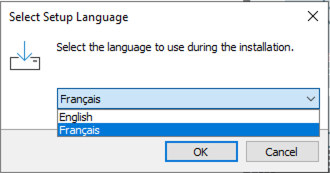
The first screen asks you to select the installation language. Choose the one you are most comfortable with.
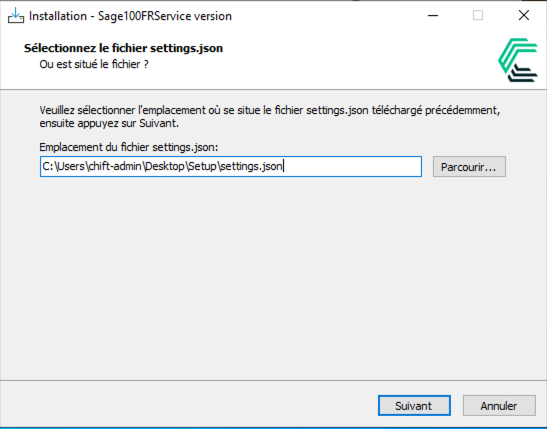
On the next screen, the installer will ask for the configuration file we mentioned earlier. The good news is that it’s automatically detected in the same folder as the installer, so you don’t need to select it manually
If you already have a version of the service running locally, you will see the following window open to ask you what actions needs to be performed on the connector. If this is not your case, go straight to step 4.
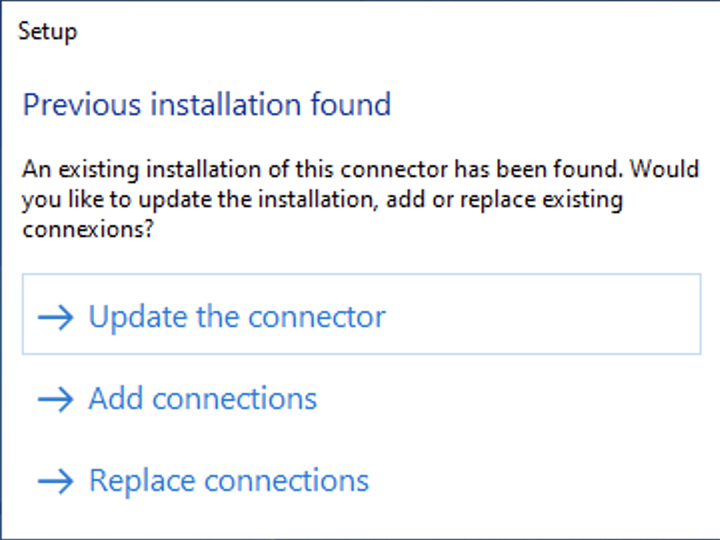
To know which option you want to select you need to know what you want to do with this installation actions you want to perform. To know more about each option and when to use them, check the elements below.
update the connector
This needs to be done only if you are trying to update the connector on your server (this should only happen if you have updated your version of Sage or if you are running an outdated version of the connector). This option will erase all the existing connexions to only keep the one that are included in your settings.json. If this is the option that you want to select, we highly recommend to consult the following documentation before proceeding.
add connections
This option will not update the connector on your server but allow you to add more connexions to the connector that is already installed on your server. This option will thus keep all previously installed connexion and add the ones from your settings on the top of the existing ones. This should be the most standard option selected during the installation of the service.
replace connections
This option will not update the connector on your server but replace the existing connections by the one includes in your settings.json. This is usually the option to consider if you are trying to remove some connections that have already been configured. This option must in that case only be used once, then the next connexion should be installed
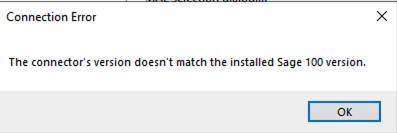
If you get this error message when adding new connexion, this means that you are running an outdated version of the connector that is not compatible with the current version.
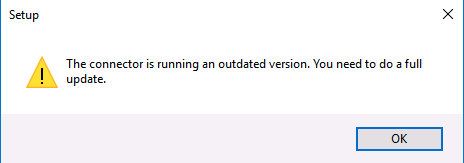
If this is your case, you will need to select the option to "update the connector". Make sure to consult the extra documentation to make sure that no existing connections are lost in the process.
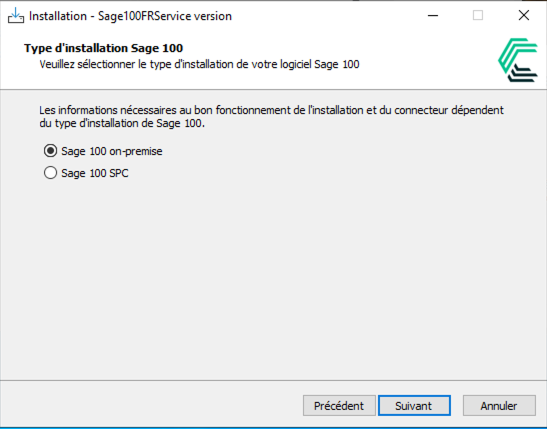
Confirm your Sage version. Make sure Sage On-Premise Version is selected.
Next, you will set up the connections for your Sage instance. All connections currently available on the server will be listed.
For each connection, you will see its name (for example, Demo Sage / MyAccountingFolder). This name matches the connection name you entered on the form earlier and identifies the corresponding Sage folder.
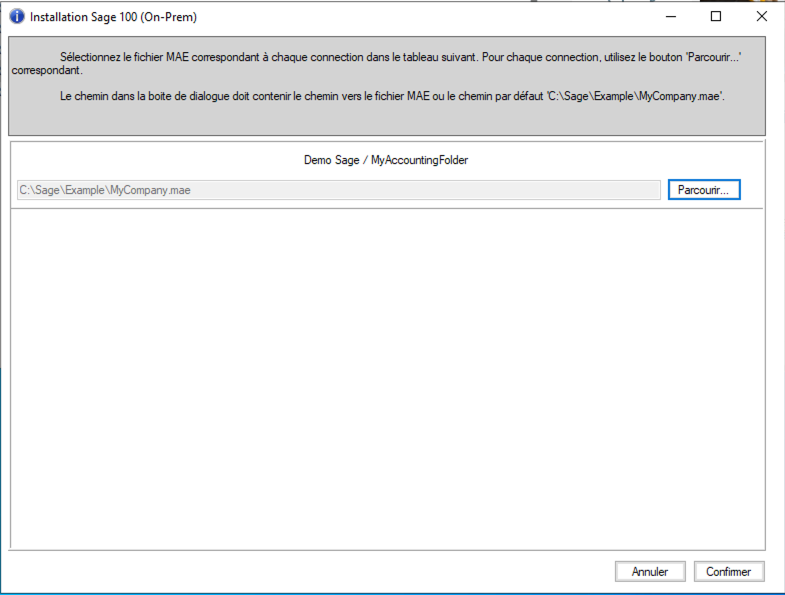
For each of the connexion, you will need to use the browse button to go and select the MAE file associated to that folder on Sage.
Once you selected the MAE file, a new pop up will open to ask for the Sage user to use to interact with Sage. We highly recommend the use of the default <administrateur> user.
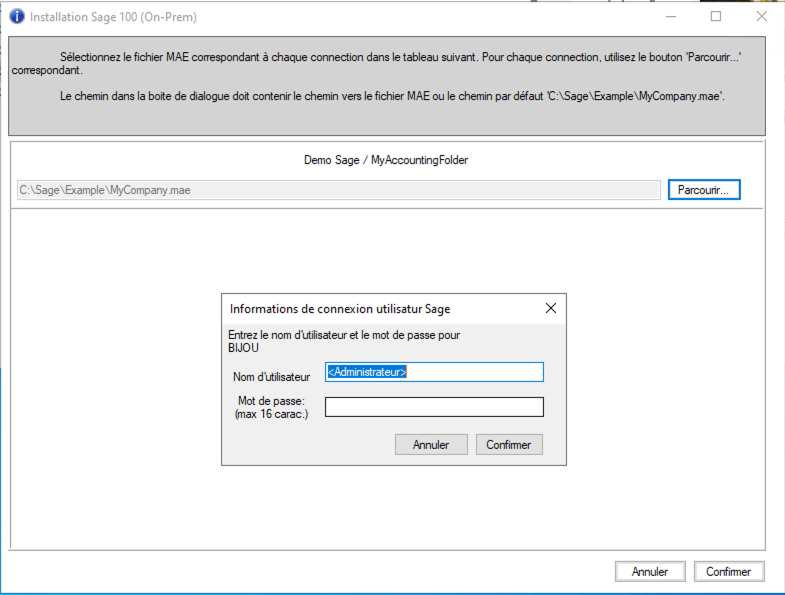
Click Confirm to finalize the credentials setup for this folder.
Possible errors occurring at this step:
If the sage credentials provided are not valid. You should here check if the user can connect on Sage with those precise credentials.
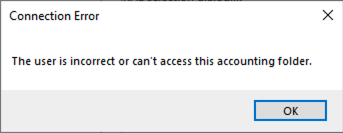
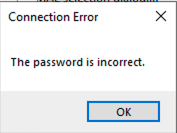
If the version of the installer do not match the version of Sage on your server. You can just restart the installation with the version of Sage that is installed.
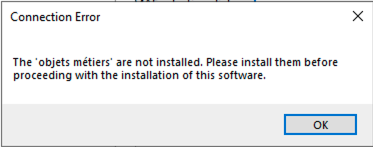
If the library has not been installed before the service, this error will occur. In that case, you should check with the client to make sure they install the library. You can download it here.
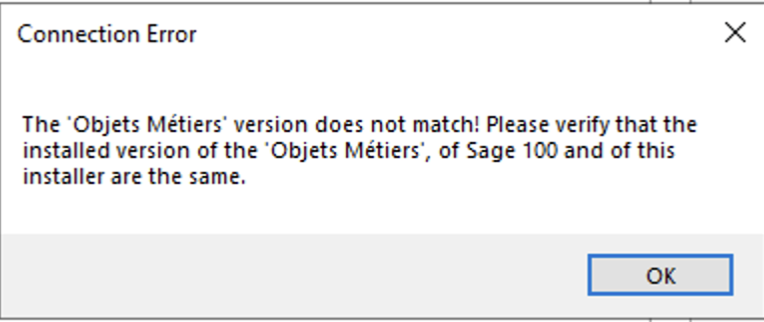
If the version of the library do not match with the version of Sage you have installed on your serveur, this error message will appear. To solve it you can simply uninstall the current version of the library and re install the good version directly from Sage's website.
If you have multiple connections to connect, fill those informations for all accounting folders to connect to make sure all folders are properly configured.
Once all folders are configured, click Confirm at the bottom right to proceed
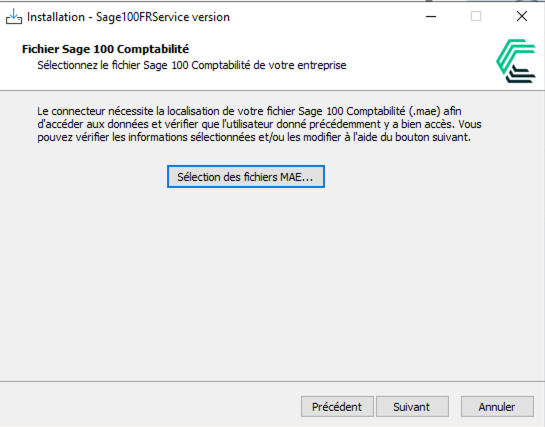
Click on the Next button to validate all the information you’ve entered. The installer will now check access to each accounting folder configured in the previous step to ensure everything is set up correctly.
If any credentials are not recognized by Sage, click on Select MAE files to go back and update them before continuing.
Click Next to finalize the installation of the agent.
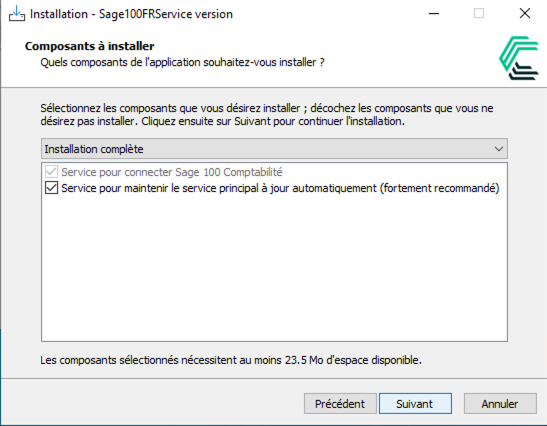
Click Install to start the installation.
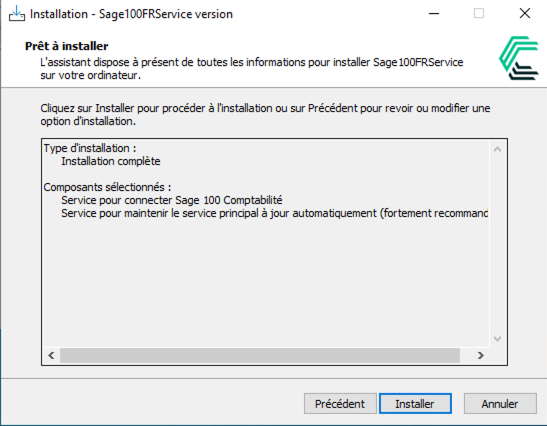
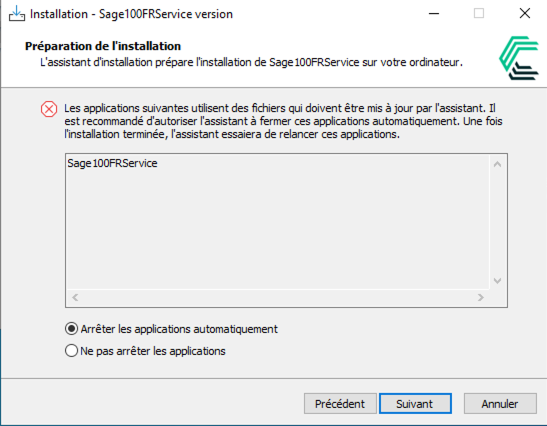
If a screen appears indicating that a previous version of the installer exists, it simply means the service will be stopped and updated. Click Next to continue.
Once the installation is complete, the service will ask you if you want to change the user running the service. This is required if the folders that contains Sage are on a shared drive or need special permissions to be accessed. If this is your case, click yes, otherwise click no.
If you click yes, this page will open. You will then have to select the windows user that should run the service. The recommendation here is to use the user that you just used to install the service as this is the user used for all the validations during the installation process.
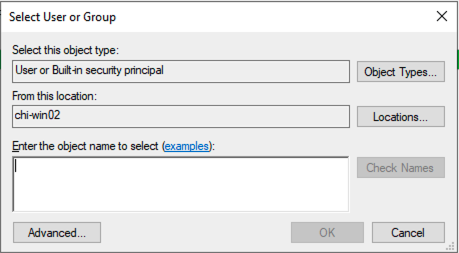
Note: Windows does not validate the provided credentials at this stage of the configuration. If any issues arise after this point, the password of this Windows user is likely the root cause. Refer to the appendix at the end of this documentation for guidance on updating the Windows user credentials.
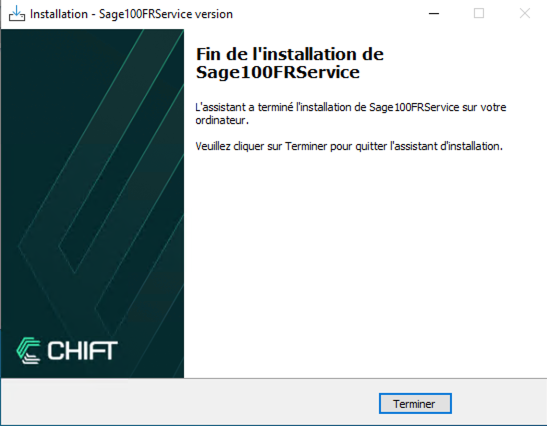
You can then click Finish.
🎉 Everything should be setup properly 🙌
Change the user running the service
Once this installation step has been performed, you will need change the user running the windows service to use your current windows user.
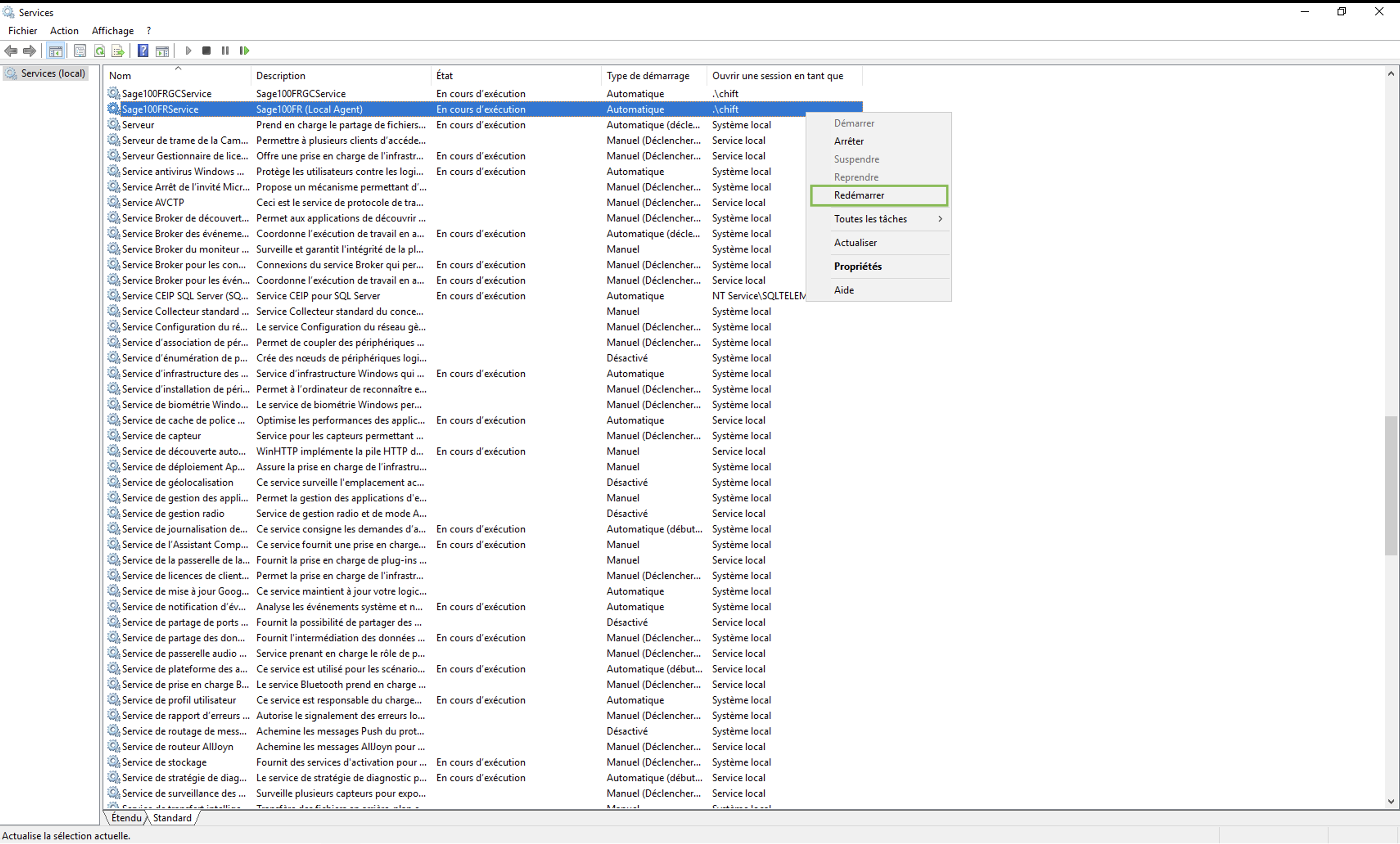
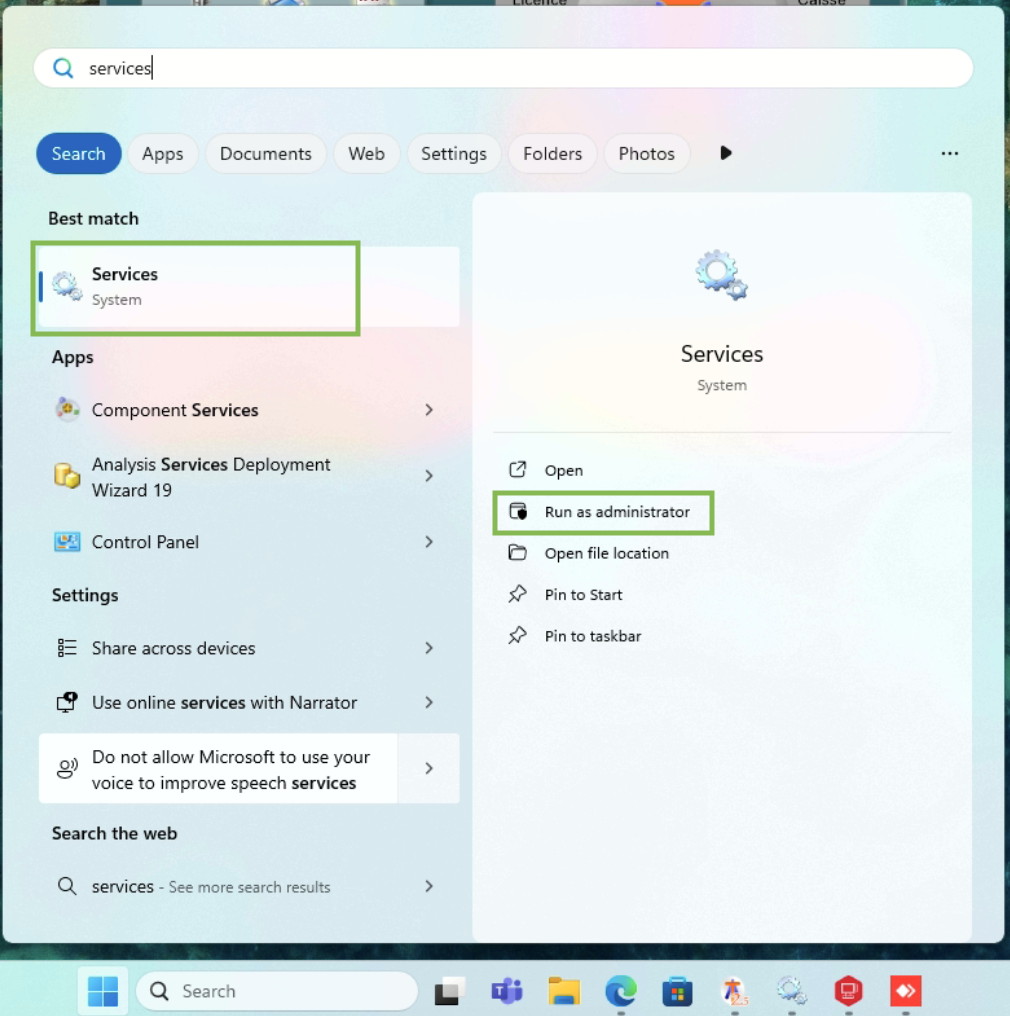
To do this, open the list of windows services running on your server. To do so, click on the windows search bar and write down the word "service". It should be the first result shown by Windows.
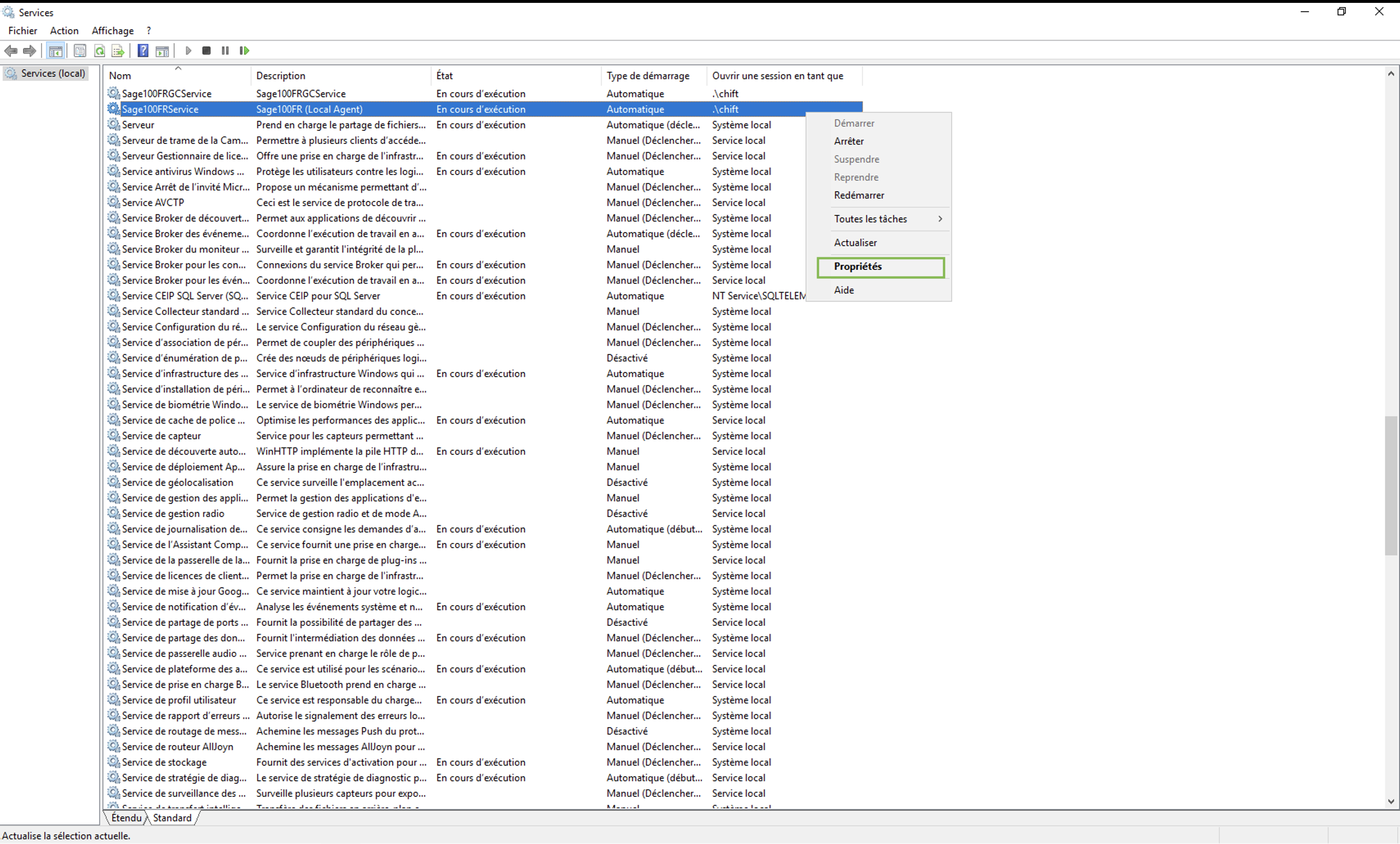
In that list of services, you will find one named Sage100FRService. Perform a right click on the service, then click on the properties to open it.
On the logon section, click on this account and then use your current windows user informations.
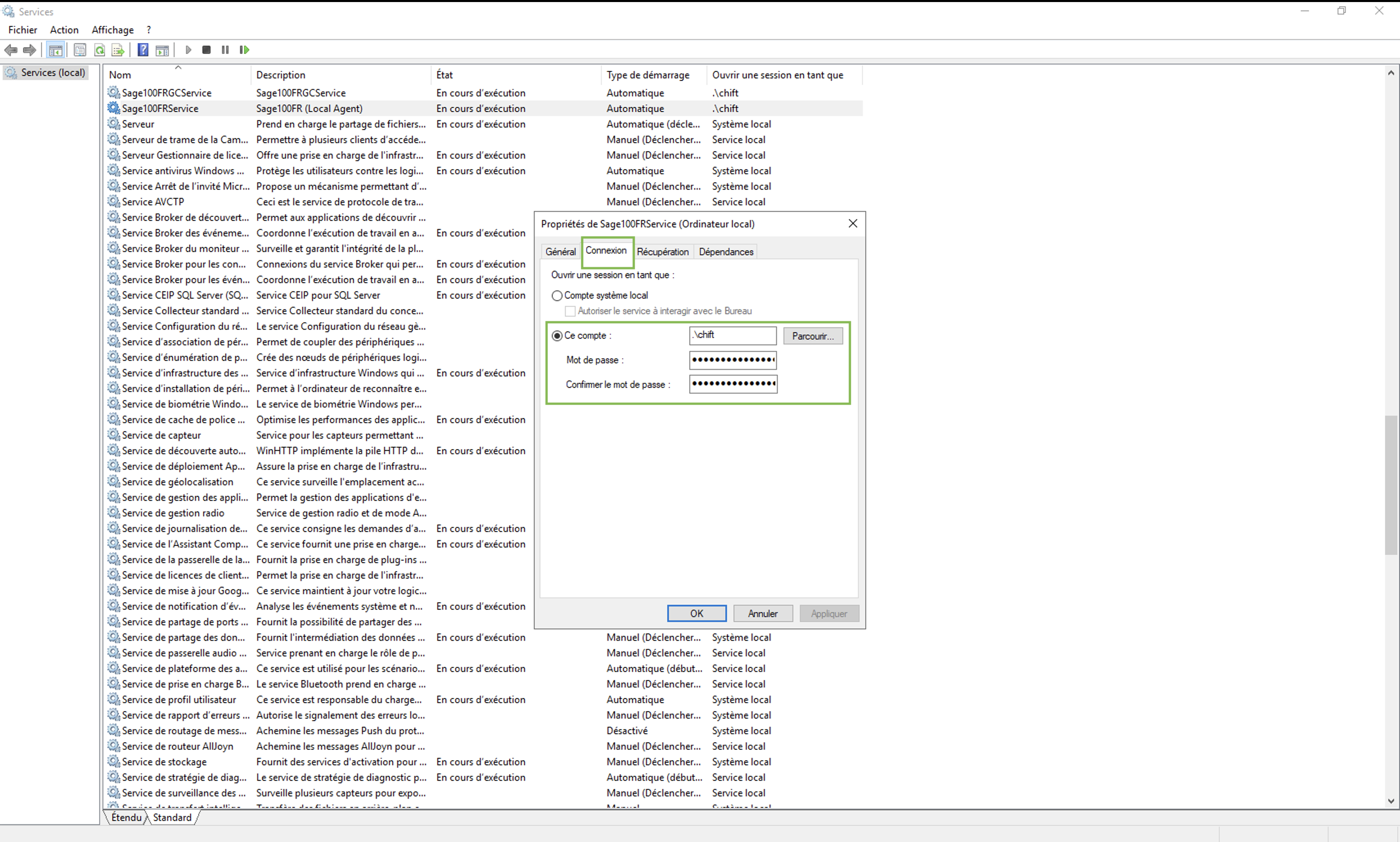
Once this is done, simply restart the service to ensure that the service starts with the proper permissions.