Exact Online NL
Last updated: November 4, 2025
PREPARATION
If you don’t see any field for analytical/cost axes on your activation page (Step 2 of the Connection section), or if you don’t need them, you can skip this step.
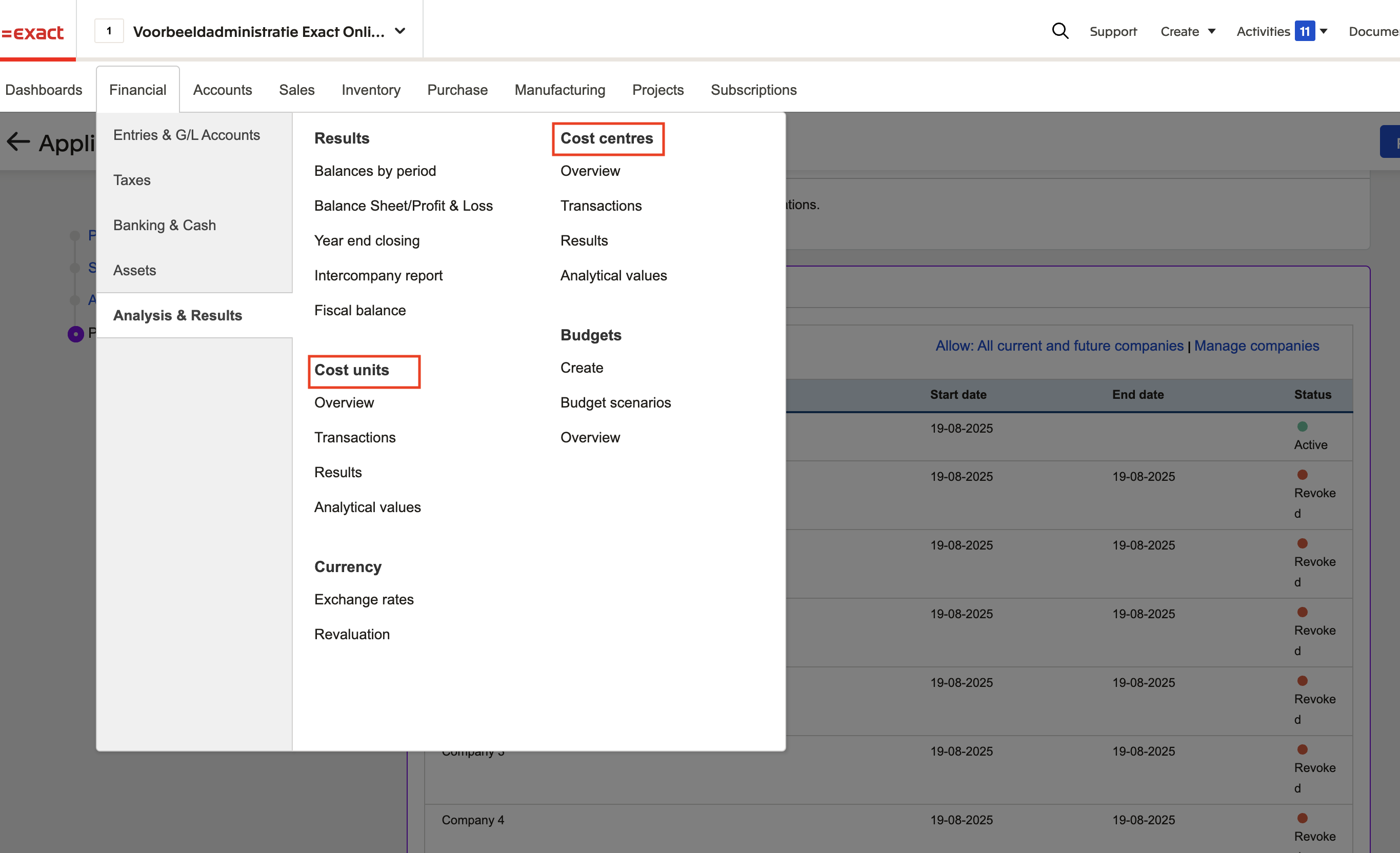
Check if your account has analytical/cost axis enabled.
For that , log into your Exact Online account.
Go to the Financial tab → Analysis & Results.
In the example below, two axes are enabled: Cost Centres and Cost Units.
CONNECTION
Step 1: Choose a name for your connexion.

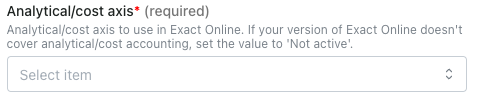
Step 2: Define the analytical/cost axis to activate.
Step 3: Click "Authorise" to finalise the connexion

AUTHENTIFICATION
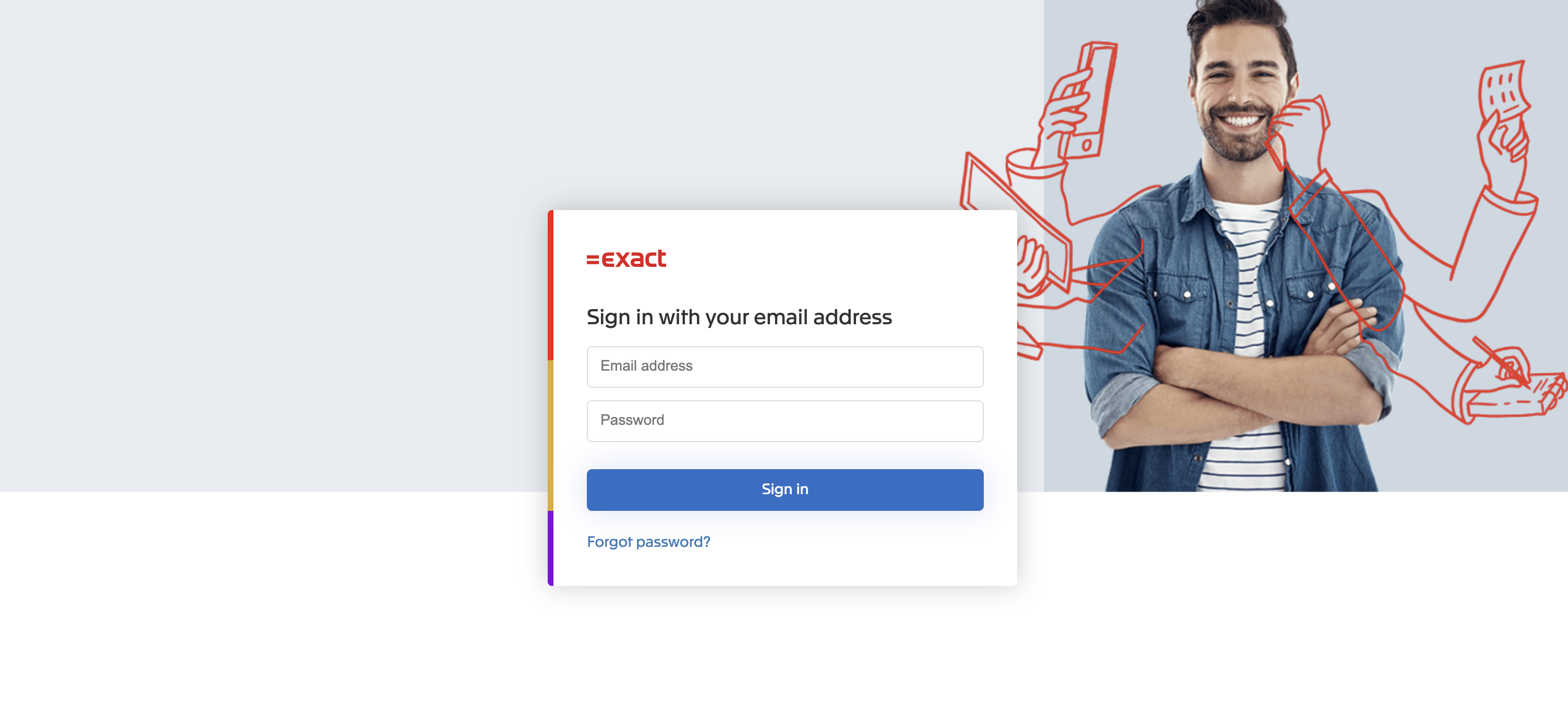
You will be redirected to an Exact Online page to authenticate your account
CONFIGURATION
Step 1: Select the company, folder, division you like to configure.

ATTENTION: it is possible that you don't find the company/division you want to connect in the dropdown menu. If this is the case, you need to adapt the allowed companies/divisions through the Exact Online interface:
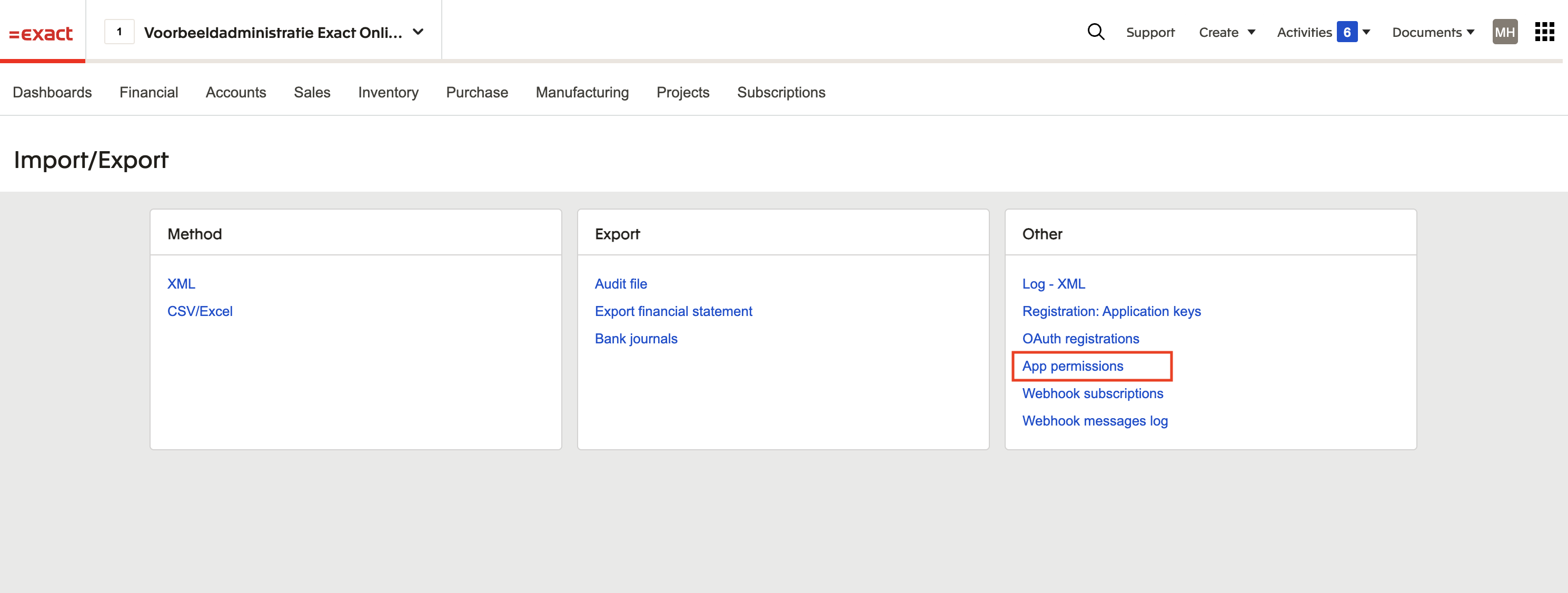
1) Open Exact Online "Import/Export" Settings
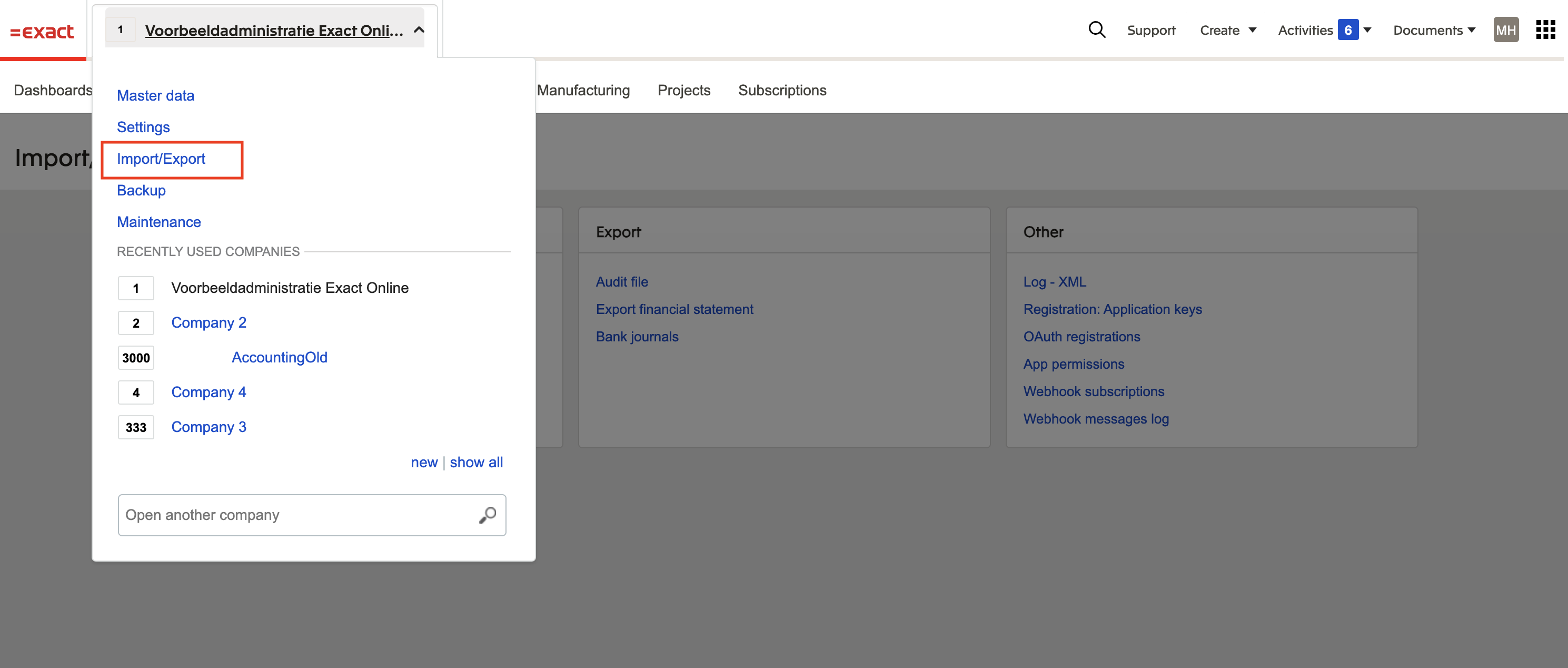
2) Select "App permissions"
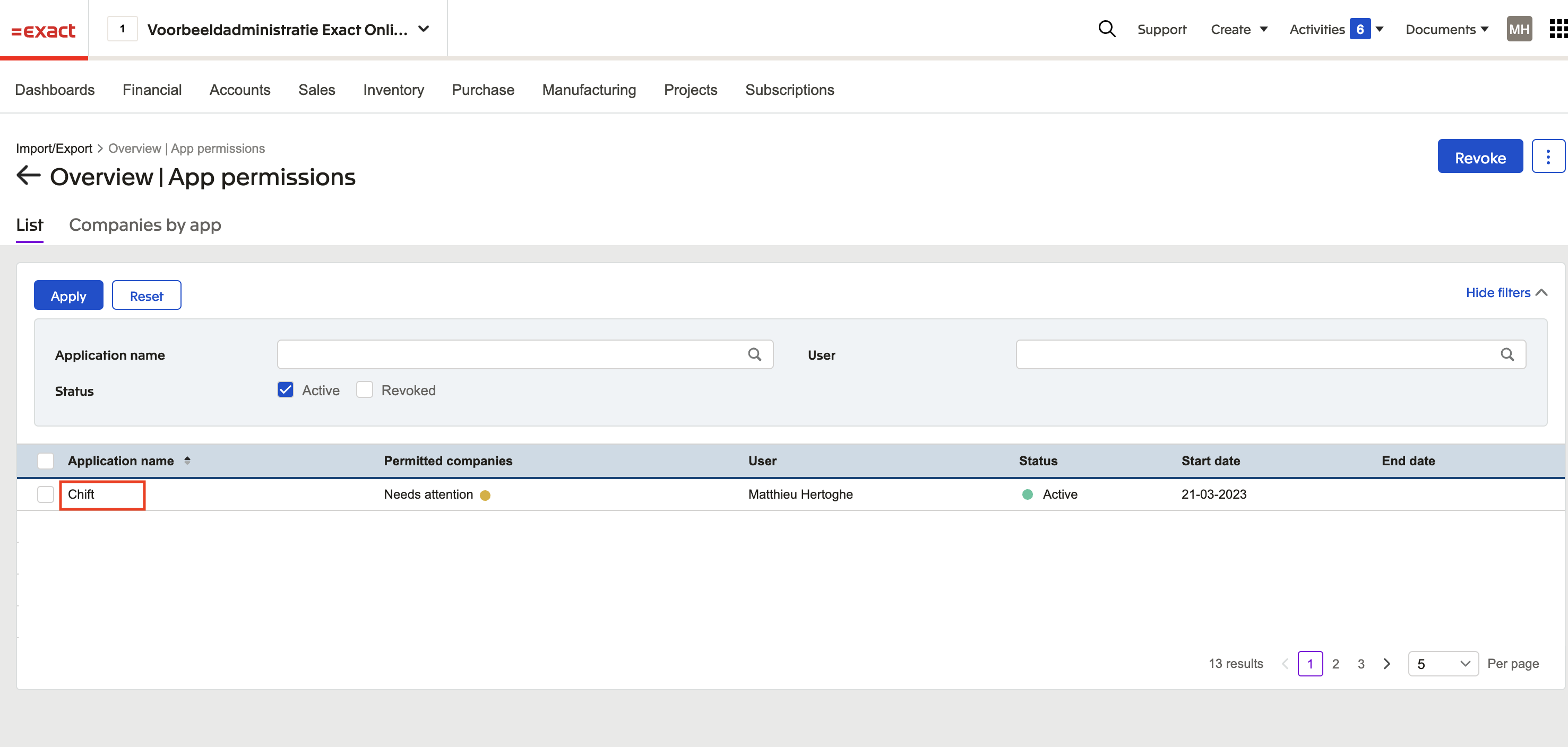
3) Select the app you are trying to connect to Exact Online
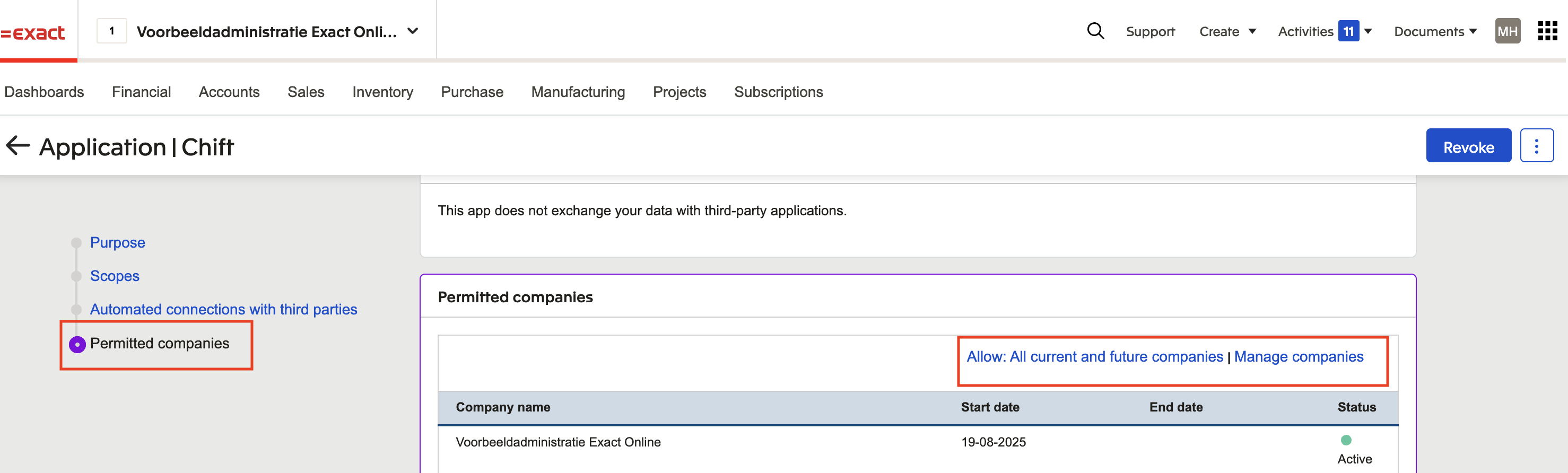
4) Go to the "Permitted companies" section. Here you can allow all current and future companies OR select "Manage companies" to only allow specific companies
Step 2: Click "Submit" to finalise the configuration.