Prestashop
Last updated: February 16, 2026
⚠ Only "1.7", "8" and "9" Prestashop versions are are compatible with Chift.
PREREQUISITES
1. Retrieve the shop URL
Log into PrestaShop
Then click on "Advanced settings" → "Webservice"
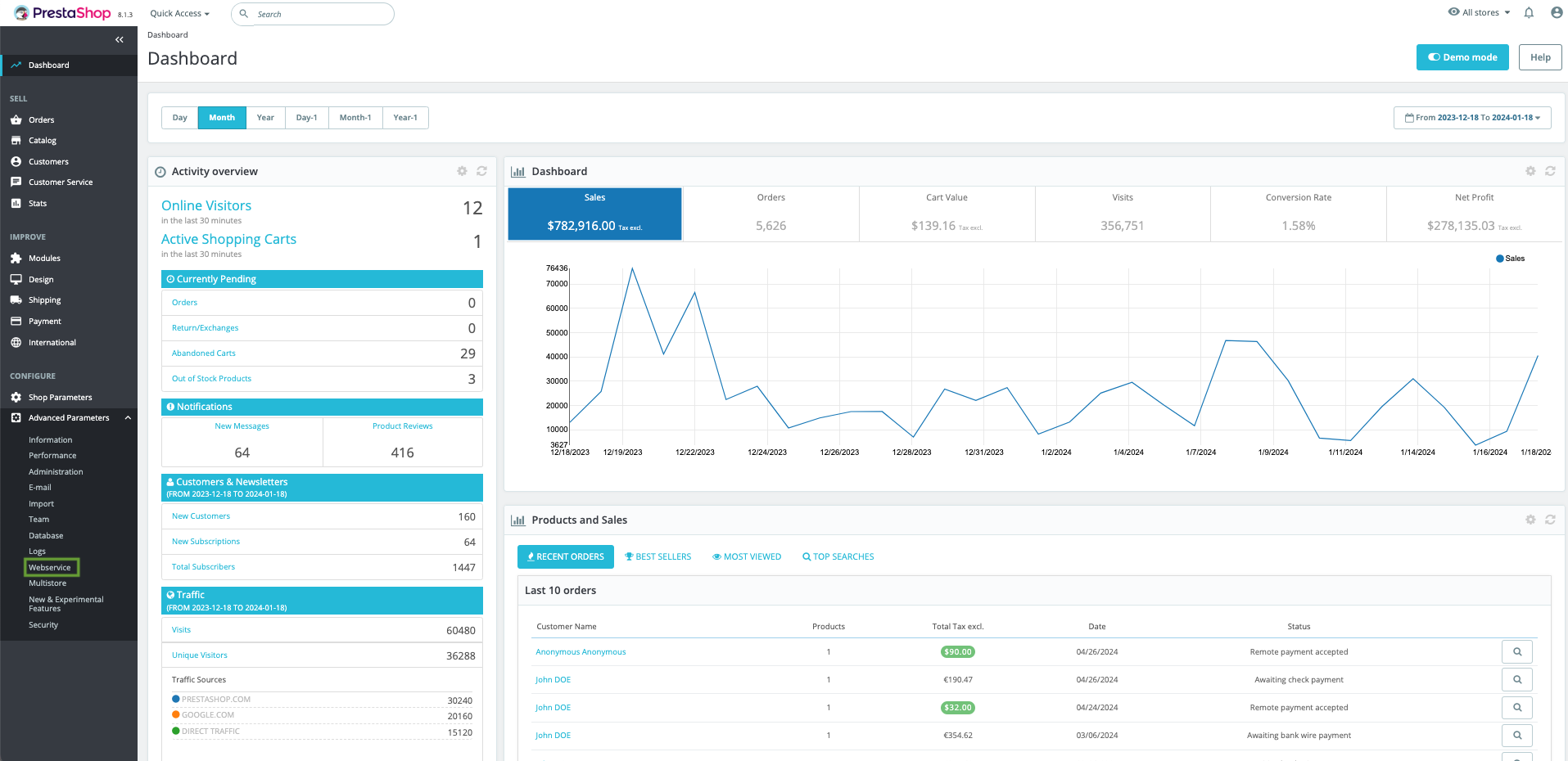
Copy URL after "Webservice is enabled. Main entry point is". If you do not see this, please take a look at this link to find the URL of your instance.
💡 This is the URL you need to fill in Chift in order to sync Prestashop.
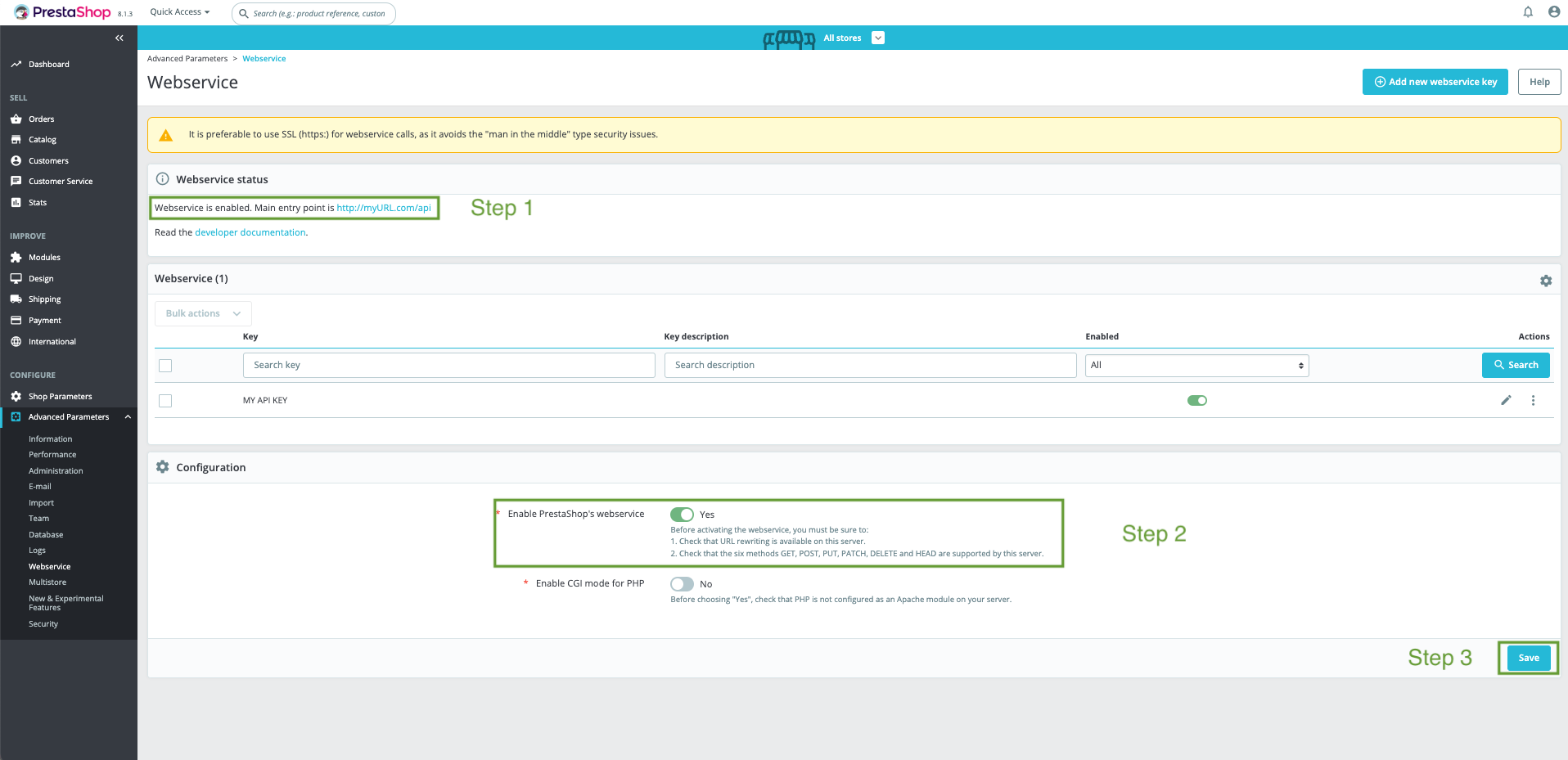
💡 If webservice is not enabled, you can activate it at the bottom of the screen ; don't forget to save your changes.
2. Generate an API key
On Prestashop, click on "Advanced settings" → "Webservice"
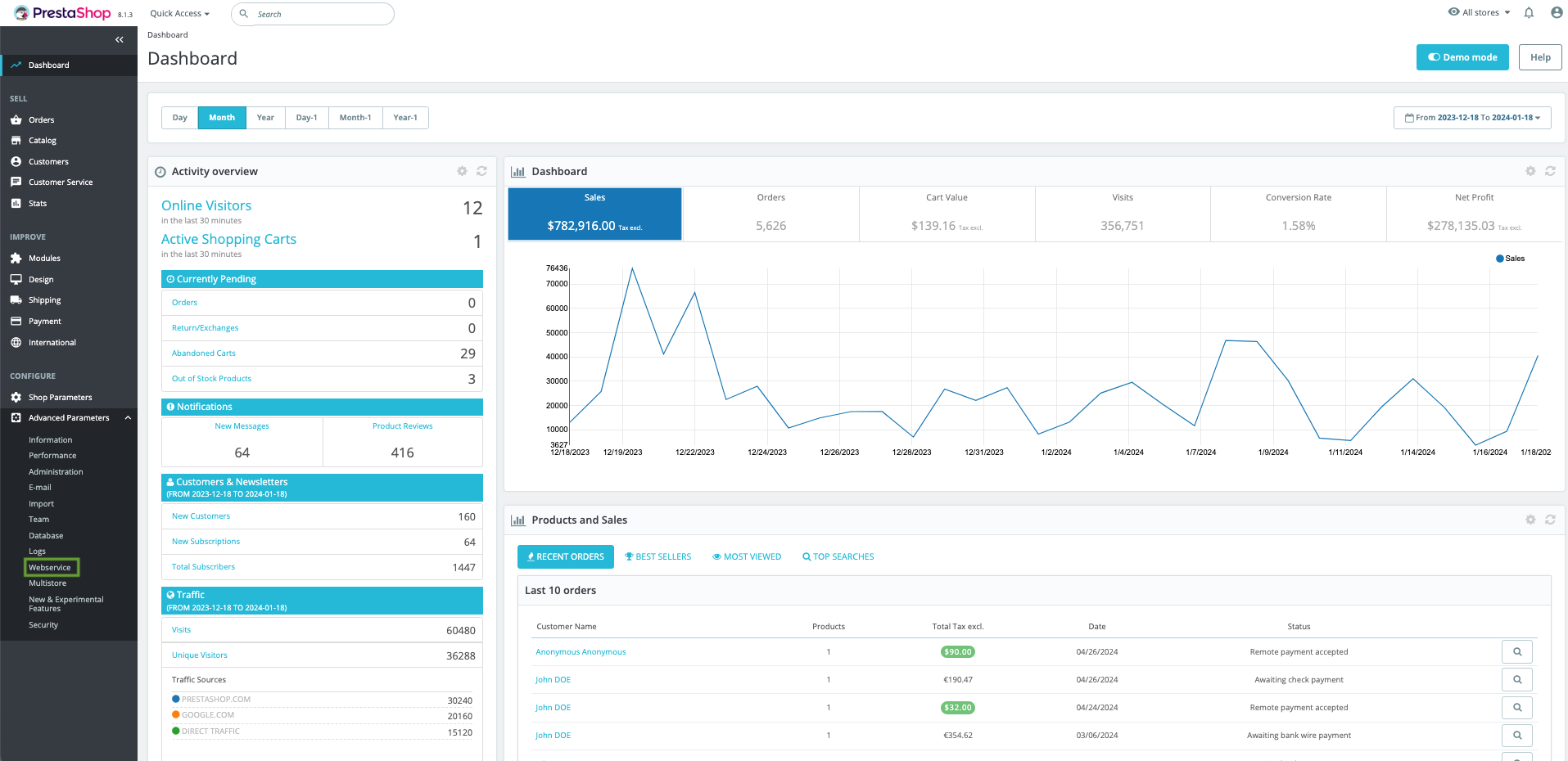
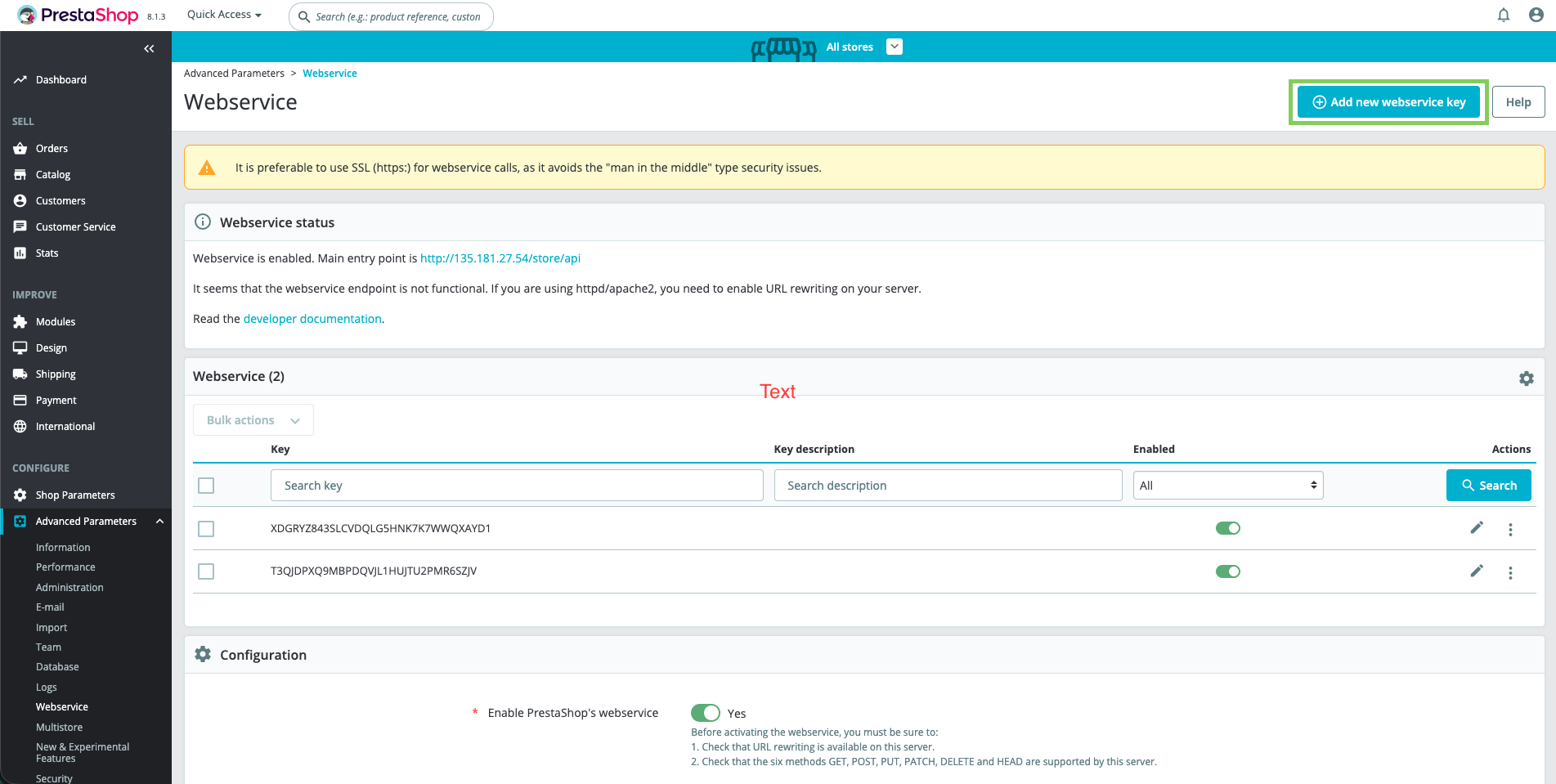
Then on "Add a new webservice key"
Click on "Generate"
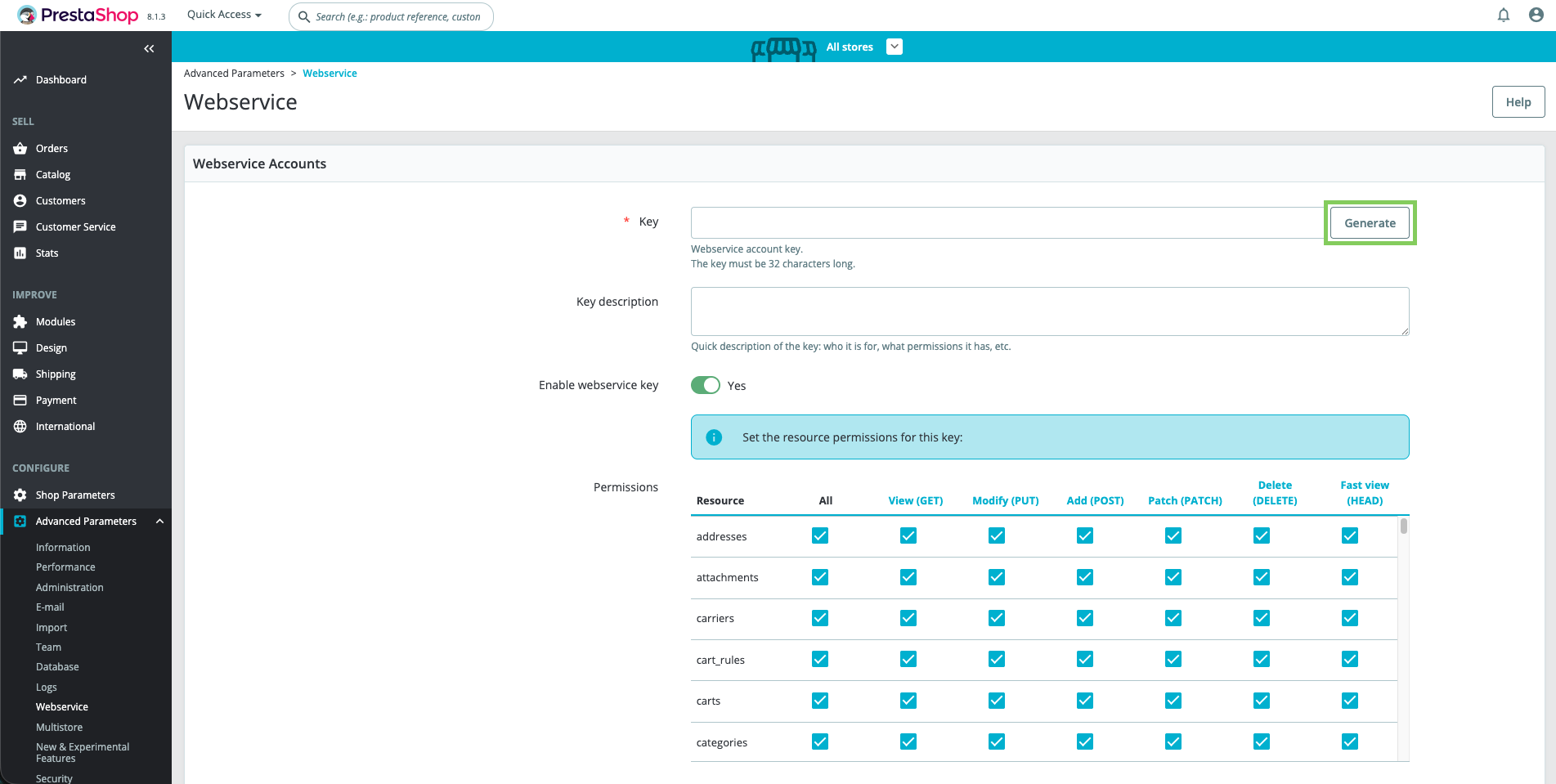
💡 This is the API key you need to fill in Chift in order to sync Prestashop.
Enable the "Enable webservice key" toogle
Allow "GET" rights for your API key to the following resources:
products, combinations, product_option_values, addresses, orders, order_details, order_payments, order_slip, customers, categories, stock_availables, product_options, languages, countries, shops, order_states, carriers, taxes, tax_rules, currencies, configurations, order_cart_rules, order_carriers, order_invoices, order_histories, deliveries, product_suppliers, tags, attachments
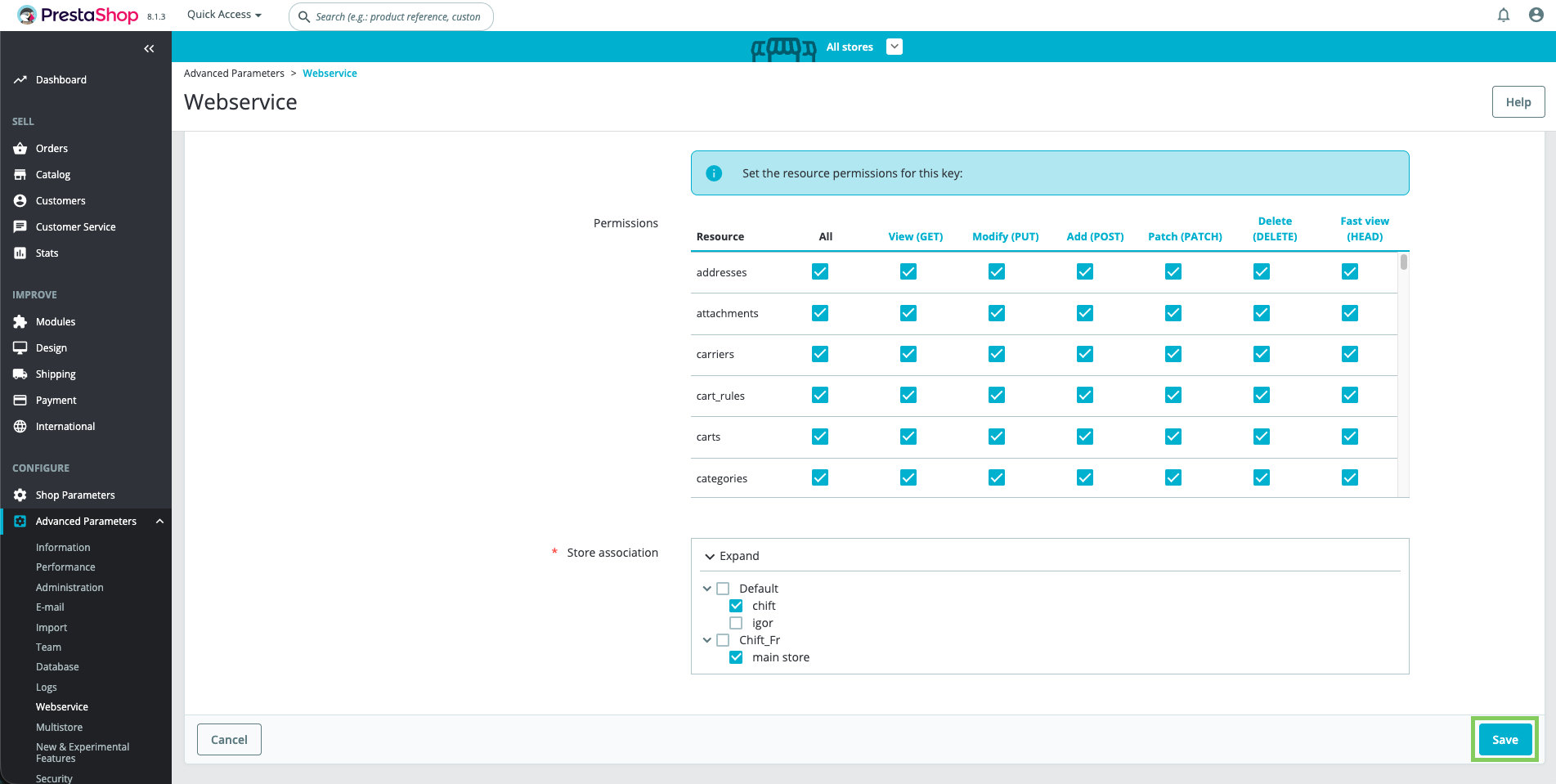
Select the shop(s) you want to associate to this API key
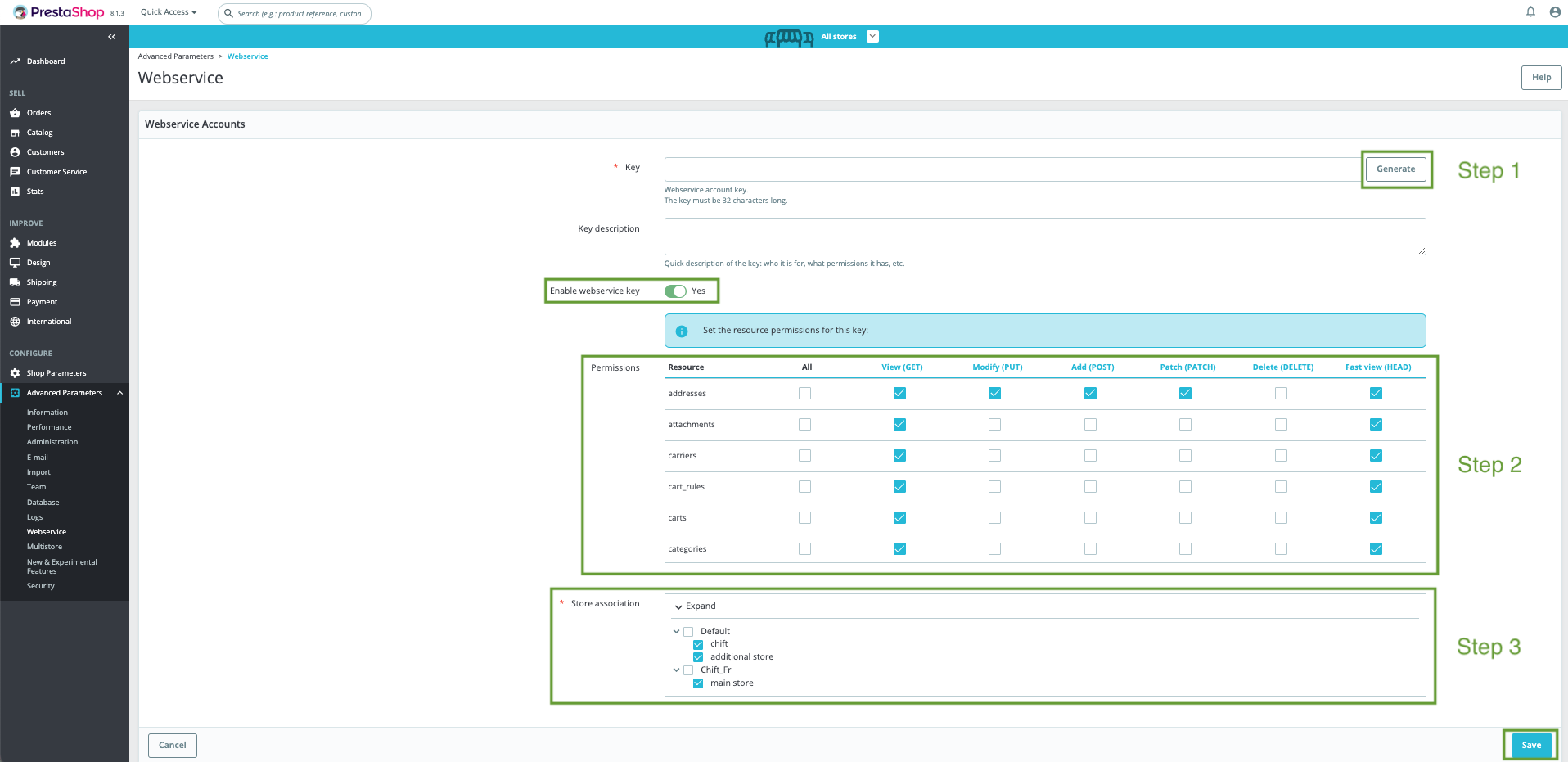
⚠ Don't forget to save your changes before leaving this page
CONNEXION
Step 1: Choose a name for your connexion

Step 2: Fill in your Prestashop URL

Step 3: Fill in your Prestashop API Key

Step 4: Click on "Connect" to finalize connection
