Shopify
Last updated: February 2, 2026
PREPARATION
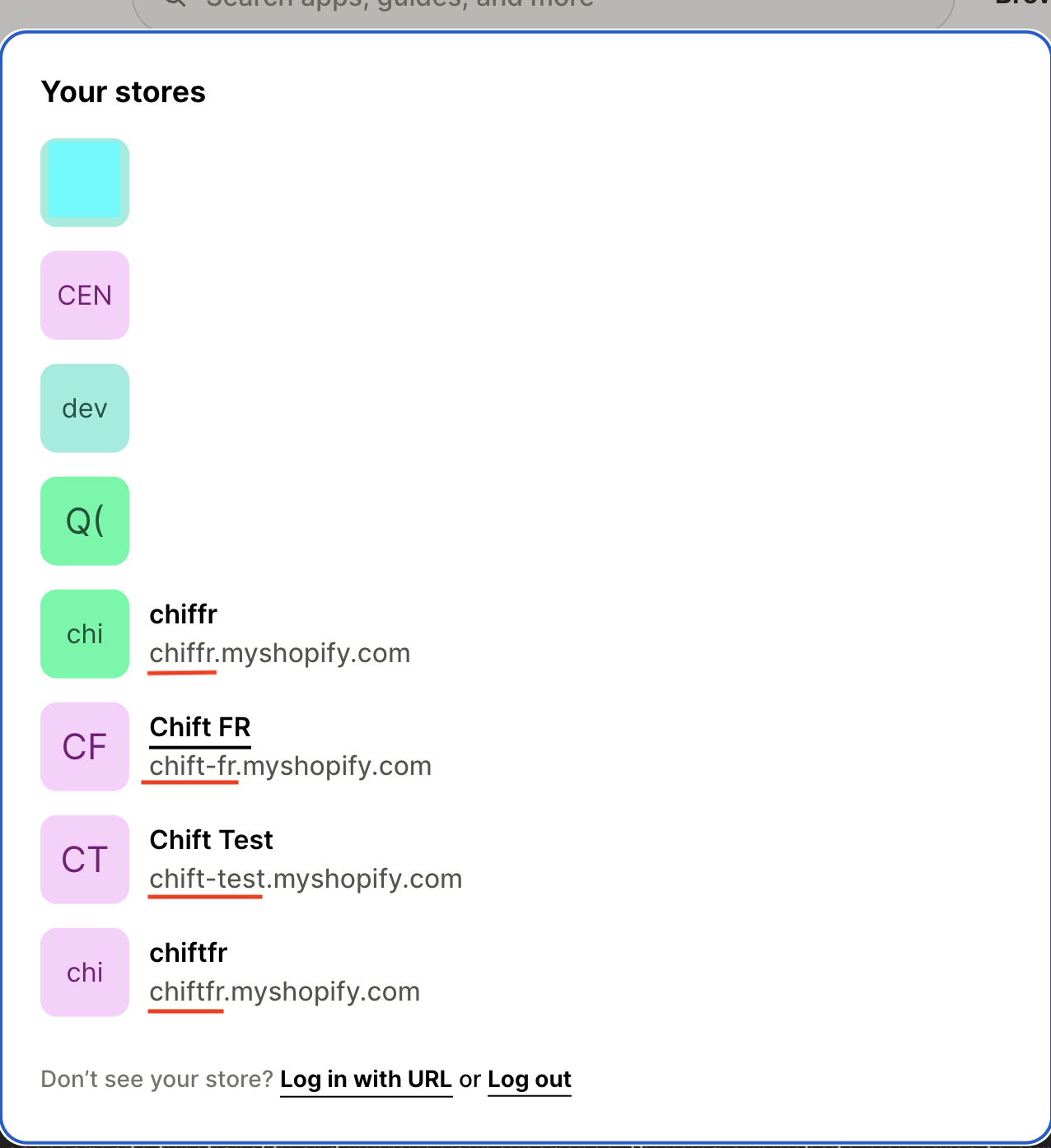
Identify the technical name of your "store" on Shopify
CONNEXION
Step 1: Choose a name for your connexion (informative).

Step 2: Enter the technical name of your store, previously found on your account.

Step 3 : (Optional) Enter the client id / client secret of your app. If you are asked for this please move to section "Configuration - Custom app" below in this guide. Otherwise continue to step 4a.


Step 4a: Click "Authorise" to finalise the connexion.
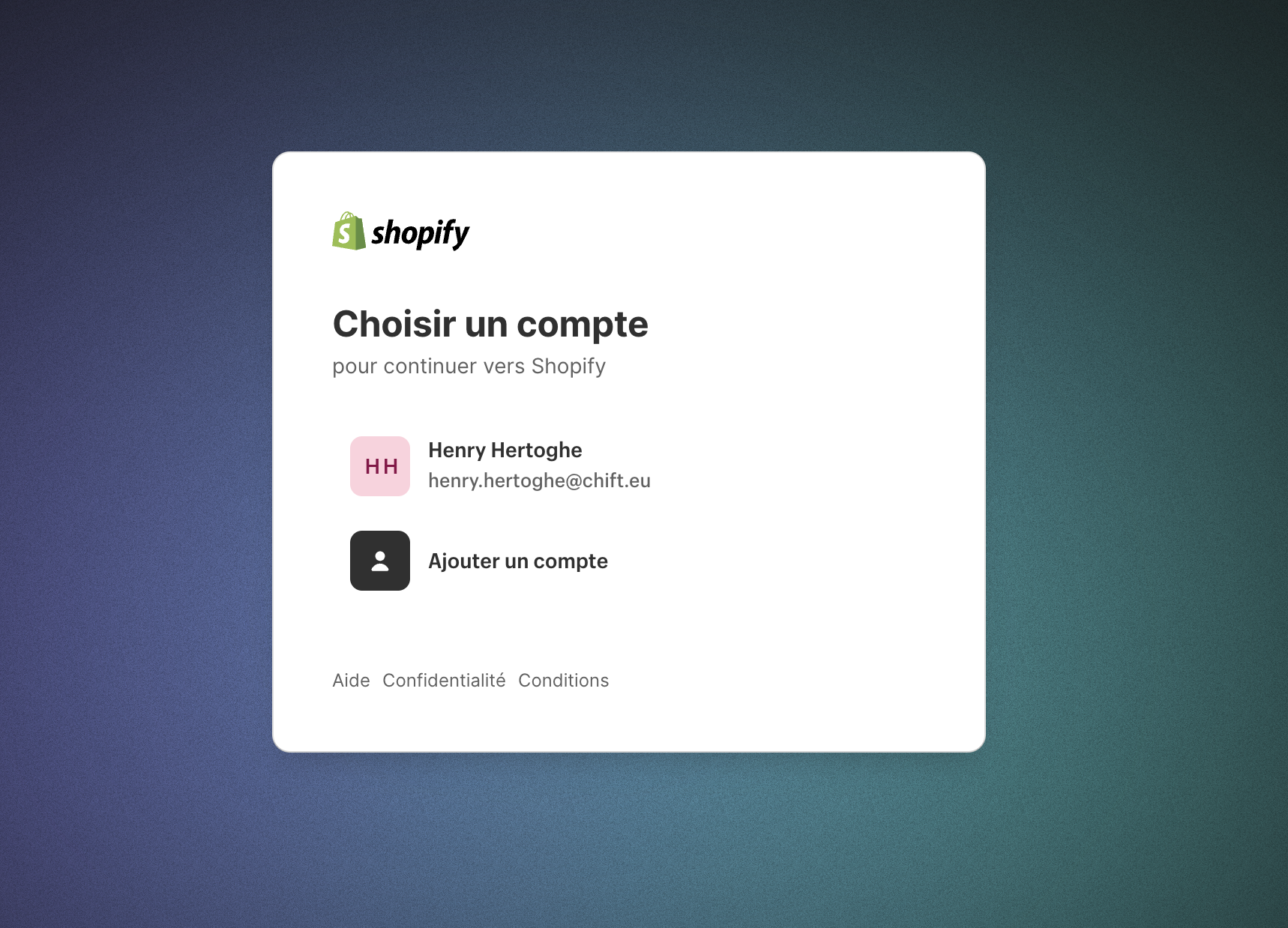
Step 5a: Choose your Shopify store to connect
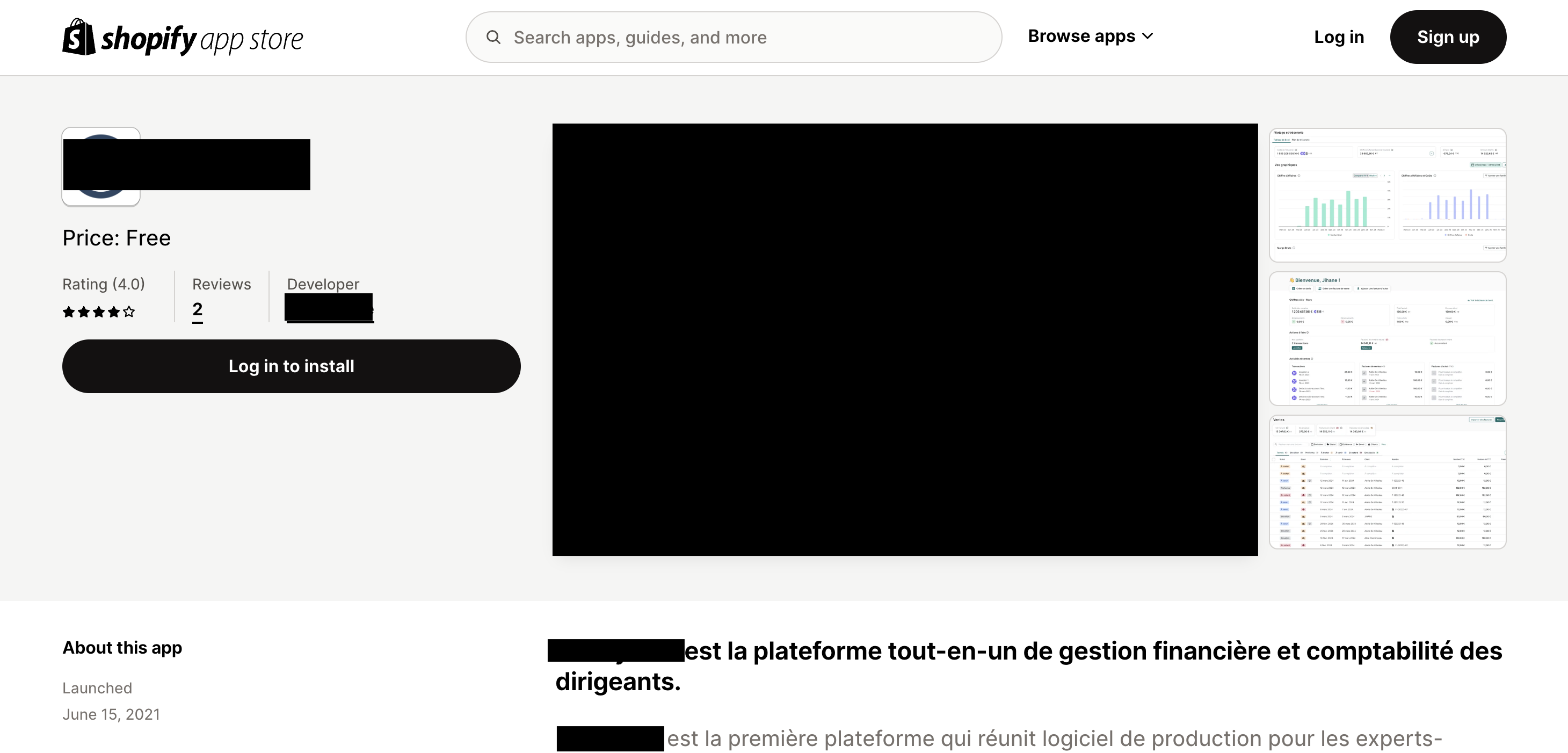
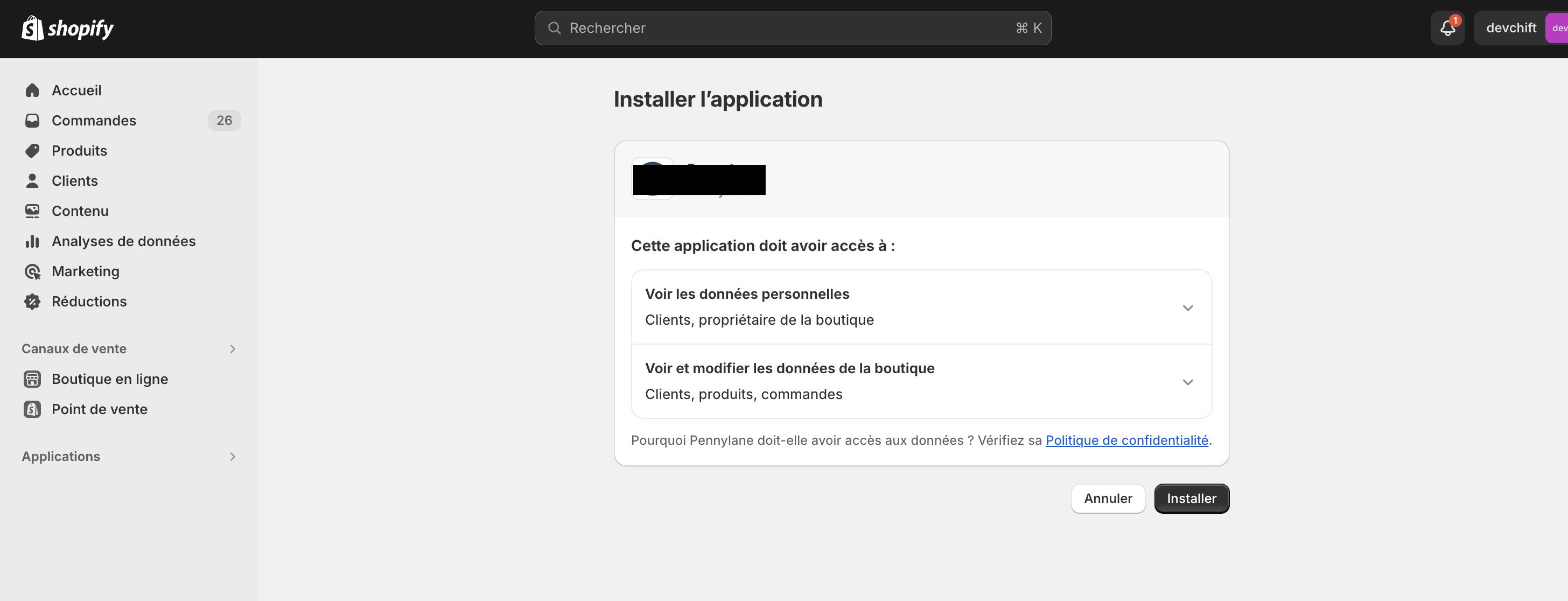
Step 6a: Install the app of your partner you wish to connect with Shopify.
Configuration - custom app
Proceed with those steps only if you are asked for a client id and client secret.
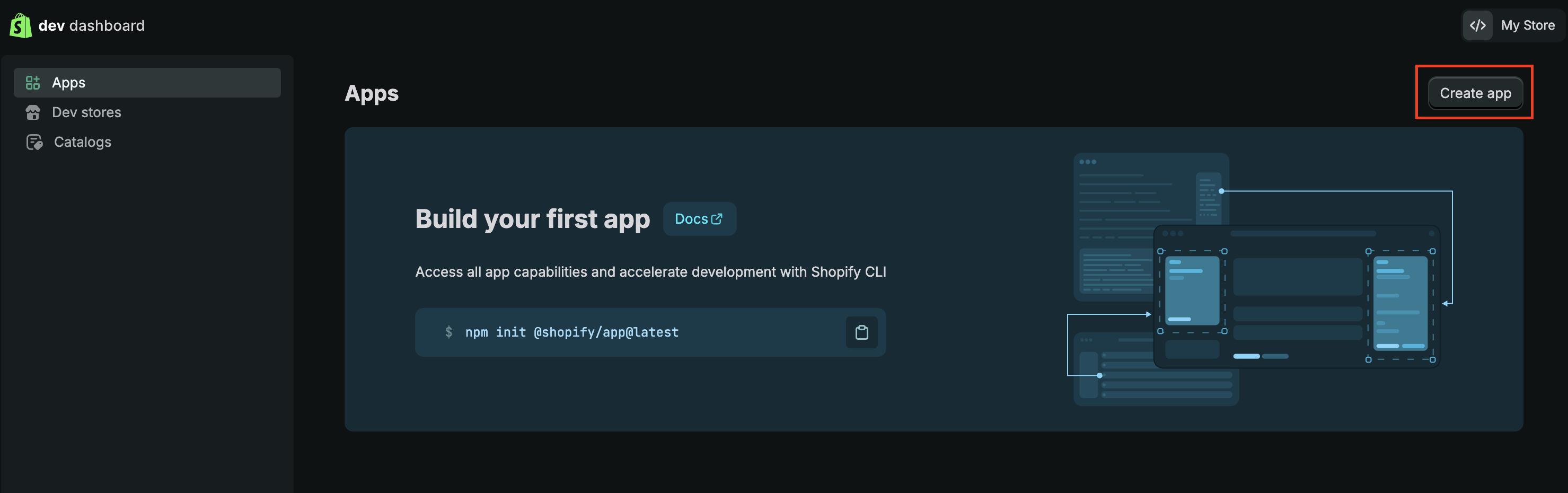
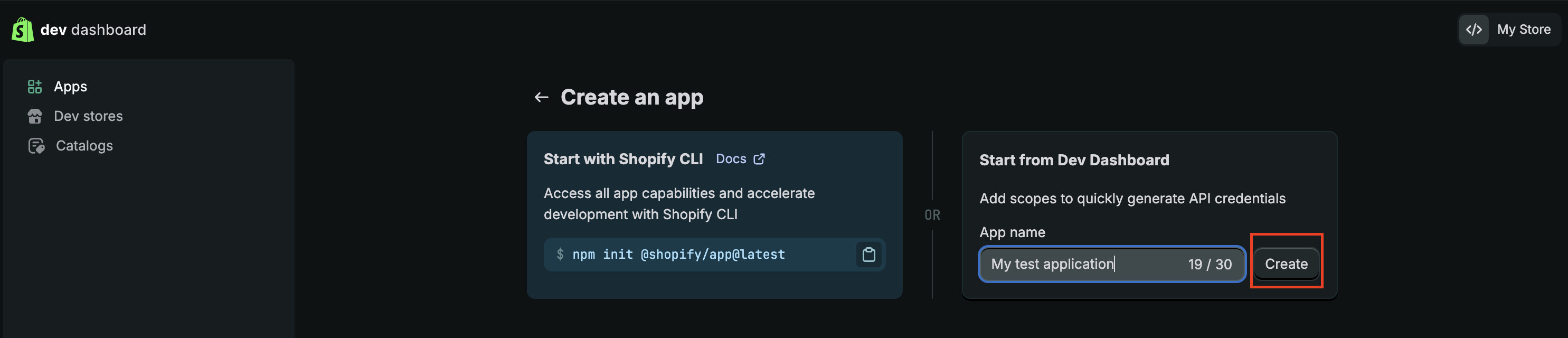
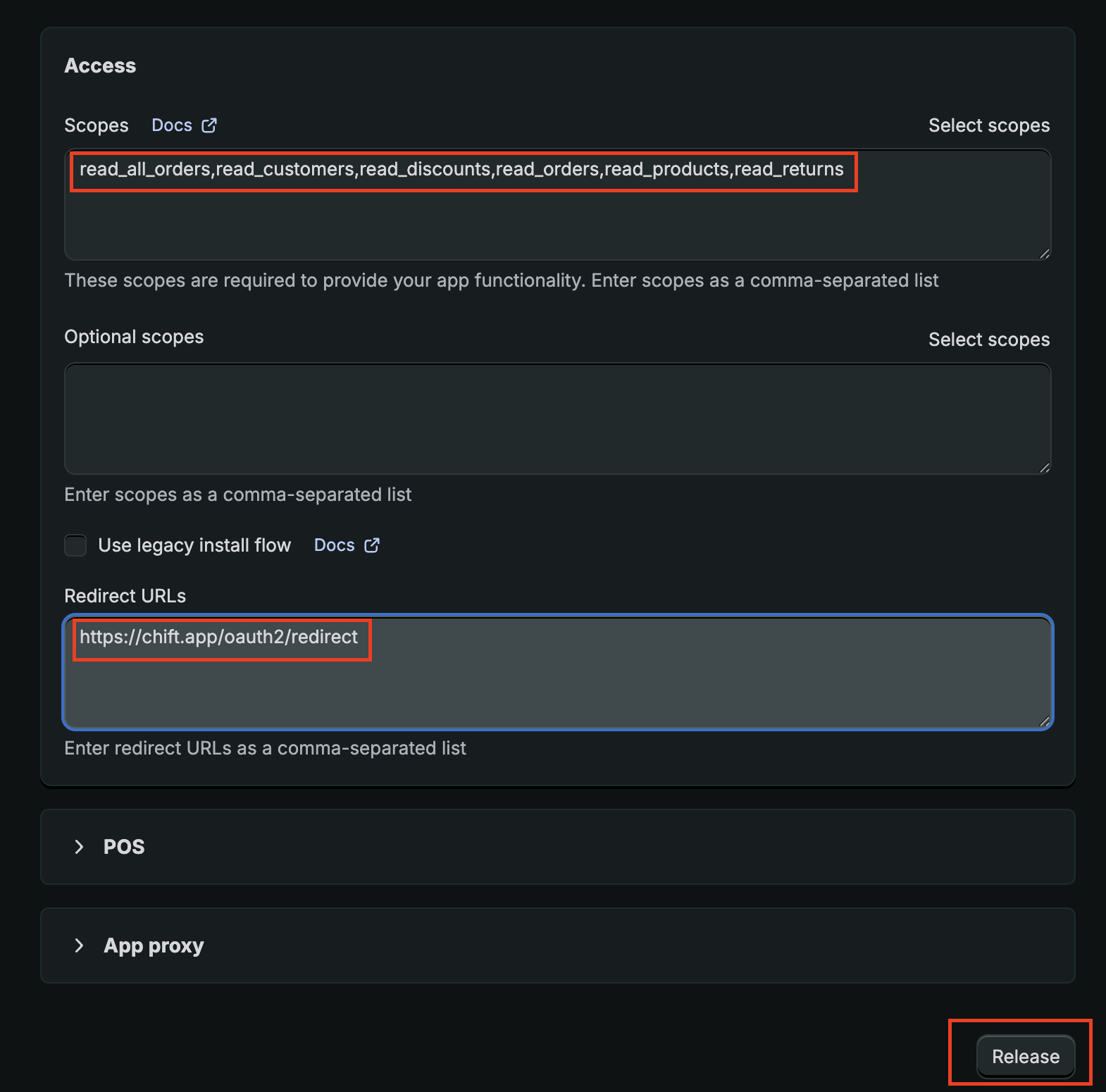
Step 4b: Go to the Dev Dashboard (https://dev.shopify.com/dashboard) and follow the steps outlined in this article to activate and create a custom app:
https://shopify.dev/docs/apps/build/dev-dashboard/create-apps-using-dev-dashboard
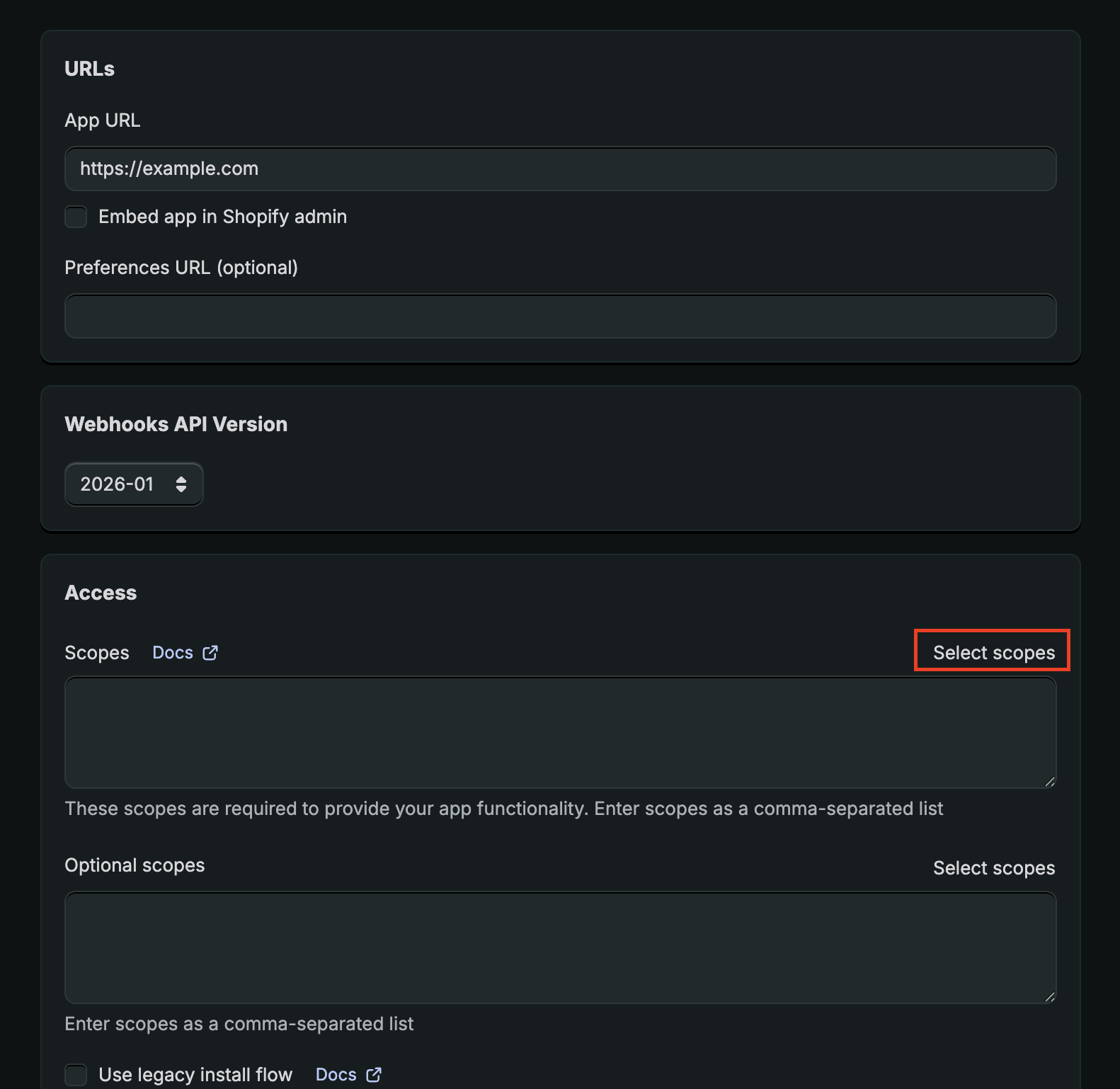
The following scopes are needed:
read_orders
read_all_orders (if you need to retrieve orders older than 60 days). Note that if you are creating the app as a partner of the merchant, you will need to retrieve extra access through the partner dashboard, see the documentation: https://shopify.dev/docs/api/usage/access-scopes#orders-permissions. Once this is done, you will be able to see "read_all_orders" in the scopes available (refresh the page if needed)
read_returns
read_discounts
read_products
read_customers
The redirection url is the following "https://chift.app/oauth2/redirect".
You don't have to install the application.
Here are a few screenshots outlining the steps:
Step 5b: Click on "Settings" in the menu on the left. Copy the "Client id" / "Secret"
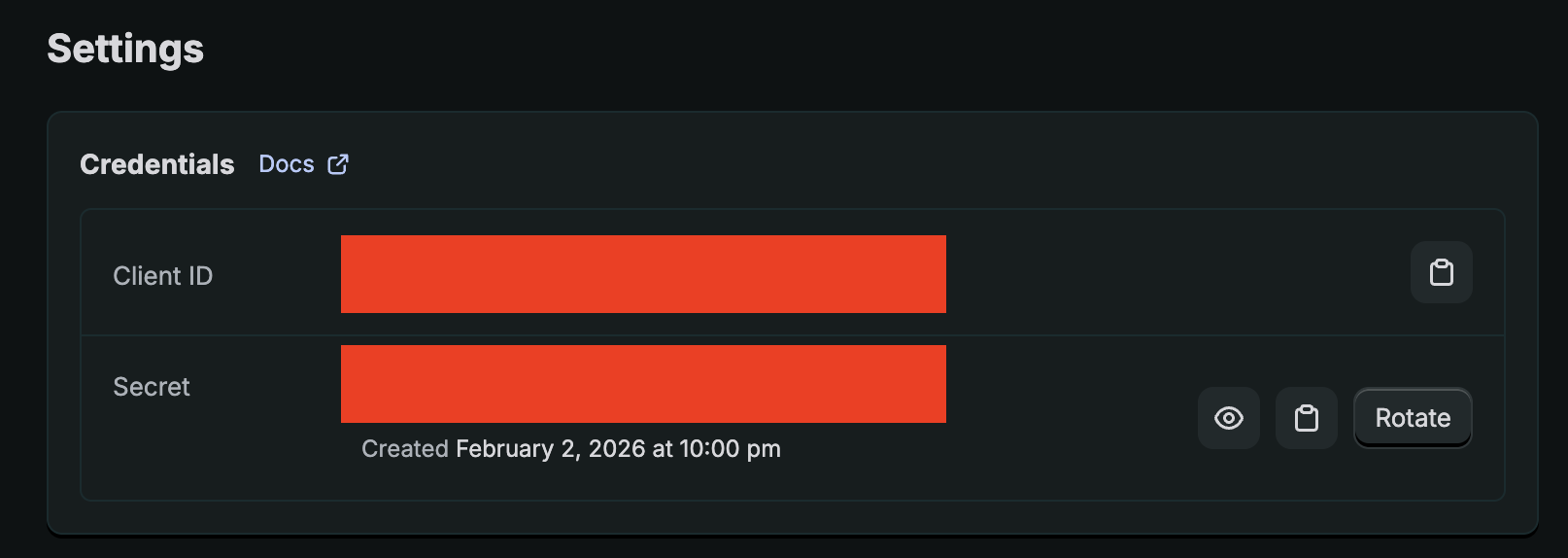
Step 6b: Paste the client id / client secret in the respective fields and click on "Authorise". You will be redirected and asked to install the application. Please proceed for a successful installation.