Update the Local agent to the newest version
Last updated: March 4, 2026
There are two main scenarios here:
The version of Sage on your server has been updated and you need to update the version of the connector to make it work again.
You need to update the version of the connector (because you are using an older version of the Local agent or any other reason).
Depending on your circumstances, different actions will need to be performed.
If the version of Sage changed since the installation of the service
This is the case if you were using Sage with an older version and are updating to a more recent version of Sage. In this scenario, the connector needs to be reinstalled to match with the version of Sage running on your server.
This is only applicable for the on premise version of Sage. If you are using SPC you can ignore this part of the documentation and go straight to the reinstallation steps of the documentation.
Step 1. Reinstall the objets métiers library.
As you just updated the version of Sage on your server, the Objet métier Library is most likely still matching your previous version.
First, make sure to uninstall the existing version of that library. To do so, you can open the program section of windows and search for Sage. One of the result will be named "Objets métiers Runtime", you can uninstall it if the version do not match your current version of Sage. If you have more than one version, only keep the one with the same version as your Sage.
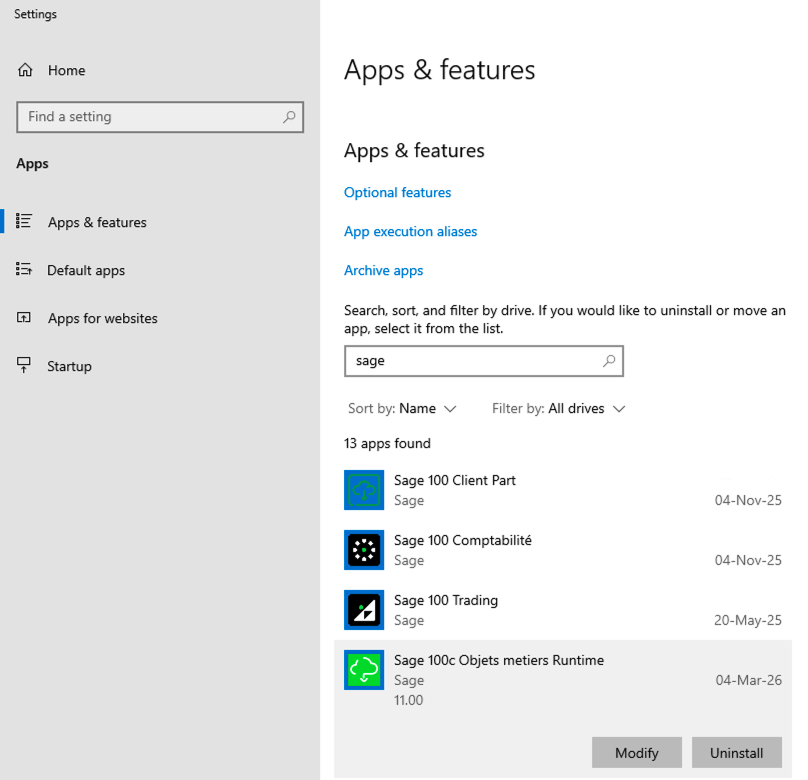
Step 2. Reinstall the library with the good version.
If you did not keep any of the version of the library during step 1 you will this have to reinstall the good version of the library.
To do so, go to the page of this library from Sage's website and install the Redistribuable OM version of the library that matches with the version of Sage on your server.
Once you are done with the installation of the library, you can continue with the reinstallation steps.
If you get an error mentioning an outdated version of the connector
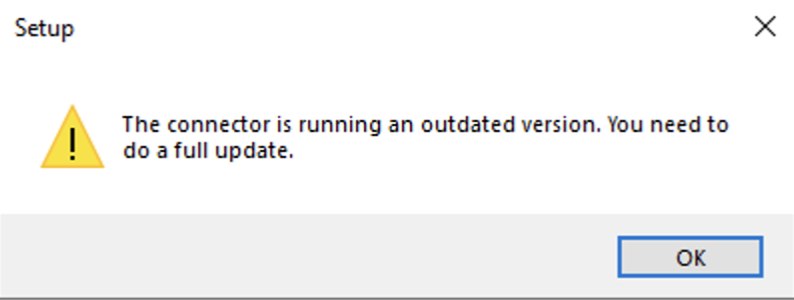
You most likely faced the error message above. This is because the version of the connector changed and is not compatible with older versions. You will have to do a full update of the connector on your server. You will thus have to restart the installation and select the "update connector" option instead of the "add/replace connexions".
To do so, follow the steps described above carefully and you will not face any issues.
Reinstallation steps
To make the re installation easier, make sure to follow the next couple steps.
Step 1. Create a backup of your current settings.
You will need to create a backup of your current settings file.
To do so, go to this folder: C://Program Files (x86)/Sage100FRService. You will find a settings.json file. This is the file that contains all your current connexions.
You will have to copy it and paste it temporarily on your desktop. The name of the file or it's location is not important as long as you remember where it you store it.
Step 2. Reinstall the agent with a new connexion
If you are trying to install a new connexion to your current local agent, we do recommend you to start by updating the Local Agent with that extra connexion then to follow the step 3 to reinstall all your existing connexion based on your backup file from step 1.
If you are not trying to add a new connexion to the existing ones, you can directly move to step 3.
You can run the executable file matching the Sage version locally installed on your server.
When reaching the step of settings selection, as you are trying to update the Windows service by adding a new connection, you can press the next button.
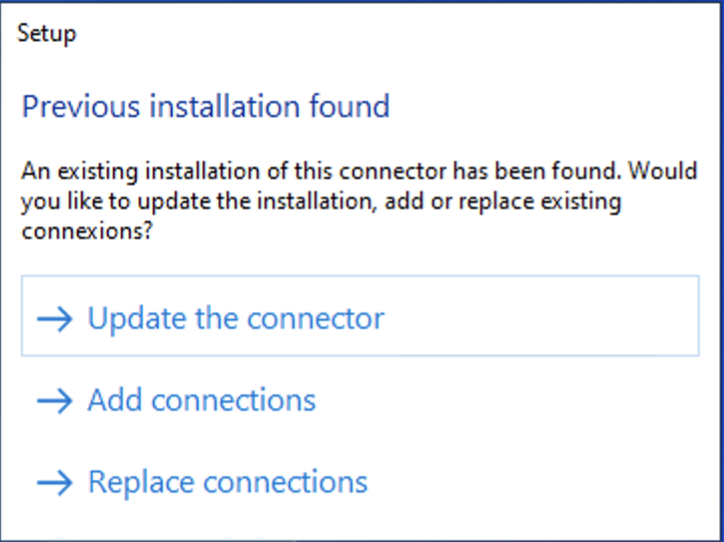
When reaching this step. Make sure to select the "update connector" button.
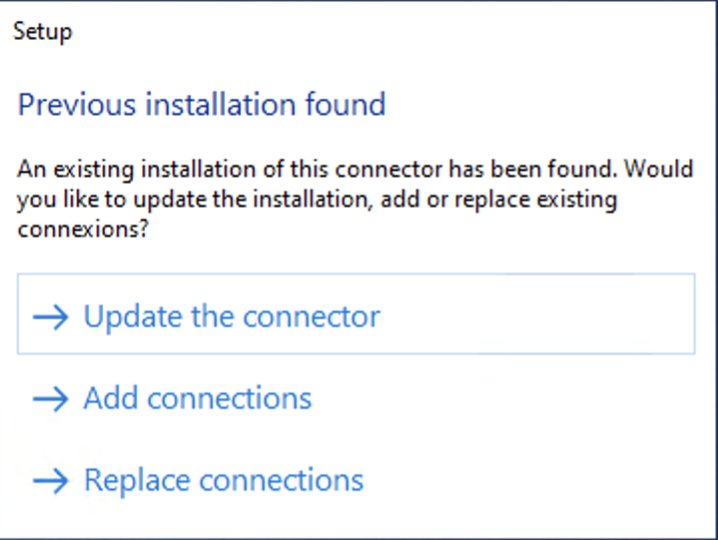
This update is going to erase all existing connexions, so before proceeding with this installation, make sur that you created the backup settings.json as mentioned during step 1
For the remaining steps, you can follow the instructions from the following documentation:
Step 3. Reinstall the connexions from your backup file
You can then start the installation of your Sage100FR.
The main point of attention here will be during the following step:
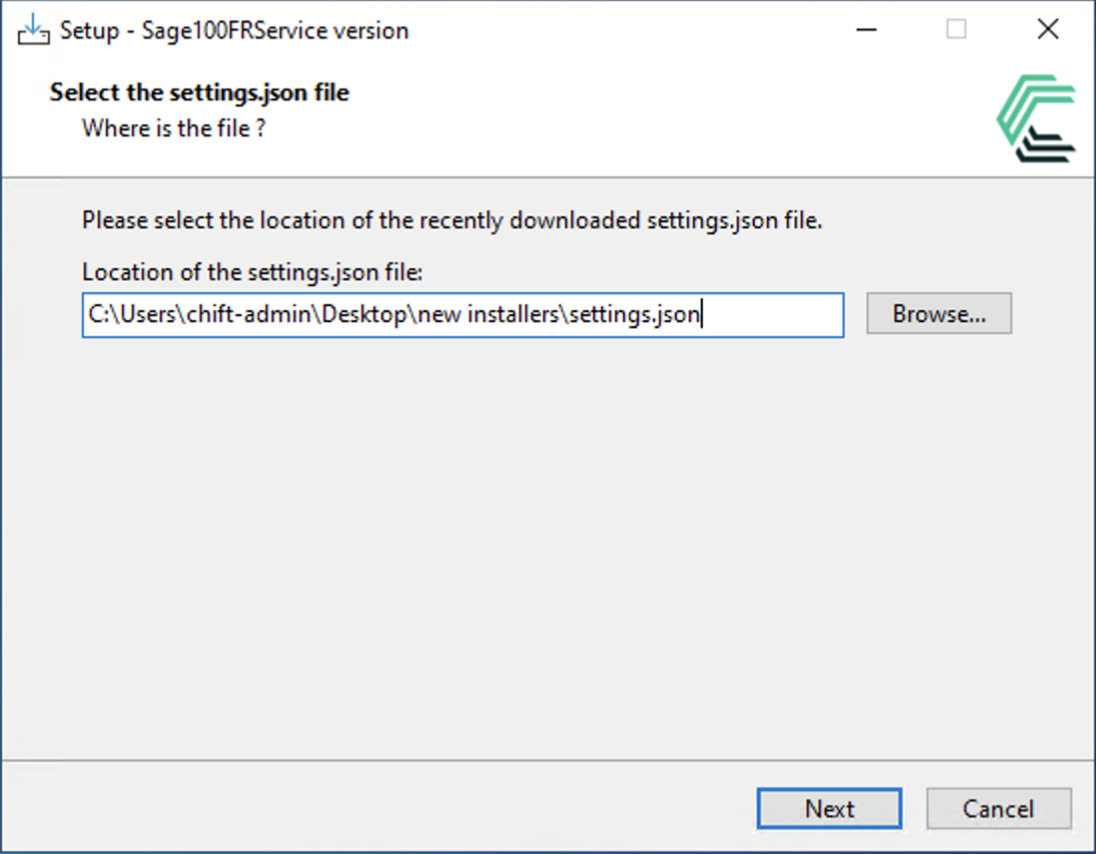
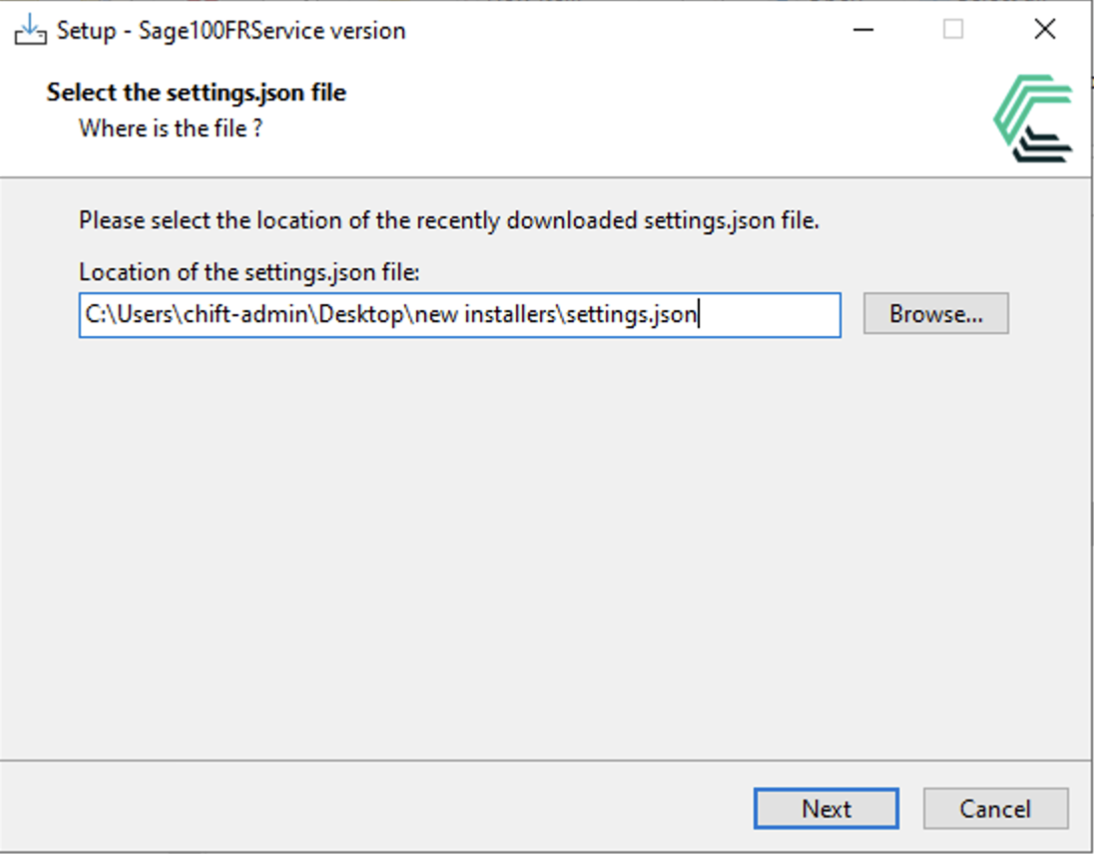
Instead of using the pre selected settings you will have to click the browse button on the right and select the backup that you created on your desktop (most likely C:\\Desktop\settings.json). This settings will allow you to keep all your previous connexions.
If you skipped step 2, click on the update connector button (The update connector button will erase all existing connexion so make sure you skipped step to if you click on this option). Otherwise click on the add connections button. To add the previous connexions to the one you just reinstalled.
From there you can follow the instructions from the Sage installation documentation:
Might will have to reconnect all your connexions to make them compatible with the new version of the installer.