Sage 100 FR Gestion Commerciale - On premise
Last updated: April 2, 2026
Prerequisites
In order for the connector to work on the server, you must ensure before installation that:
Have access to the server in admin where Sage 100 is installed in order to proceed with the installation.
⚠ Please note that the server/computer must be accessible at all times with internet access (24 hours a day).
Otherwise, the data might not be synchronised
The .NET framework 4.8 are installed on the server
We have a Windows user who has read and write access to the SQL database of the accounting file and to the Sage 100 file.
There are two possible options:
Retrieve the name and password of a user who would have these two accesses.
Create a user specific to the Sage 100 connector - this is the recommended solution
💡 The Sage version is at least version 7, the version from which Business Objects are compatible with the connector.
The versions of Sage 100 and those of Business Objects must match; here is a summary :
Sage 100 Version | Objets Métiers version |
7.0 | 7.2 |
8.0 | 8.05 |
9.0 | 9.02 |
10.0 | 10.05 |
11.0 | 11.0 |
12.0 | 12.0 |
You can find the available versions of this library over here.
Check your Sage version:
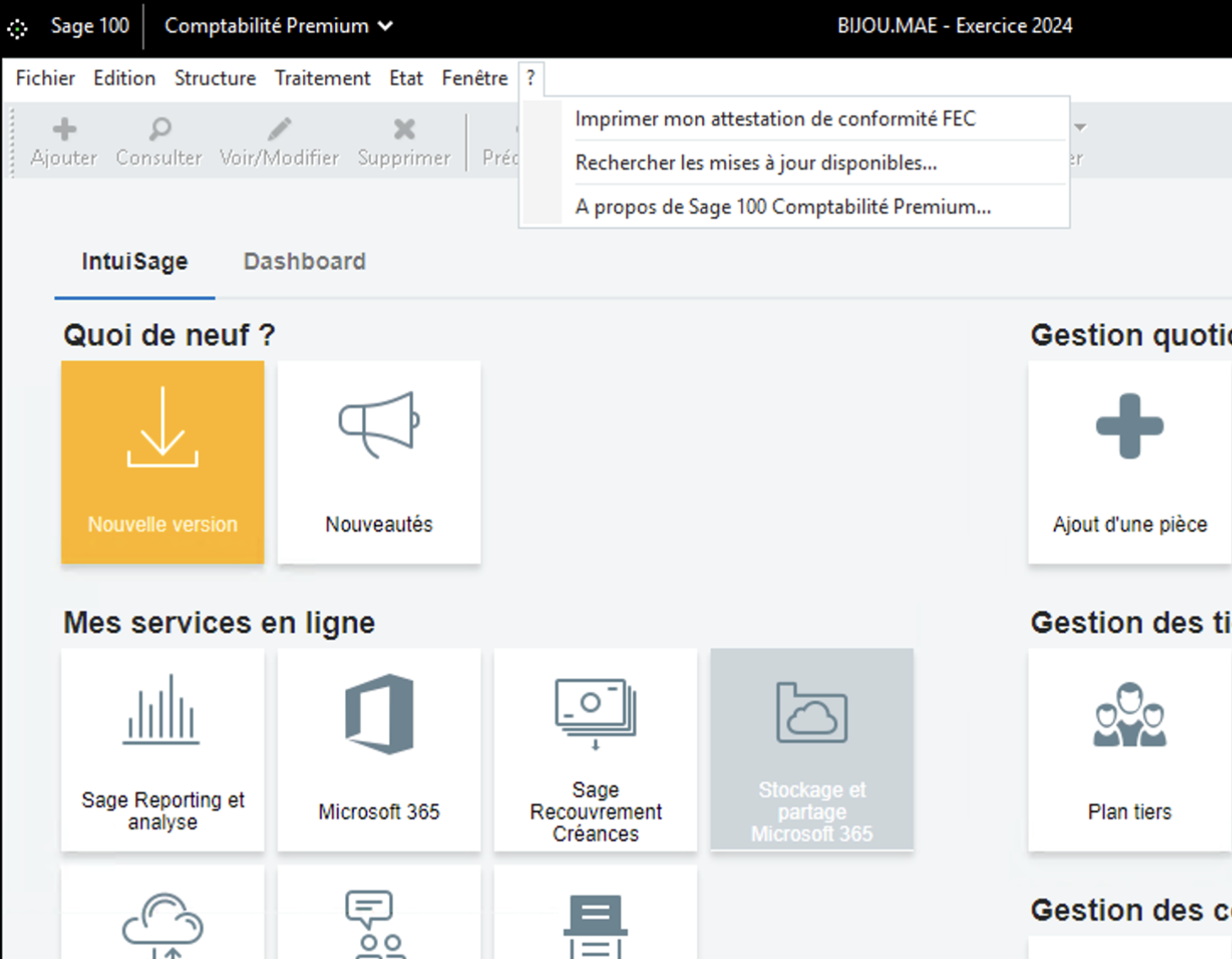
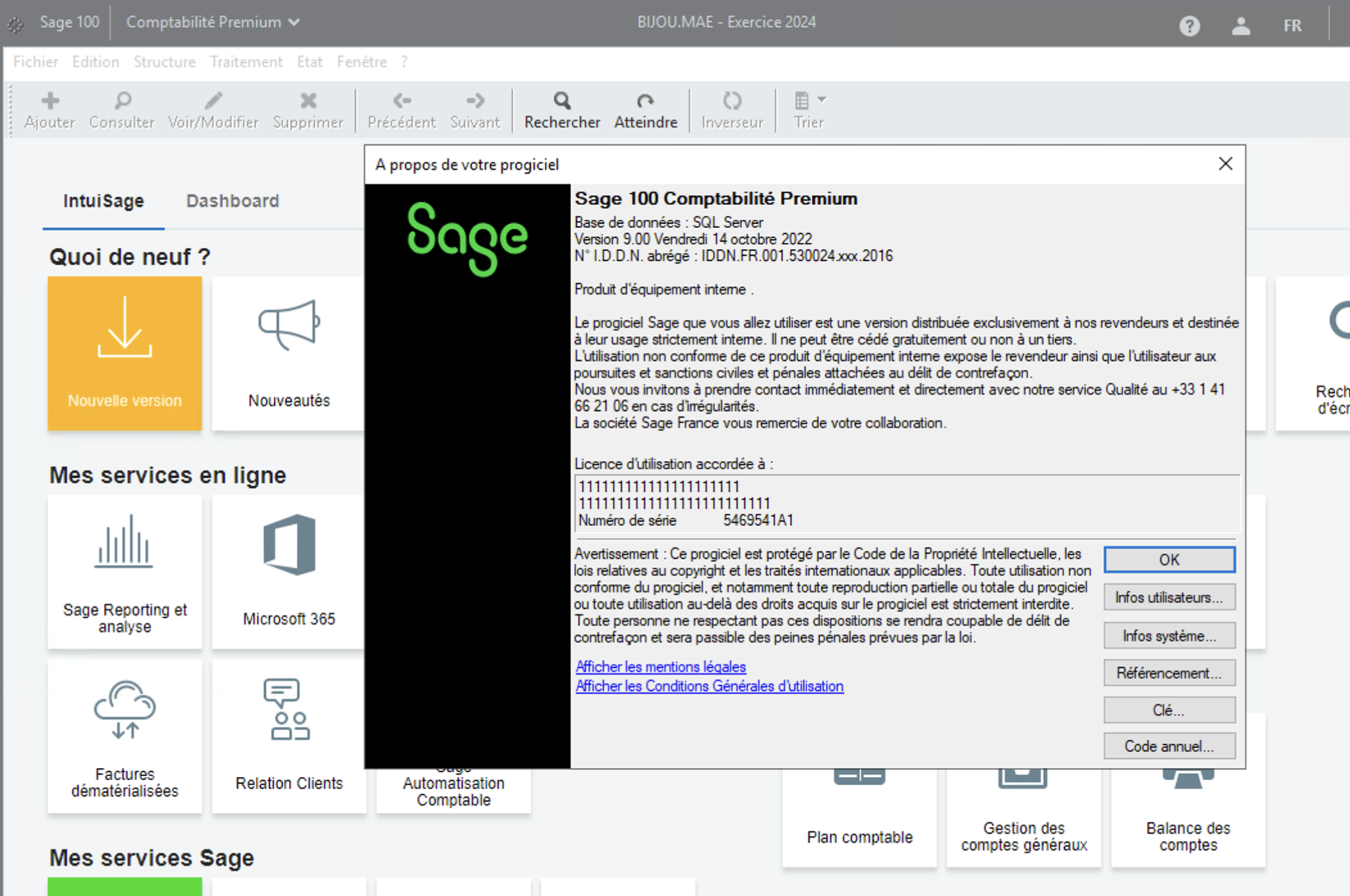
From your account in the menu bar →"?" → "About Sage 100 Accounting ..."
On the page that opens, you will find at the top of the page the number of your Sage versions.
PREPARATION
In order to establish the connection with Sage 100 "On Premise", you will need to retrieve a certain amount of information on your Sage 100 instance and from the integrator partner who installed your Sage 100 instance.
Find the code of your file / company
Retrieve the number of the zone / analytical plan
Retrieve the location of the GCM file (.gcm)
Retrieve your Sage username and password
1. Find your file / company code
This information is visible from your Sage 100 instance at the very top of your page in a menu bar. In the center of this "menu" banner you will see the code of your file (company) indicated.

2. Retrieve the number of the analytical zone/plan (if applicable)
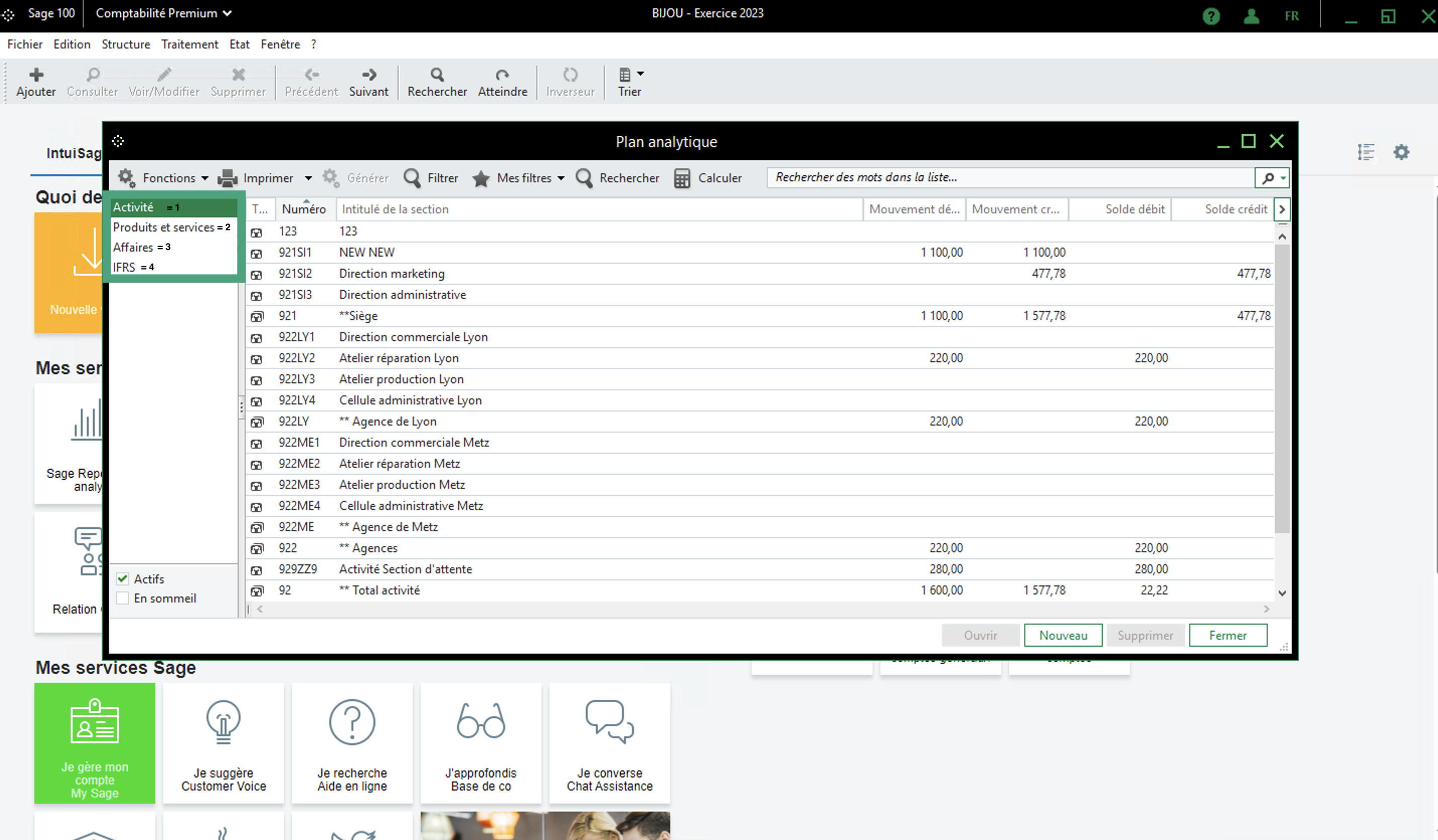
To identify the analytical zone/plan number, you need to follow these steps from your Sage100 instance.
Menu → Structure → Analytical plan
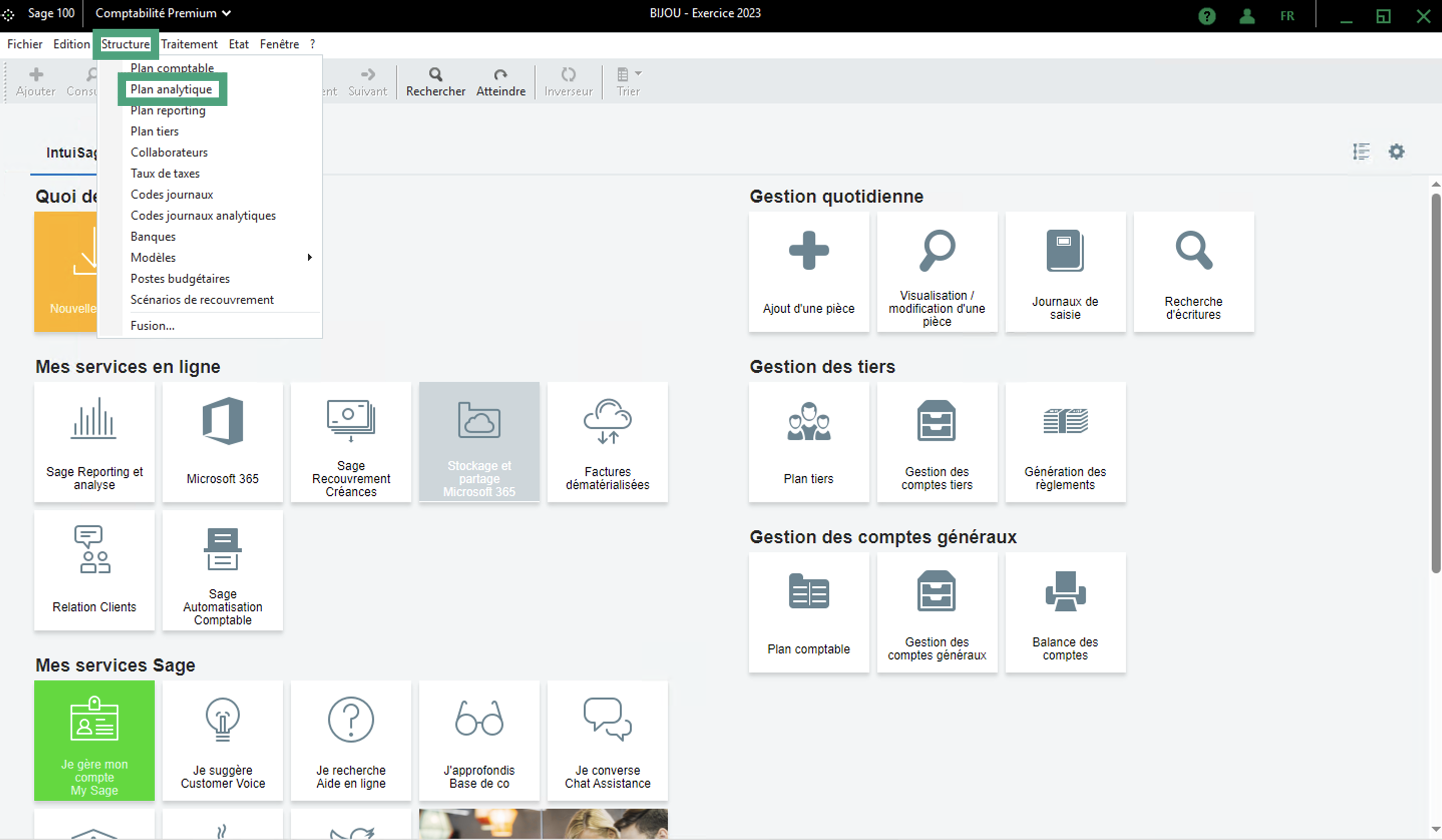
You need to choose the analytical plan to connect. In the example account below we have 4 possible analytical plans
Activity = 1 (fill in the number 1 to select the first analytical plan option)
Products and services = 2 (fill in the number 2 to select the second analytical plan option)
Business = 3 (fill in the number 3 to select the third analytical plan option)
and so on...
3. Retrieve the location of the accounting file (.gcm)
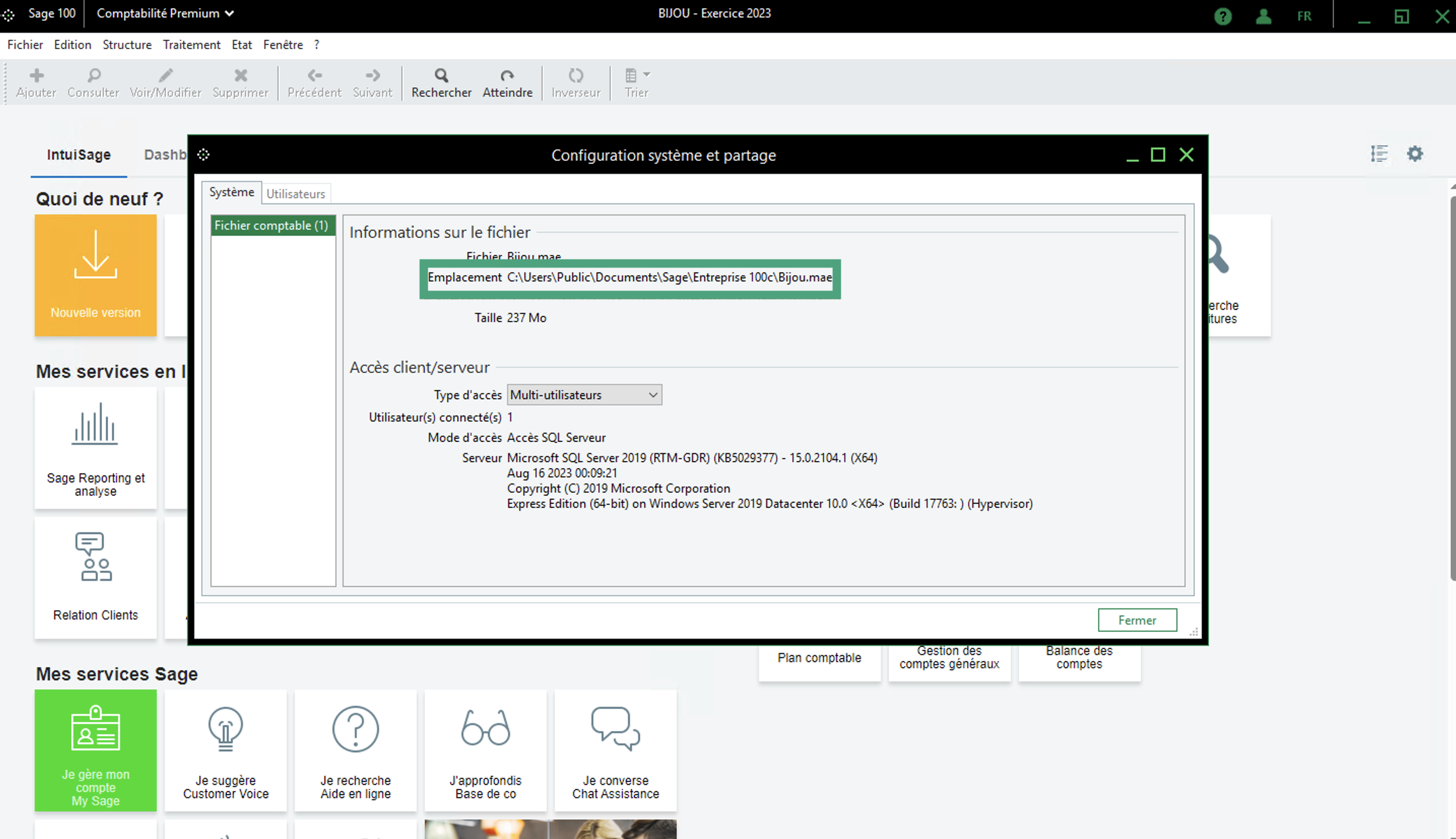
From your Sage 100 instance, go to "Files" → "System Configuration and Sharing"
Then, as shown in the screenshot below, select "accounting file" and copy the name of the Sage 100 data folder location and keep it to fill it later in the connection form.
⚠ Make sure that the access type is set to "multi-user".
4. Retrieve your username and password
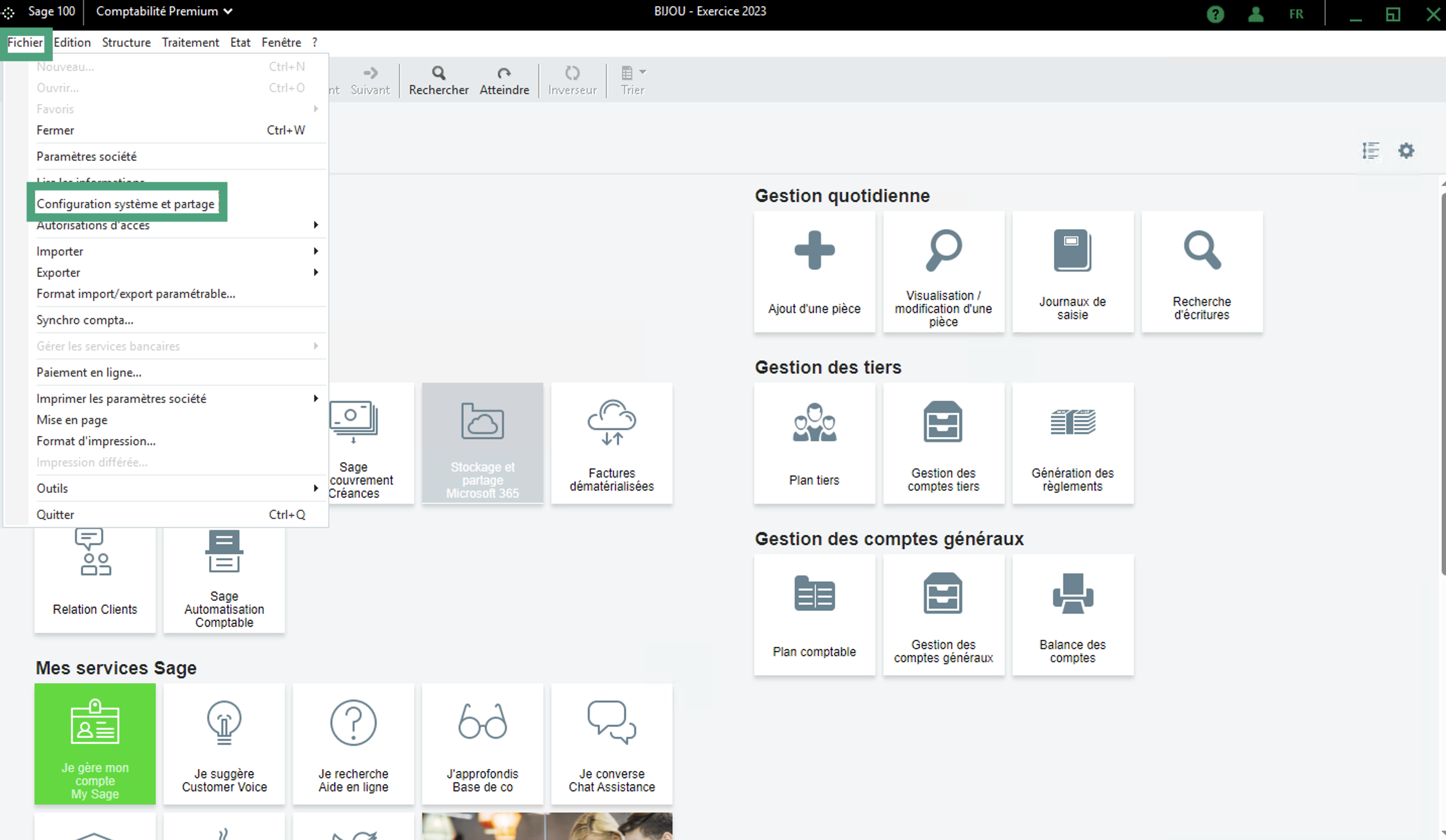
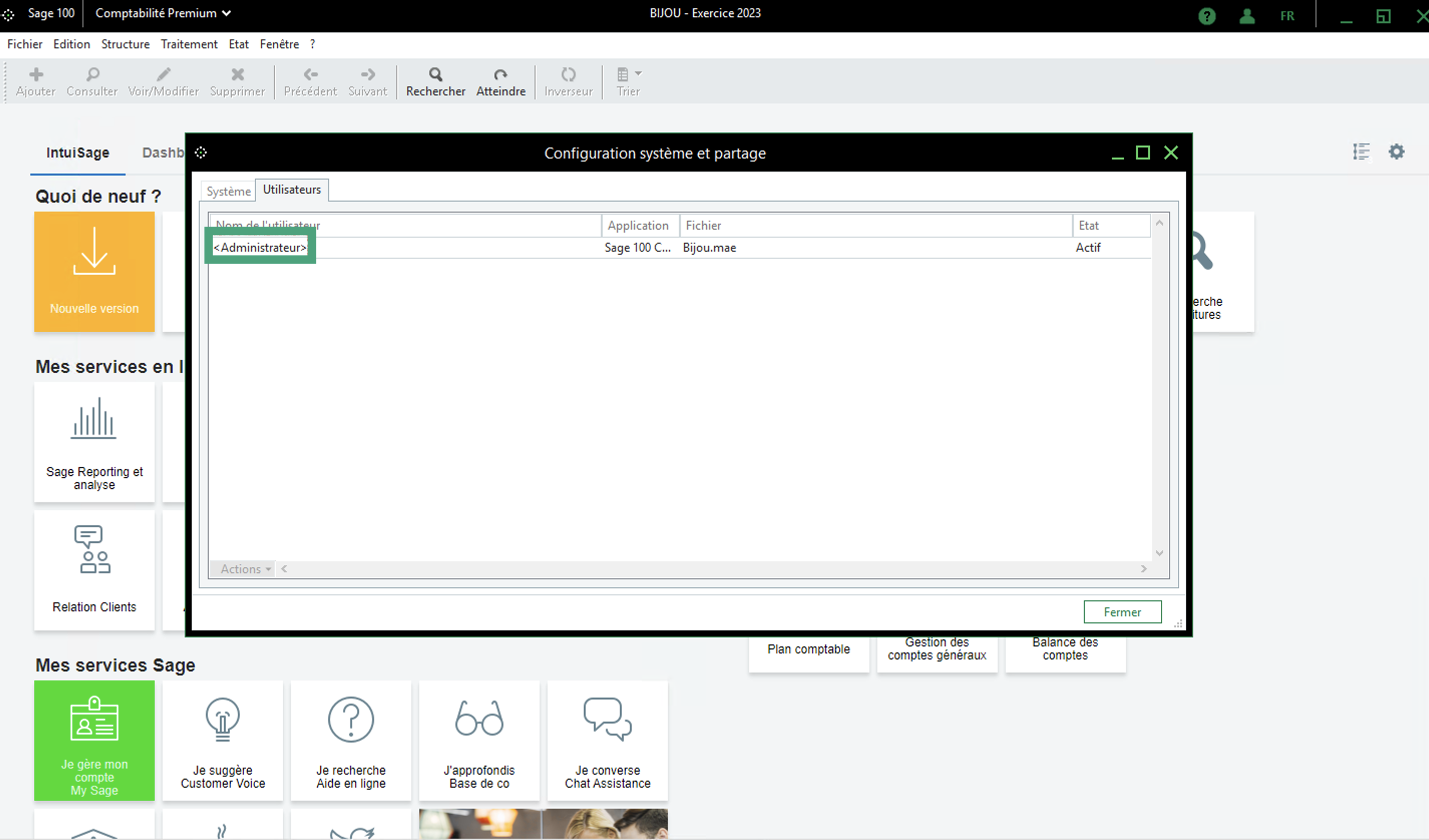
The Sage 100 user name can be retrieved as follows: on your Sage 100 account go to "File" → "System configuration and sharing".
⚠ If you use the default administrator, you will also need to provide the comparison characters: <Administrator>
The password of the Sage user is that of the user above. It is possible that the user mentioned does not have a password. In this case, leave this field blank.
Connexion
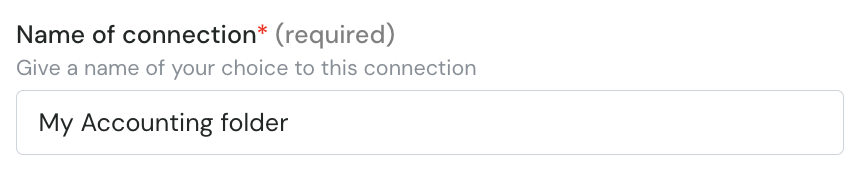
Step 1: Choose a name for your connexion (If applicable, this first question is not always displayed)
Step 2 (optional): If requested, provide the number associated to the analytical plan that you want to use by default. It is the value from the Preparation step 2.
Step 3: Click on "Connect" to finalise the connexion and download the local agent

Local agent download and installation
Step 1: Download the Zip file
After the connection step, you will have two options to download and install the local agent on the same server/computer as your Sage 100 instance:
If you have admin access to the server/computer where Sage 100 is installed, you can directly download the program by clicking on Download. Otherwise, a link to download the same Zip file will be sent by email to the email you will provide.
A zip folder will open and offer you several files.
Start the installation of the "local agent" folder with the number corresponding to your Sage version number.
During the installation, you will need to select the "settings.json" file to complete the installation steps.
If Sage 100 is installed on a server/computer that you do not have admin access to, you have the option to send the program by email to the person or company that has admin access to the server/computer where Sage 100 is installed
Step 2: Install the Cockpit (if is has not already been installed)
To install the cockpit, please follow the steps documented on the following article:
📄 Local Agent Cockpit — User Guide
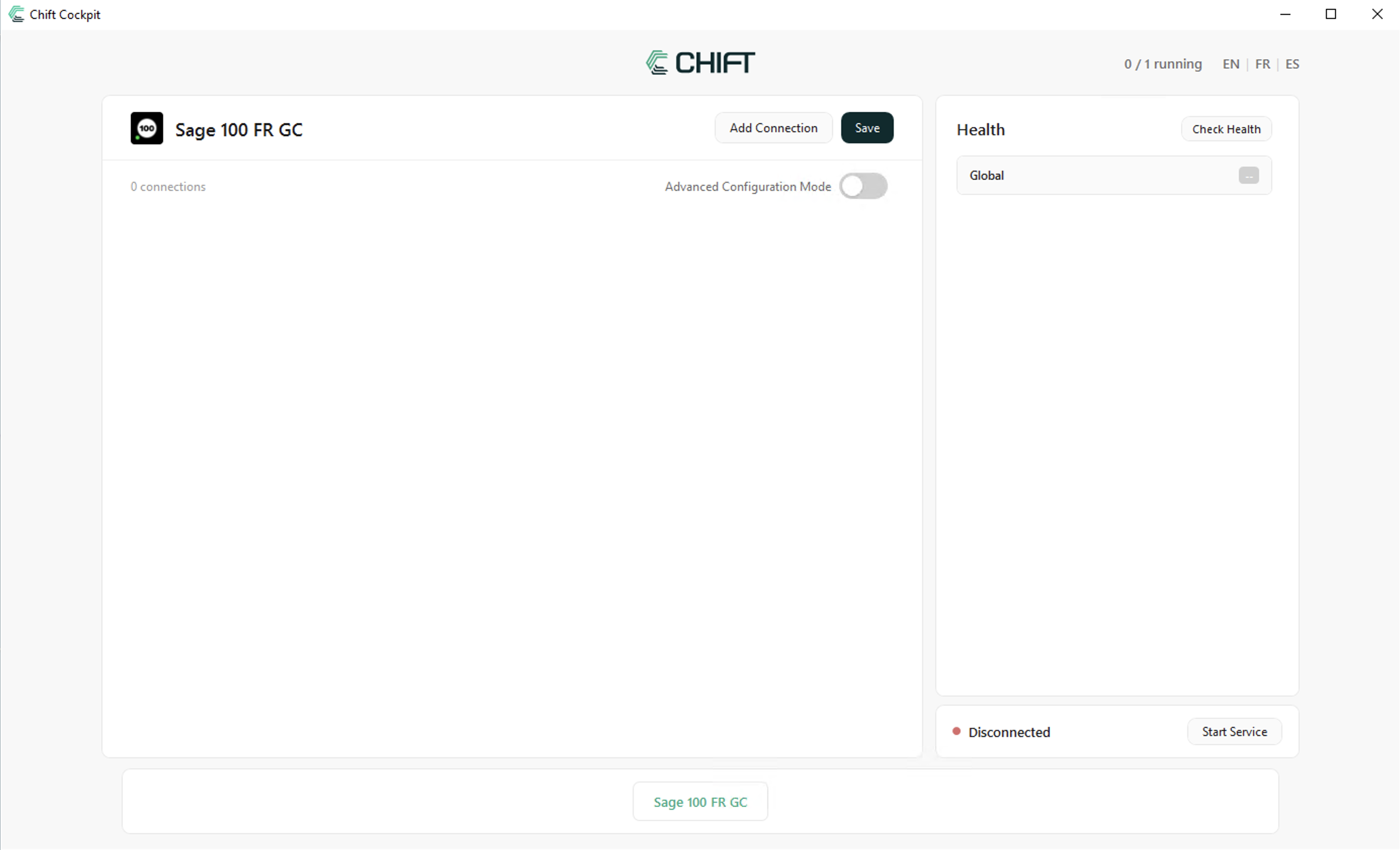
If the Cockpit has already been installed on your server, you can start is as an administrator and go directly to the Sage 100 FR GC section of the cockpit.
Step 3: Connect your folder through the Cockpit
Here is a short video showing how to add a new connection to your cockpit.
Note that in this video the administrator has no password. If a password was require the next field (Sage password) would need to be filled too.
To create the connexion with your GCM folder, please press the Add connection button on the top of the screen. This will open a new tab that will ask you to select a settings.json file. This file is the file containing all the technical information allowing the cockpit to create the proper connection with your folder. Every folder that you want to connect through the cockpit will need a distinct settings.json that will need to be downloaded separately.
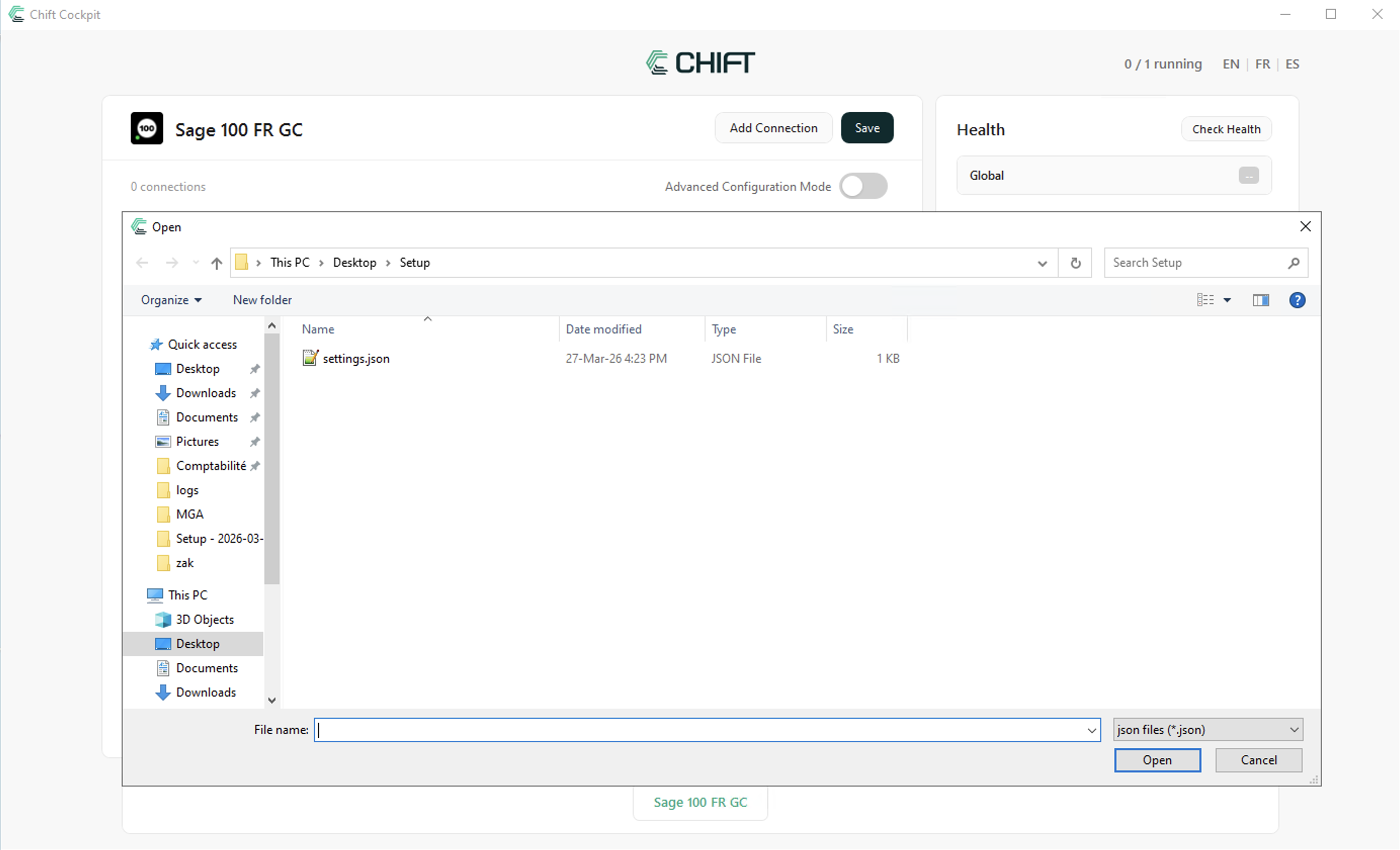
Once the settings.json file has been opened, one more connection should appear on the Cockpit. This connexion has not been configured yet. To start the configuration of this connection, click on the connection to open the configuration menu.
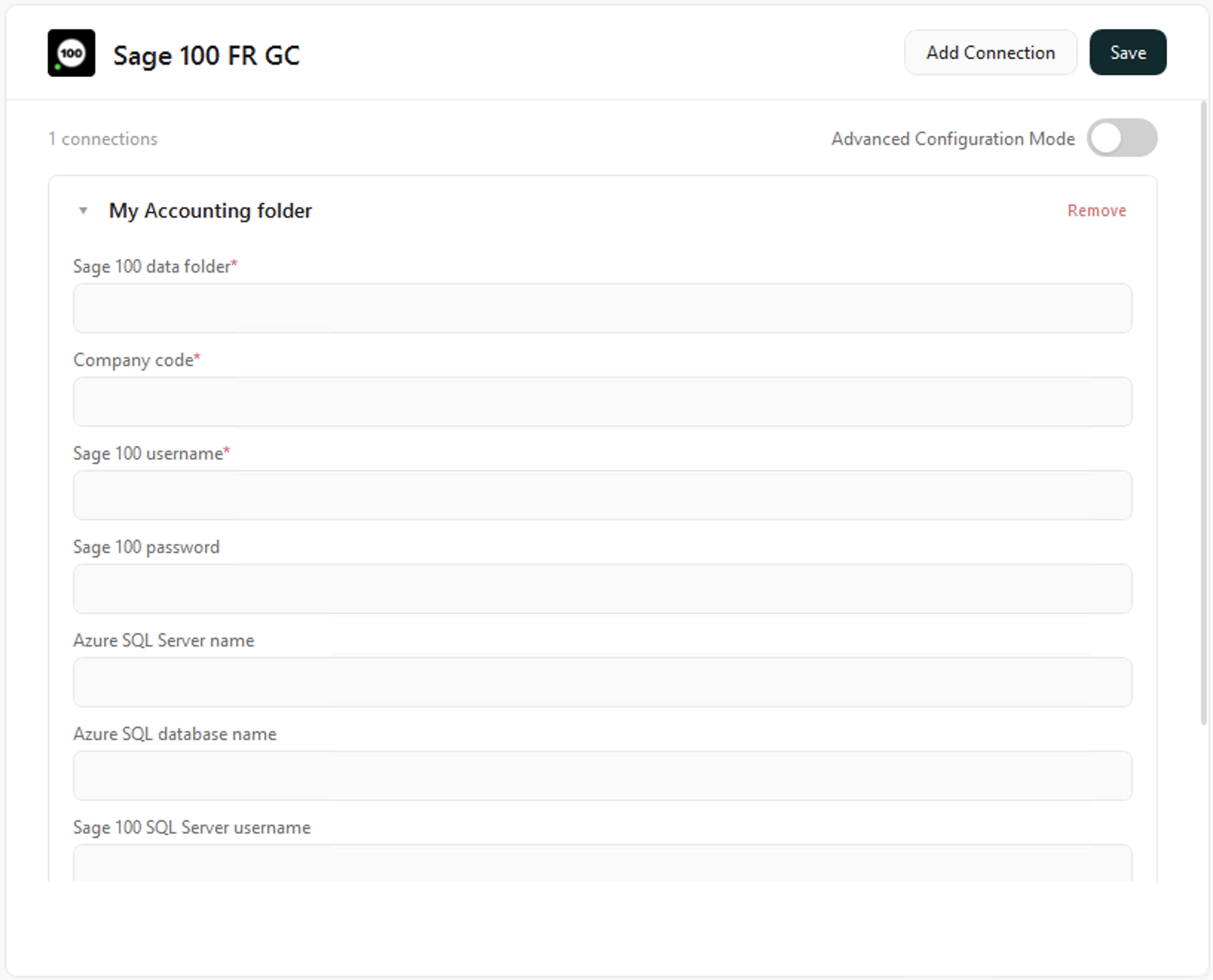
Fill the form with the different values you retrieved from the Preparation stage of the documentation.
Sage 100 data folder: The path you retrieved from Preparation - step 3
example:
C:\Users\Public\Documents\Sage\Gestion commerciale 100c(without the gcm file)
Company Code: The code of your company in Sage (which is also the name of your GCM file, from Preparation - step 3)
example: BIJOU
Sage 100 username: The username of the administrator you want to use for the connexion. We do recommend the use of the default admin of your Sage account.
example: <administrator>
Sage 100 password: The password of the username you provided on the previous point.
The rest of the form is related to the version SPC of sage, so you can leave them blank.
Your form should look something like this:
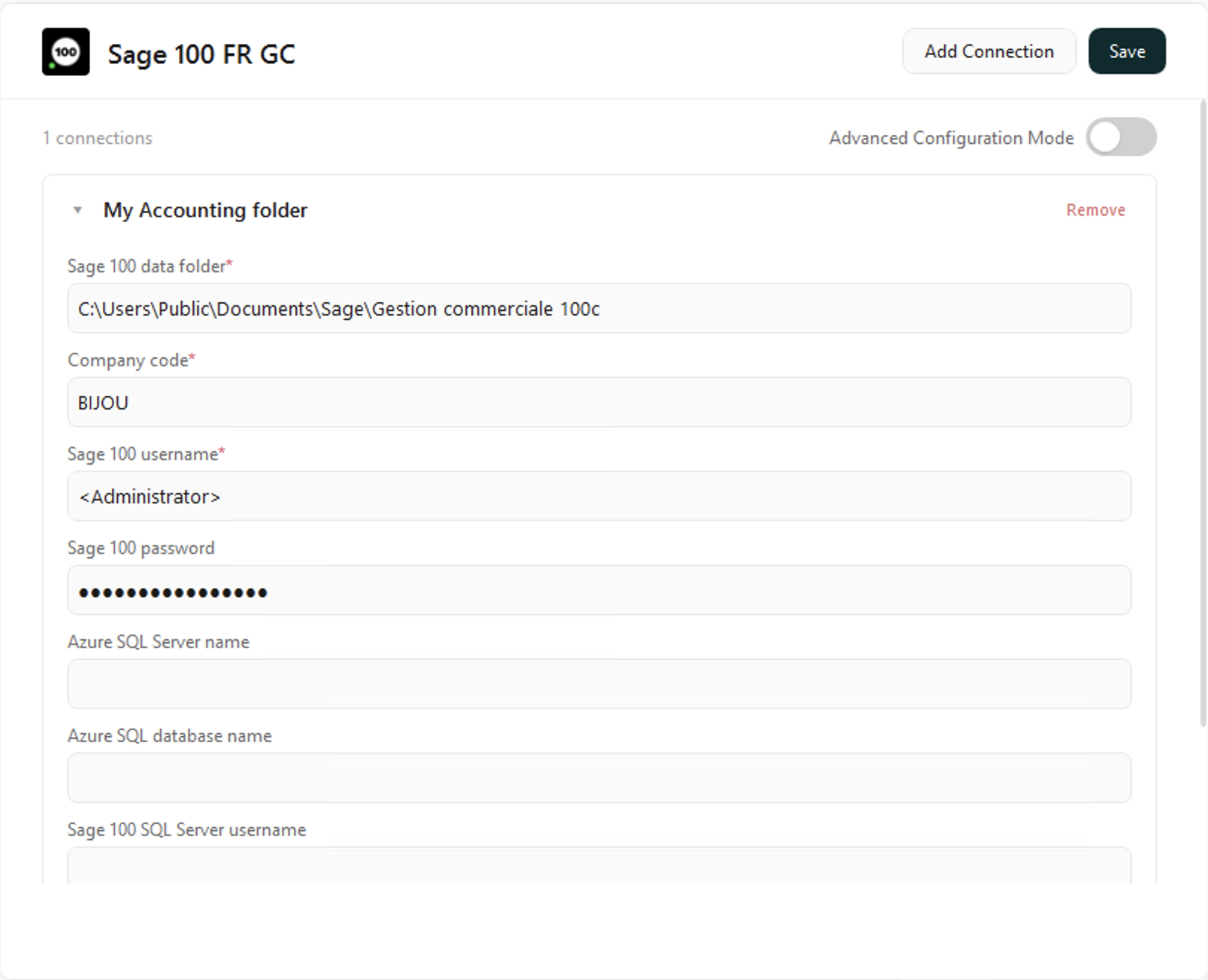
If all the fields have been filled with the values you checked during the preparation step, you can press the save button to save the configuration and start testing the connexion. Therefore, the following pop up will appear
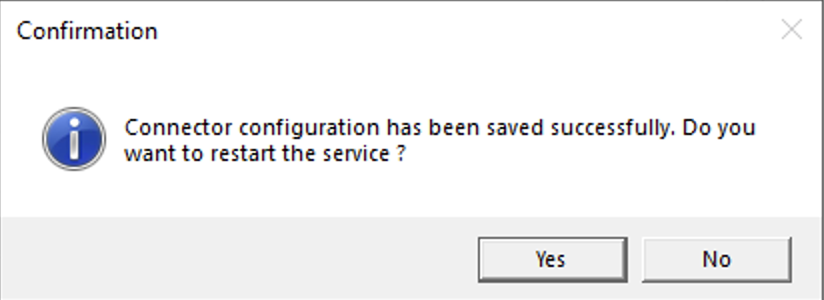
For the configuration to be used by the service, it is mandatory for the service to restart. If you say no to this question, you changes will be saved but not applied, so the connexion will not be usable until the service restart. So click on the Yes button to restart the service.
You can check at any time if the service is running by looking on the bottom right of the cockpit (you can also restart the service at any time by pressing the "stop service" button, then the "start service" button).

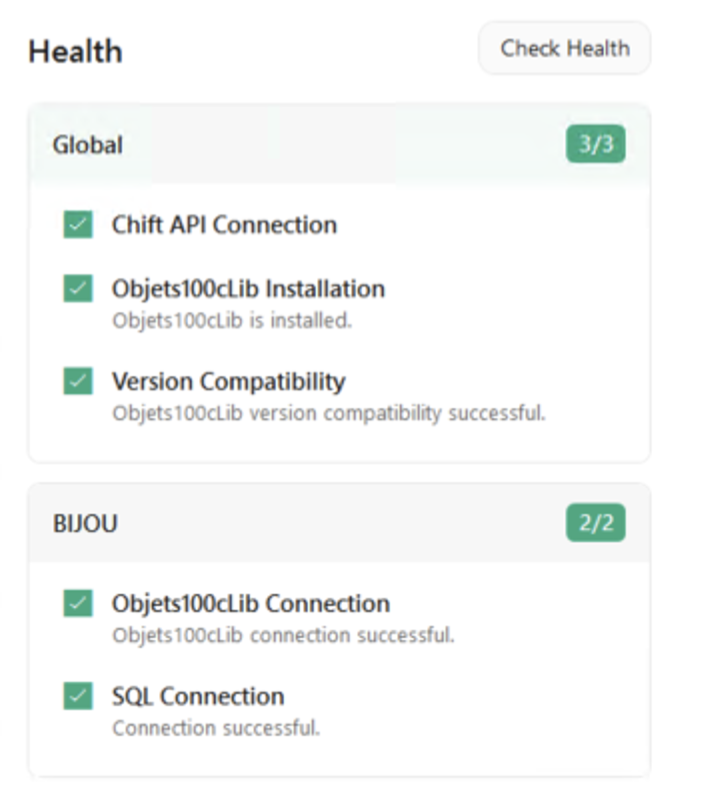
You can now validate the values that you provided by checking the health section of the cockpit. Start by pressing the check Health button to trigger the tests on all your connections.
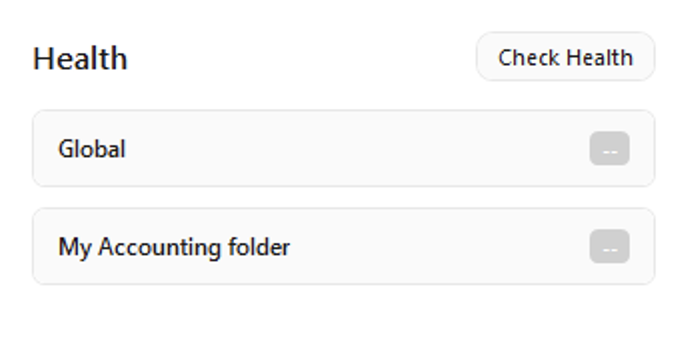
If all the values that you provided are correct and well configured, you should see a health report similar to this:
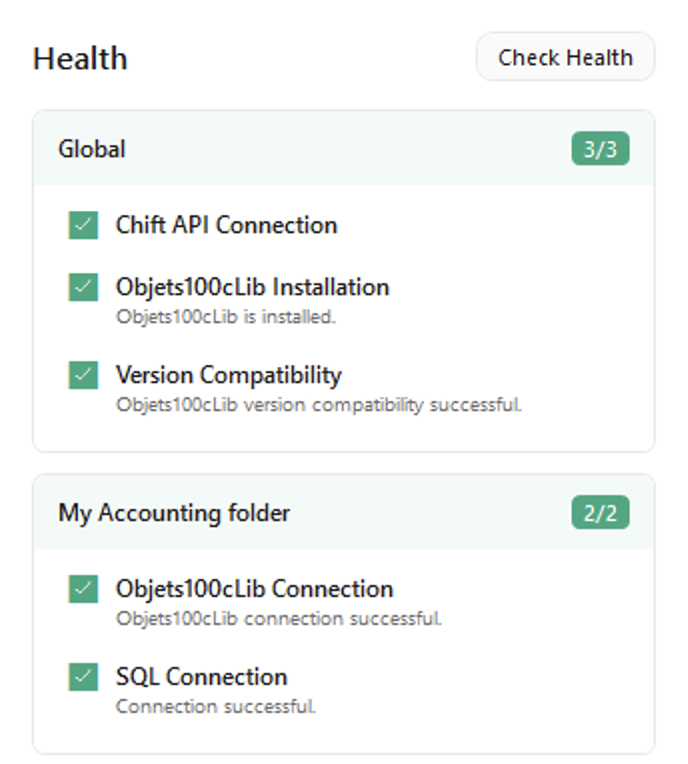
Otherwise, some tests will fail and help you understand the issue with the configuration. You will thus need to update the following fields from the configuration of the connection, save and restart the service. Once the service has restarted, you can check the health of the connection again to make sure that those changes fixed the issue.
For example, if the password is not recognised by Sage:
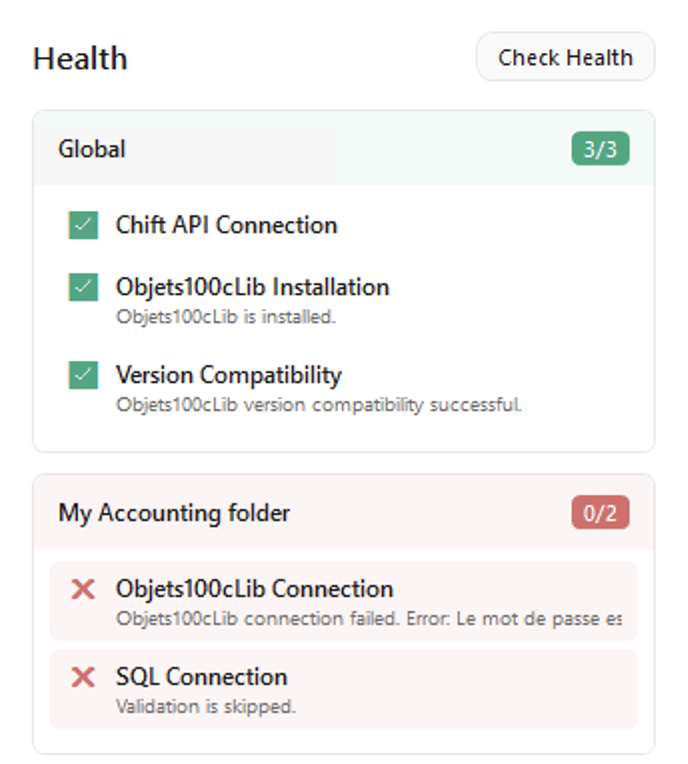
If your MAE is located on a network drive or If the Local System user has no access to that file, then there is one more action to perform. Otherwise you are done and your connection should already be functional.
Change the user running the service
This step is Mandatory if your MAE is located on a network drive or If the Local System user has no access to that file.
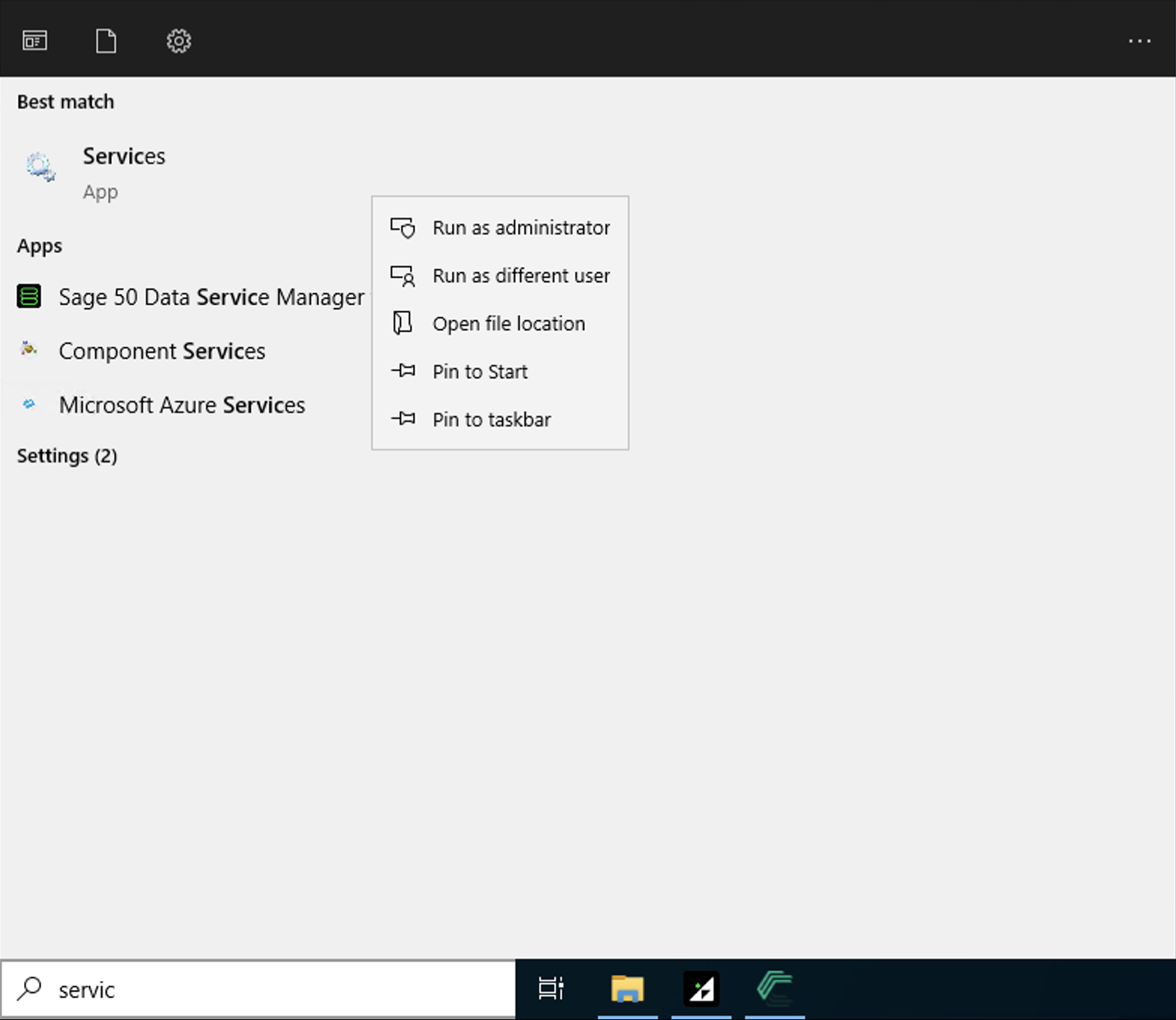
To do so, open the service app of Windows as an administrator:
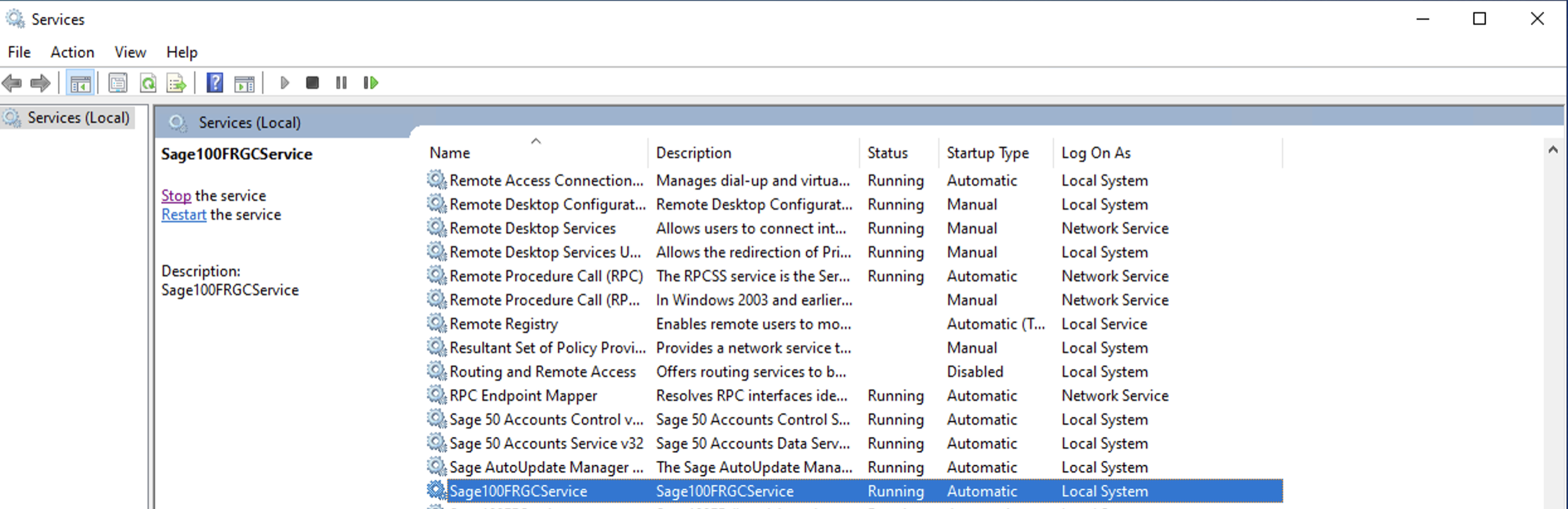
In the list of services, you will find a service named Sage100FRGCService. This is the service running your integration with Sage Gestion Commerciale.
You can open the properties of the service by performing a right click on the service. Open the Log On tab of the properties.
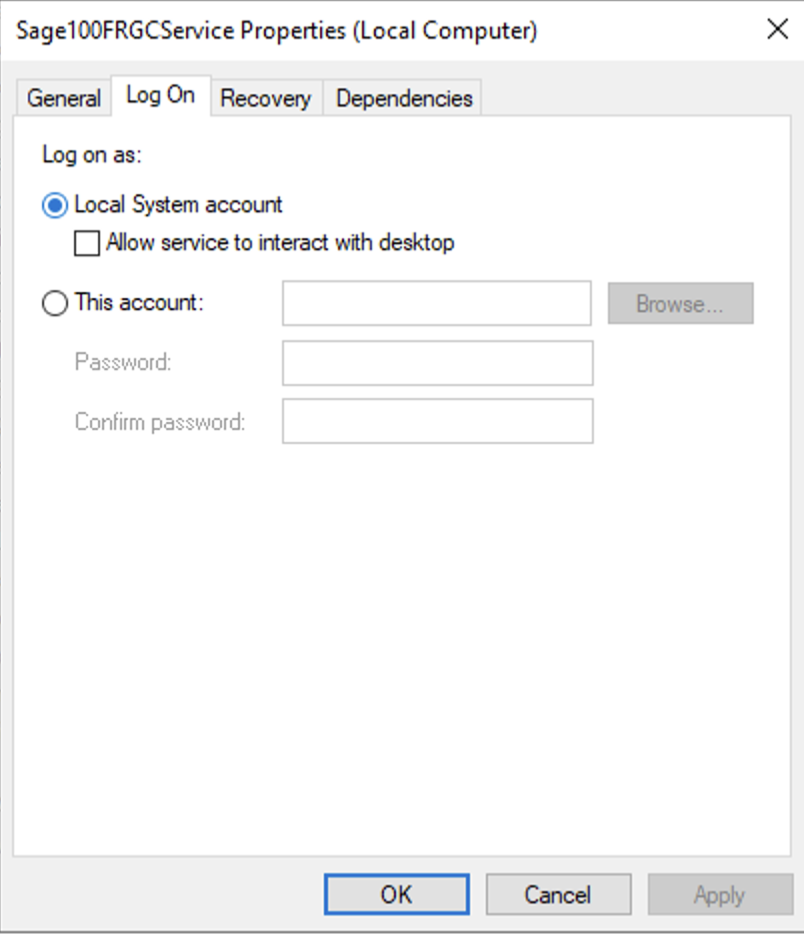
By default, an installed service will always run with the Local System user. This user may not have access to your shared drive or may not have all the required permissions. So we do recommend the use of another Windows user with the required permissions. This is the Windows user Mentioned in the prerequisites. The required permissions are:
Has read and write accesses to your SQL database related to the folder that you want to connect.
Has read access to the folders that contains your MAE file.
Has writing permissions on the following folder:
C://ProgramFiles (x86)/Sage100FRGCServiceas some logs will be updated in this folder. (Note that the name of the first folder might be slightly different depending on your server).
Once this is updated, you will have to restart the service for those changes to be applied. To do so, you can simply click on the Stop Service button in the Cockpit, then press again on the Start Service button.


If you press on the "Start Service" button but nothing happens, it most likely means that the credentials you provided before are not correct and that Windows is not able to restart the service. We would thus recommend to verify the provided credentials and to make sure that the correct credentials have been provided.
If the changes have been done properly, the Cockpit will now ask you those credentials when you try to check the health of your connection (To do so, simply press the Check Health button).
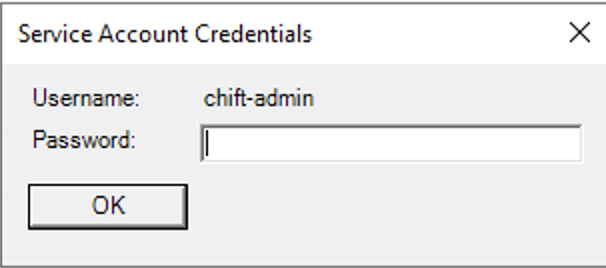
If the provided credentials are not correct, you will see a dedicated error message in the Health status:
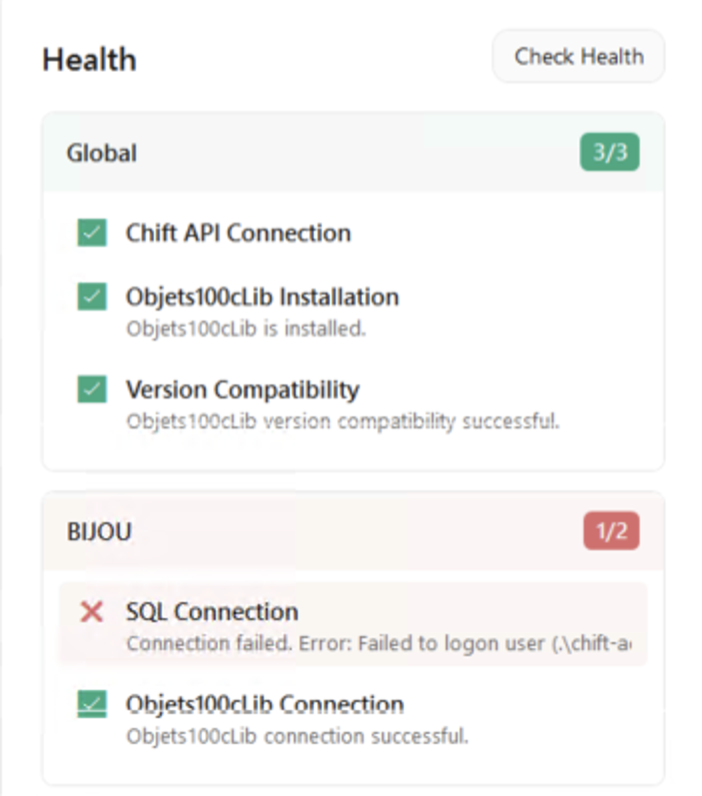
If the credentials are correct and that the tests could run properly, the health status should indicate that everything is setup properly.