Cockpit — User Guide
Last updated: April 7, 2026
📋 This guide covers everything you need to know to use Cockpit effectively. Version 1.0 · March 2026
1. Overview
Cockpit is a Windows desktop application that acts as a control center for managing and monitoring service connectors on your server. It provides a unified interface to configure connector settings, validate that required components are properly installed, and stay up to date automatically.
Cockpit requires administrator privileges to run — this is expected and necessary for it to interact with Windows services and system-level components.
Cockpit will always prompt for administrator rights when launched. This is by design. If the prompt does not appear, right-click the application and choose Run as administrator.
2. Getting Started
2.1 Installation
Cockpit is distributed as a standard Windows installer (.exe). To install it:
Download the installer file provided by your administrator.
Double-click the installer and follow the on-screen steps.
You can proceed with the standard installation.
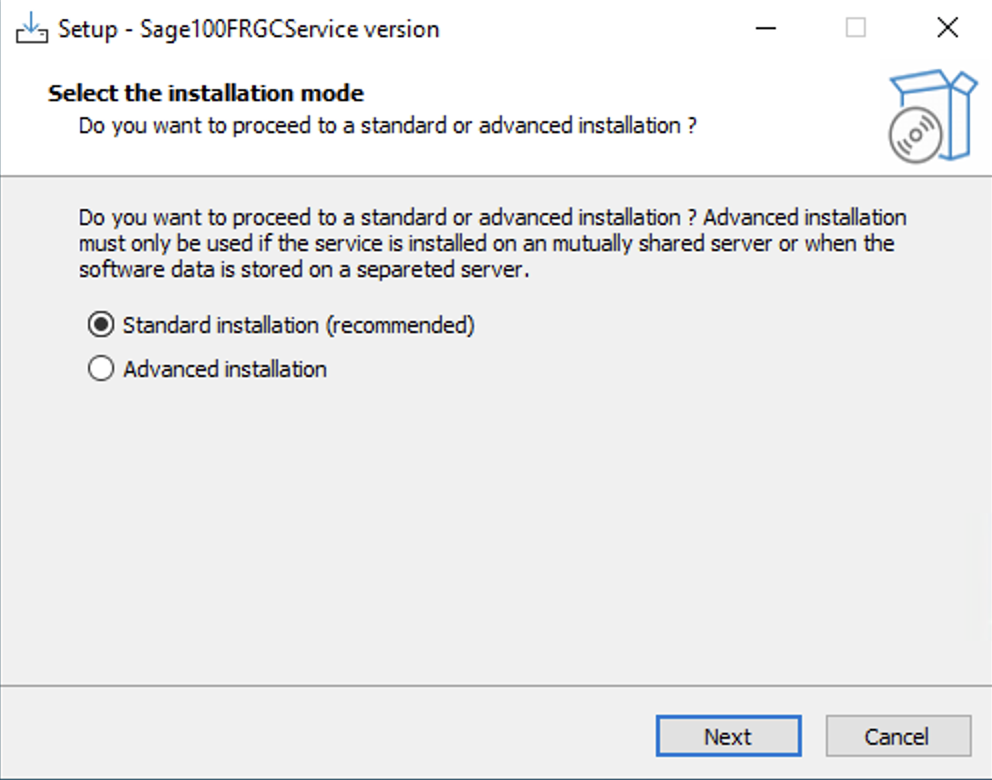
If you already had an instance of the service running on your server, the installation process will show you this page:
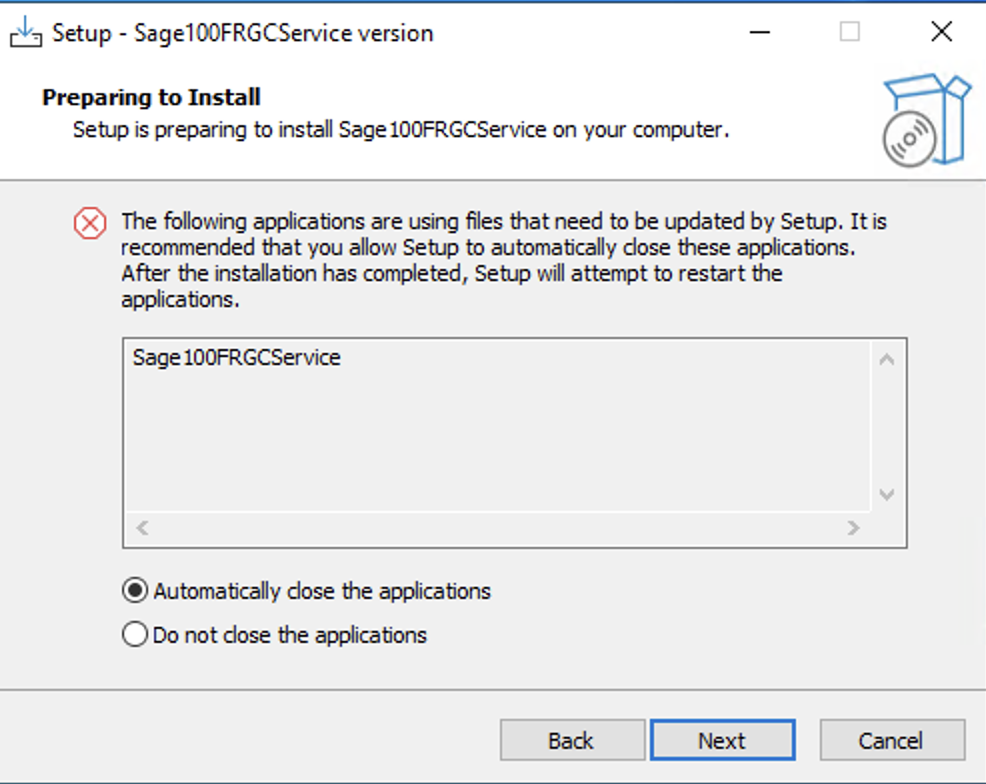
This page is notifying you that an instance of the same service was already running so that the related service needs to be stopped to be updated. You can keep the option "Automatically close the applications" and click next.
here is a short video showing the whole installation process.
Cockpit will be installed in Program Files and a shortcut will be created on your desktop.
Cockpit is available as a standalone installer, or is bundled with the (supported) connector installer.
2.2 Launching the Application
Double-click the Cockpit shortcut on your desktop (or find it in the Start menu). If Windows asks for permission to run as administrator, click Yes.
The application will open on the the connector page or the dashboard, depending on whether there is any connector installed or not.
Navigation between connectors is done via the panel at the bottom of the application.
3. Application Components
3.1 Dashboard
The Dashboard is the page displayed when there is no connector installed on the current machine.
3.2 Connectors Panel
At the bottom of the screen, there is a panel where you can:
See all the connectors installed on the current machine
Navigate to a specific connector page
3.3 Connector
When clicking on a connector, the panels are refreshed with the information of the selected connector.
The main panel displays the configuration fields, such as host addresses, credentials, file paths, etc.
There are different types of fields:
Field Type | Description |
Sensitive | Fields such as passwords, tokens, secrets. They are DPAPI-encrypted when saving and their values are masked on screen for security. |
Advanced | Additional technical settings hidden by default. Reveal them by enabling the advanced configuration mode. |
Read-Only | Some fields are informational only and cannot be edited. |
Mandatory | The mandatory fields are marked with a red *. |
Advanced Mode
In the main panel, there is an Advanced Configuration Mode toggle. When turned on, additional technical fields and actions become visible. These are intended for advanced configuration scenarios and are not needed for typical use. Turn Advanced Mode off again to hide them.

Import Configuration (only available with the advanced configuration)
The actions overrides all the current configuration file, including the connections, with the provided one.
Add connections
The action adds all the new connections available in the selected file to the current configuration file. If the connection ID already exists in the current configuration, it is ignored.
To Get more informations on how to add connections for each of the connectors supported on the cockpit, we recommend you to check the related documentation:
📄 Sage 100 Gestion Commerciale
3.4 Validation
Cockpit can inspect the health check of the connectors. It checks that the connector is correctly installed and configured on the machine.
For example, it checks that required COM components are present and that their versions are compatible with the associated services.
The results are shown directly on screen. If a check fails, a message will explain what is missing or wrong, so you can take the appropriate action.
The Cockpit executes the checks by impersonating the user owning the service. In the event the services is running under a built-in windows account (LocalSystem, e.g.), impersonation will be done on the current user (administrator) running the Cockpit.
4. Automatic Updates
The Cockpit checks for updates automatically each time it starts. If a new version is available, you will be notified and prompted to apply the update.
The update process is straightforward:
Cockpit detects a new version and displays a notification.
You confirm that you want to apply the update.
The new version is downloaded and the application restarts automatically.
You do not need to download or run a new installer manually. All updates go through this built-in mechanism. If you are not prompted for an update but believe a new version exists, simply close and reopen the Cockpit.
The auto update feature is currently only available for the cockpit and not yet for all the connectors that would be installed.
5. Troubleshooting
5.1 Application Fails to Start
If Cockpit does not start or closes immediately:
Make sure you are running it as administrator (right-click → Run as administrator).
Check the Event Viewer
Contact the support if the issue persists.
5.2 Settings Are Not Saving
If changes to connector settings do not appear to save, ensure that Cockpit is running with administrator rights. Without elevated privileges, it may not have write access to the configuration files.
5.3 A Connector Validation Fails
A failed validation usually means a required component is missing or out of date. The error message will specify what is wrong. Common causes include:
A required COM component is not installed.
The installed version of a component is incompatible with the service version.
Credentials are incorrect.
Contact the support with the validation error message if you are unsure how to resolve it.
5.4 Where Are the Cockpit Logs?
Cockpit writes application logs to the following location on your machine:
C:\ProgramData\Cockpit\logs\Log files are named by date (e.g. log-2026-03-23.log) and older logs are archived automatically. Provide these to the support when reporting an issue.